Feature Summary
The word selection translation feature supports displaying translation results instantly when hovering over or selecting text, helping users quickly understand foreign language content and improve reading efficiency.
Feature Description
| Feature Dimension | Description |
|---|---|
| Membership Restriction | No membership required |
| Version Restriction | No version restriction |
Operation Steps
Enabling Word Selection Translation
Feature Entry
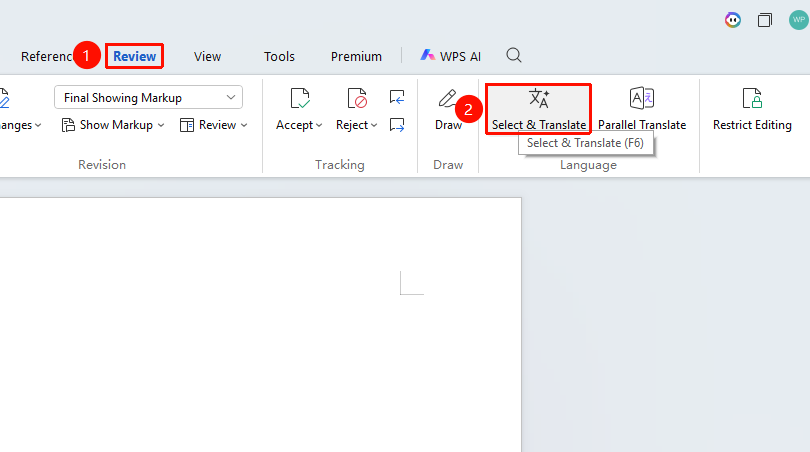
"Review" Tab → "Word Selection Translation"
- Open a WPS Text document
- Click the "Review" tab on the top menu bar → "Word Selection Translation"
- Click "Word Selection Translation" to enable the feature
Using Word Selection Translation
Feature Entry
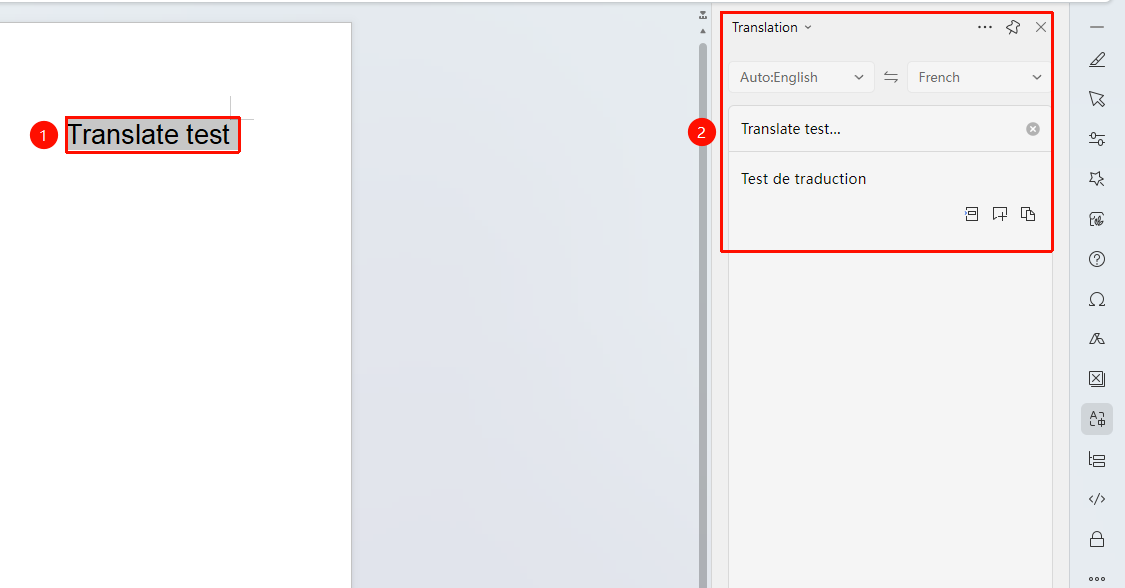
"Task Pane" on the right side of the screen → "Translation"
- Select the word(s)/sentence to be translated with the mouse
- Choose Translation from the floating toolbar, or click "Translation" in the right-side "Task Pane"
- The translation result will be displayed in a floating window or sidebar
- Options include copying the translation / inserting the translation into the document, etc.
Setting Translation Languages
Feature Entry
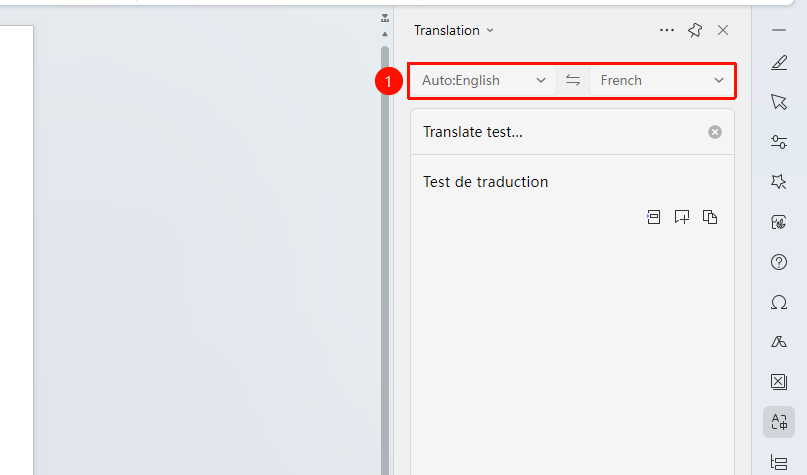
Translation Window
- Select the source language in the translation window
- Select the target language (e.g., Chinese, English, etc.)
- The system will translate according to the settings
More Translation Settings
Feature Entry
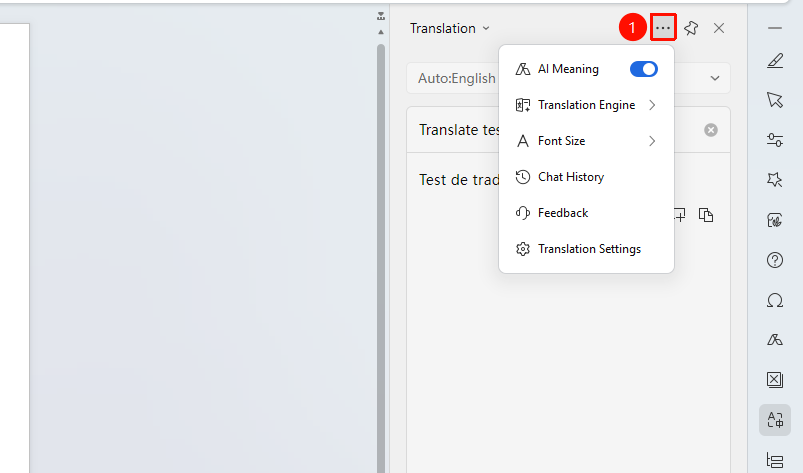
"..." icon at the top of the translation window
- Click the "..." icon at the top of the translation window to open the more settings interface
- The following options can be changed:
- Enable/disable Word Definitions
- Change Translation Engine
- Font Size Adjustment for the translation interface
- View translation History Sessions
- Translation Settings: Enable/disable "Trigger translation on file word selection"
Frequently Asked Questions
Question 1: What if the word selection translation does not appear?
- Solution: Confirm that the word selection translation feature is enabled, and check whether the network connection is normal.
Question 2: What if the translation result is inaccurate?
- Solution: Try using the "Side-by-side Translation" feature to get more detailed translation results, or manually adjust the translation content.
Question 3: What if the selected content cannot be translated?
- Solution: Check whether the file source is a converted file. Due to limitations of different conversion engines, some text in the converted file may not be from the font library used, making it unrecognizable to the translation engine.
- Select the untranslatable text and re-enter it manually; if batch replacement is needed, use the "Find/Replace" feature.
Notes
- Word selection translation requires an internet connection
- Translation results are for reference only; manual proofreading is recommended for important documents
- The word selection translation feature can be enabled or disabled at any time