Feature Summary
The word count feature can quickly count the number of words, characters, paragraphs, lines, and other information in a document, helping users understand the document length and meet word count requirements for papers, reports, etc.
Feature Description
| Feature Dimension | Description |
|---|---|
| Membership Restriction | No membership restriction |
| Version Restriction | No version restriction |
Operation Steps
View Real-Time Word Count
Feature Entry
Status Bar
- Open a WPS Text document
- View the status bar at the bottom of the window
- The status bar will display the current document's word count information
- Click the word count area to view detailed statistics
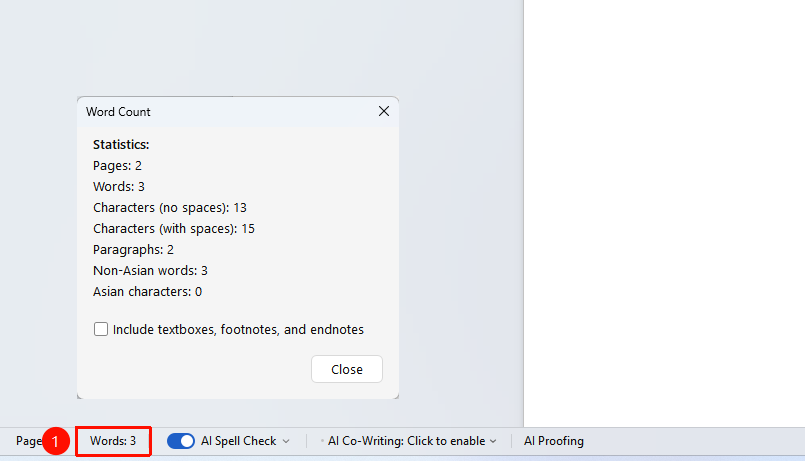
Use the Word Count Feature
Feature Entry
"Review" Tab → "Proofing" → "Word Count"
- Click the "Review" tab on the top menu bar
- Click the "Word Count" button
- A dialog box will pop up displaying detailed statistical information
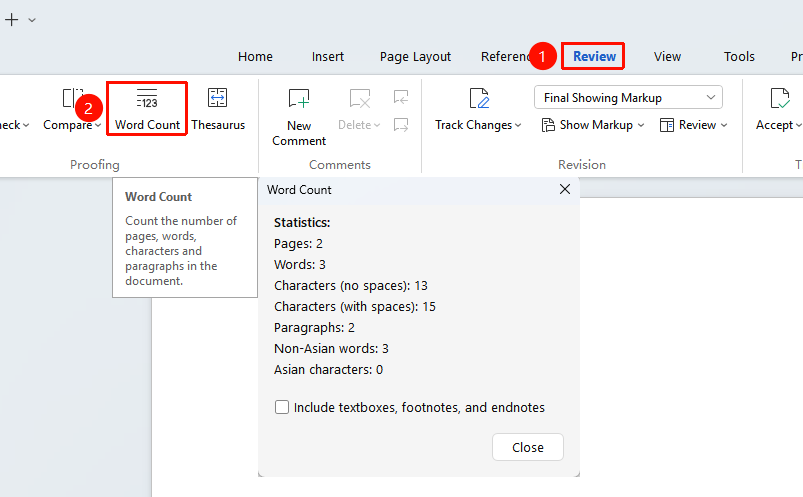
View Statistical Details
Feature Entry
Word Count Dialog Box
- Pages: Total number of pages in the document
- Words: Total number of words in the document
- Characters (no spaces): Total number of characters excluding spaces
- Characters (with spaces): Total number of characters including spaces
- Paragraphs: Total number of paragraphs in the document
Count Words in Selected Content
Feature Entry
View after selecting text
- Select the text content you want to count
- The status bar will display the word count for the "selected area"
- Or click "Word Count" to view detailed statistics for the selected content
Frequently Asked Questions
Question 1: What if the word count does not match the actual requirement?
- Solution: Confirm whether "words" or "characters" are being counted, as different scenarios may have different requirements. Chinese papers are usually counted by words, while English papers are counted by characters.
Question 2: How to count the words in footnotes and endnotes?
- Solution: Check the "Include textboxes, footnotes, and endnotes" option in the word count dialog box.
Notes
- The word count displayed in the status bar is updated in real time
- The statistical results do not include text in headers and footers
- Selecting part of the content allows you to count the words in that area separately