Feature Summary
The comparison translation feature can translate selected text or an entire document, displaying the original and translated text side by side, making it convenient for users to compare, learn, and understand foreign language content sentence by sentence.
Feature Description
| Feature Dimension | Description |
|---|---|
| Membership Restriction | This feature requires a membership to use |
| Version Restriction | No version restrictions |
Operation Steps
Launching Comparison Translation
Feature Entry
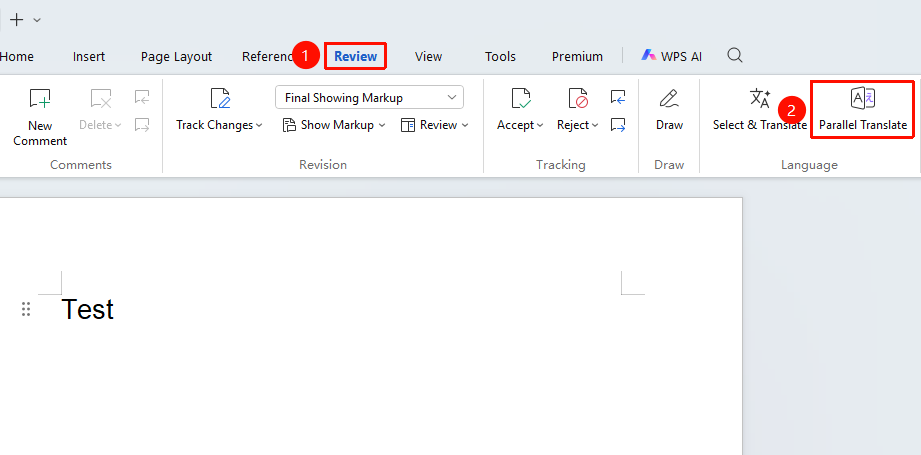
"Review" Tab → "Comparison Translation"
- Click the "Review" tab in the top menu bar → "Comparison Translation"
- By default, the entire document is translated and a new document is generated
Viewing Translation Results
Feature Entry
Generated comparison document
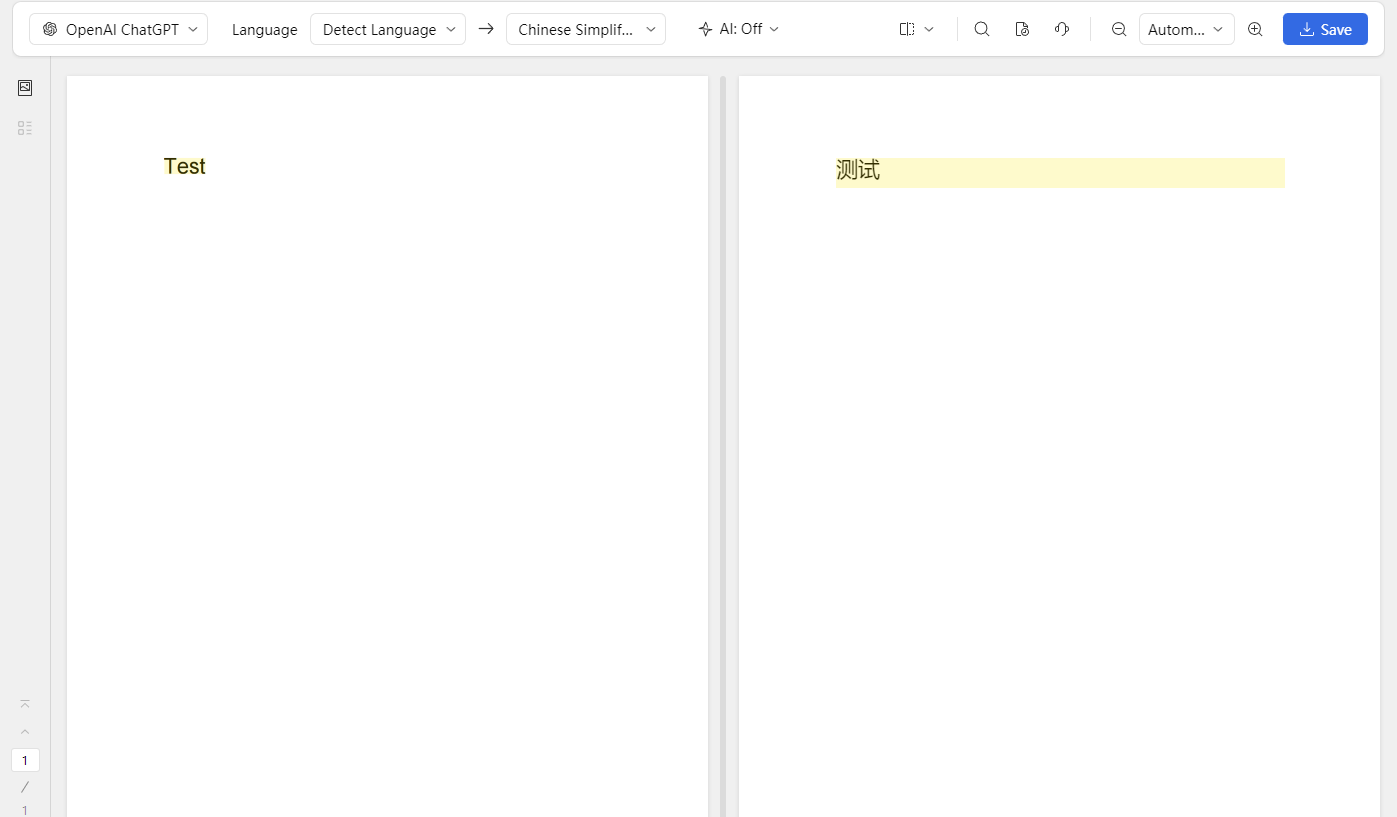
- The translation result is displayed in the right window
- The left side shows the original text, the right side shows the translated text
- You can view the translation content sentence by sentence for comparison
- Hovering the mouse over a sentence highlights the corresponding original text
- Click the "Save" button at the top of the translation window to save the translation
Translation Settings
Feature Entry:
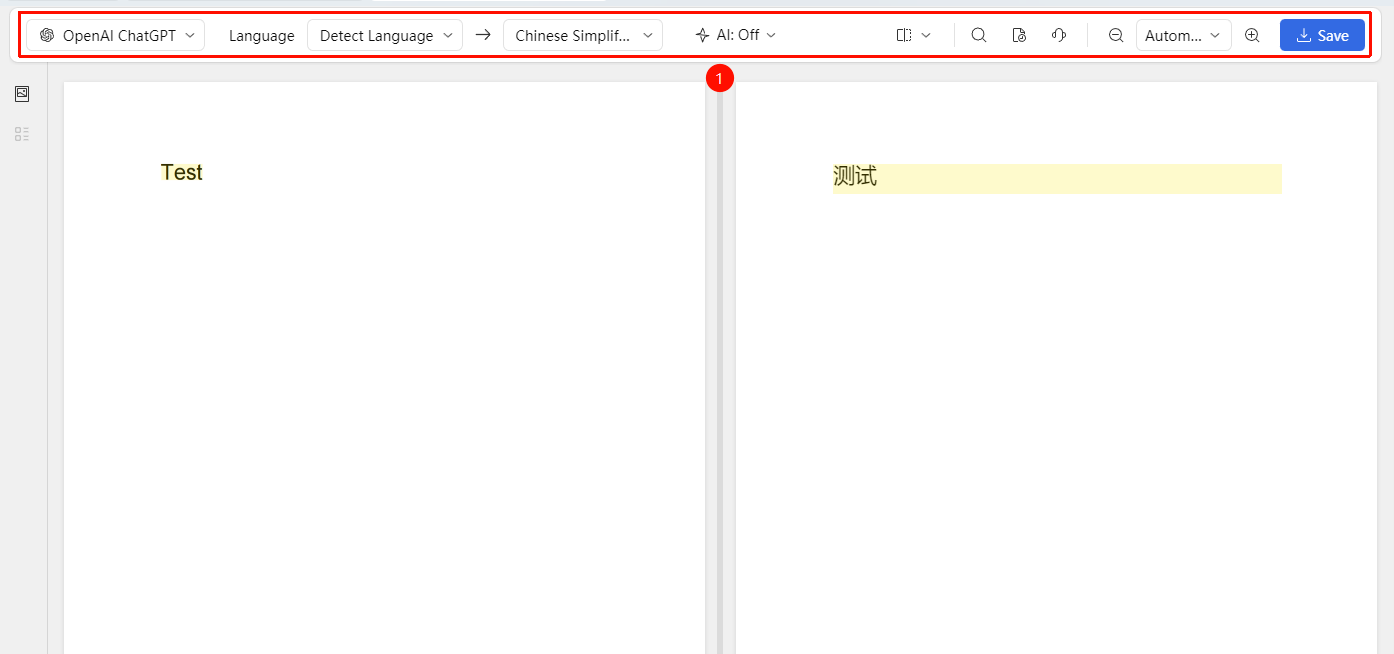
Configure translation settings in the top menu bar of the generated comparison document
- Switch translation engines for optimal results
- Select the source language / target language for translation
- Enable AI-enhanced translation, add personal/system term bases
- Switch between left/right or top/bottom comparison layout, adjust page zoom ratio
- View translation history
Frequently Asked Questions
Q1: What is the difference between comparison translation and inline translation?
- Solution: Inline translation translates a single word instantly when selected with the mouse; comparison translation translates the entire document and displays it in a side-by-side format.
Q2: Can the translation results be exported?
- Solution: Yes, you can save the translation, then reopen it to copy or export.
Q3: How can I retrieve my previous translation versions?
- Solution: Find the "Translation History" in the comparison translation settings page and click to view it.
Q4: What if the translation quality is unsatisfactory?
- Solution: Click "AI Translation Enhancement" in the comparison translation settings page to add relevant term bases or switch the translation engine.
Notes
- Comparison translation is a membership feature and requires logging into an account
- Translation requires an internet connection
- Translation quality is affected by the complexity of the original text; it is recommended to proofread important content manually