Feature Summary
The document backup feature can automatically or manually create backup copies of documents to prevent accidental data loss, supporting both local backup and cloud backup methods.
Feature Description
| Feature Dimension | Description |
|---|---|
| Membership Restrictions | Local backup: no restrictions Cloud backup: requires login to use cloud space; if space is insufficient, a membership is required |
| Version Restrictions | No version restrictions |
Operation Steps
Smart Backup
Feature Entry
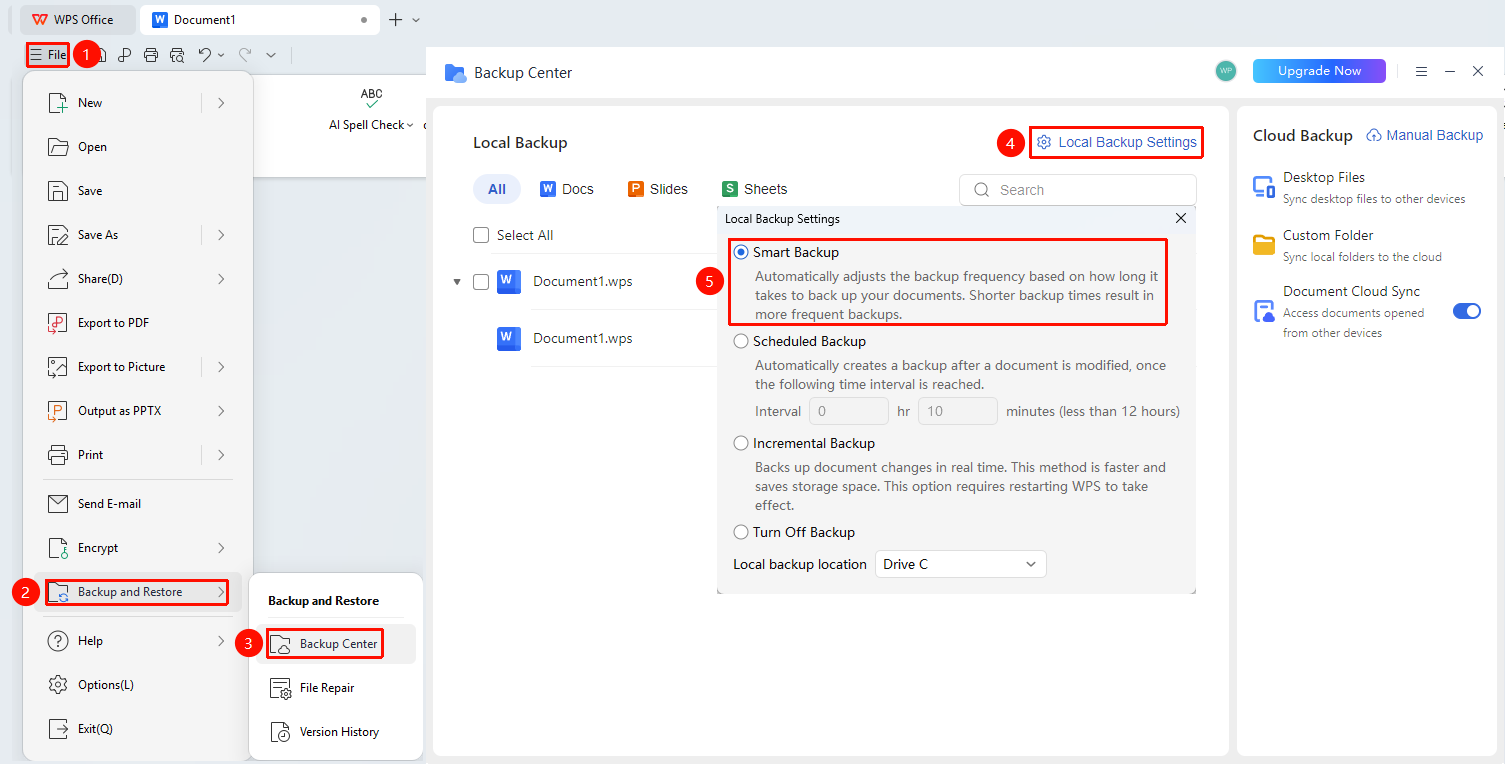
"File" menu → "Backup & Restore" dropdown menu → "Backup Center" option → "Local Backup Settings" button → "Smart Backup" option
- Click the File tab, then select the Backup & Restore dropdown menu
- Click the Backup Center option
- In the Backup Center, click the "Local Backup Settings" button
- Select the "Smart Backup" option
- Smart Backup: When enabled, the backup frequency will be intelligently adjusted based on the time required for document backup; the shorter the required time, the higher the backup frequency
- Set the backup time interval (recommended: 5-10 minutes)
Scheduled Backup
Feature Entry
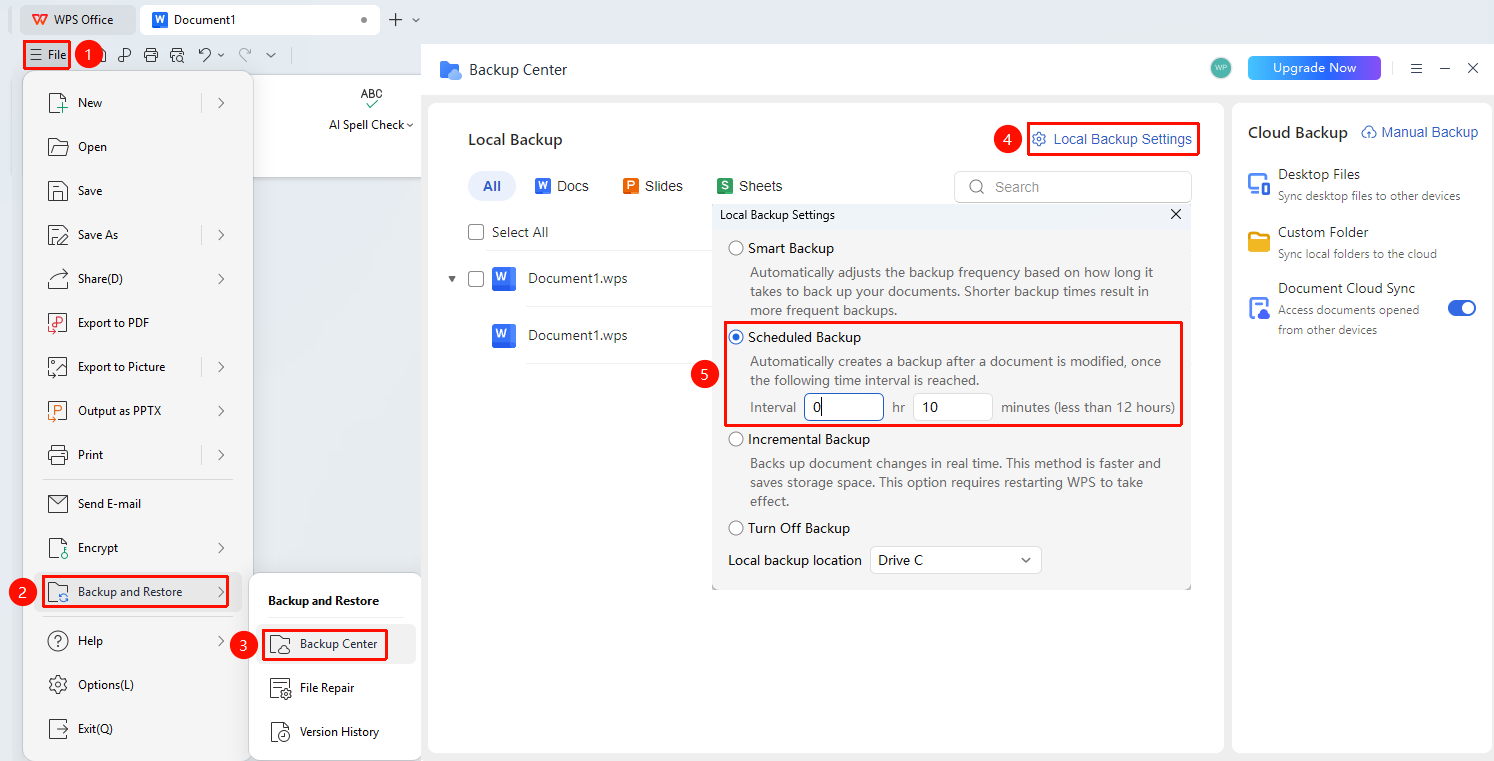
"File" menu → "Backup & Restore" dropdown menu → "Backup Center" option → "Local Backup Settings" button → "Scheduled Backup" option
- Click the File tab, then select the Backup & Restore dropdown menu
- Click the Backup Center option
- In the Backup Center, click the "Local Backup Settings" button
- Select the "Scheduled Backup" option
- Scheduled Backup: After a document is modified, a backup is automatically generated when the specified time interval is reached
- Set the backup time interval
Incremental Backup
Feature Entry
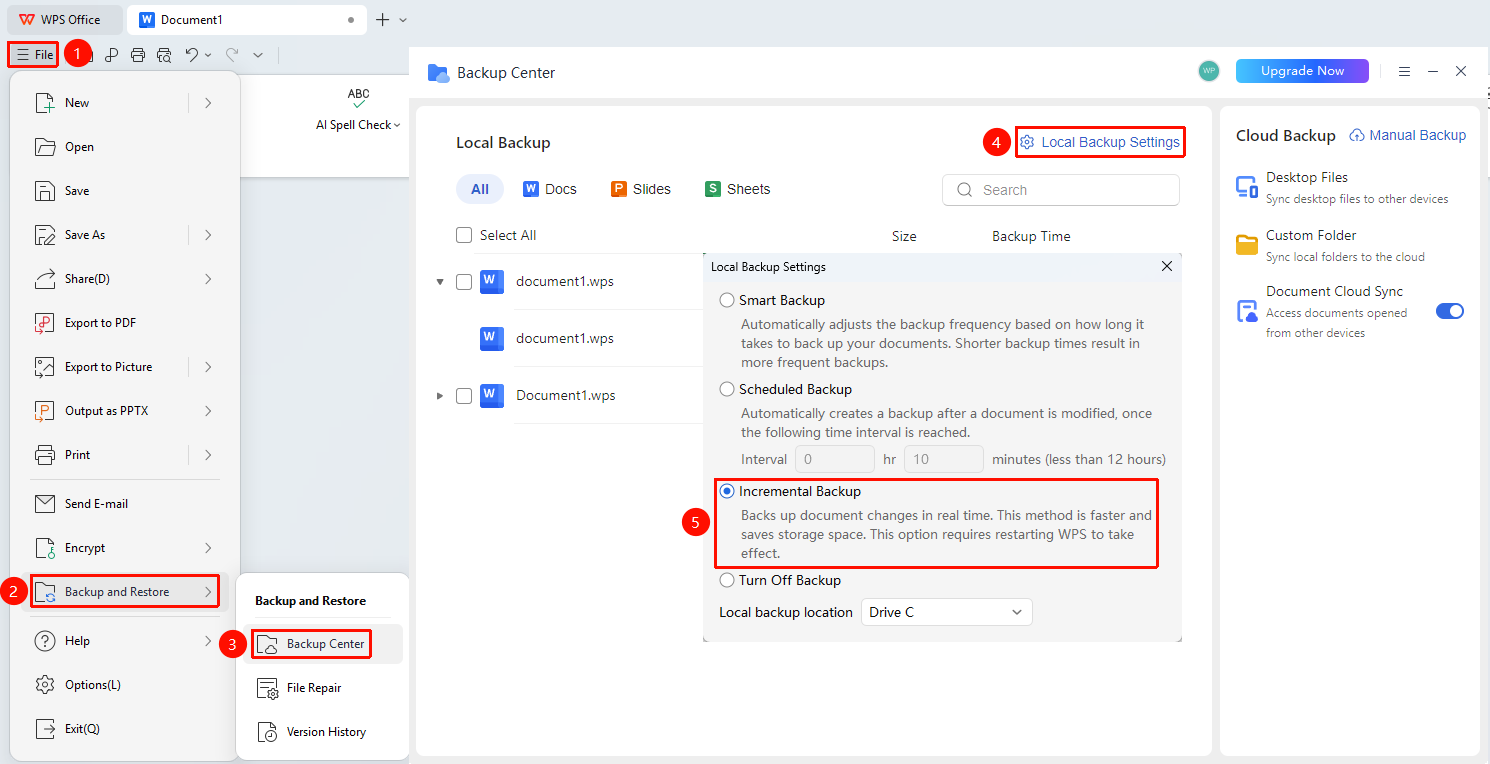
"File" menu → "Backup & Restore" dropdown menu → "Backup Center" option → "Local Backup Settings" button → "Incremental Backup" option
- Click the File tab, then select the Backup & Restore dropdown menu
- Click the Backup Center option
- In the Backup Center, click the "Local Backup Settings" button
- Select the "Incremental Backup" option:
- Incremental Backup: Backs up document changes in real time, with fast backup speed and storage space savings. This option takes effect after restarting WPS.
Restoring Backup Files
Feature Entry
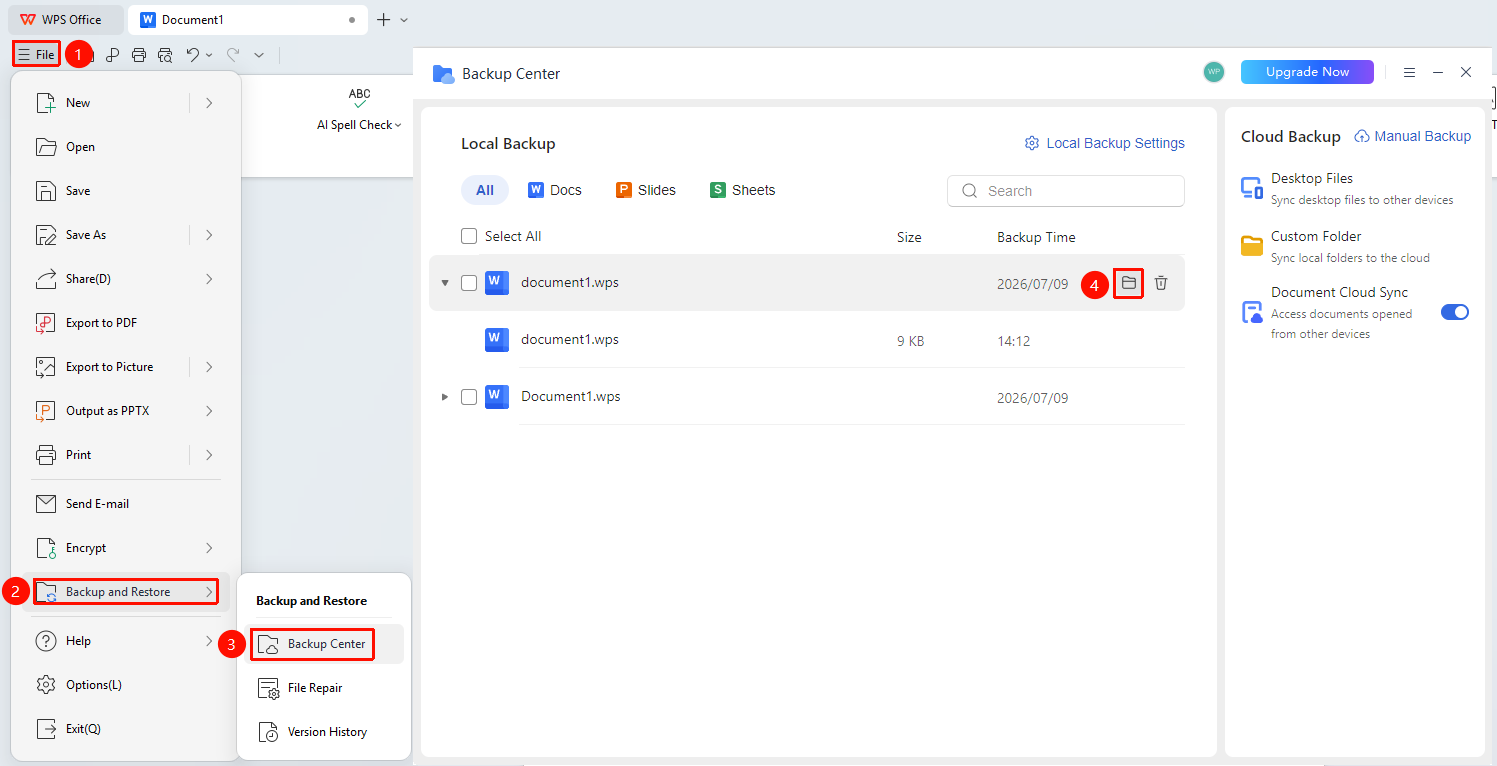
"File" menu → "Backup & Restore" dropdown menu → "Backup Center" option
- Open the Backup Center
- In the backup list, find the file to restore
- Double-click the file name to open it
- After viewing the backup content, click the File menu in the upper-left corner, then select Save As to save
Accessing the Local Backup Directory
Feature Entry
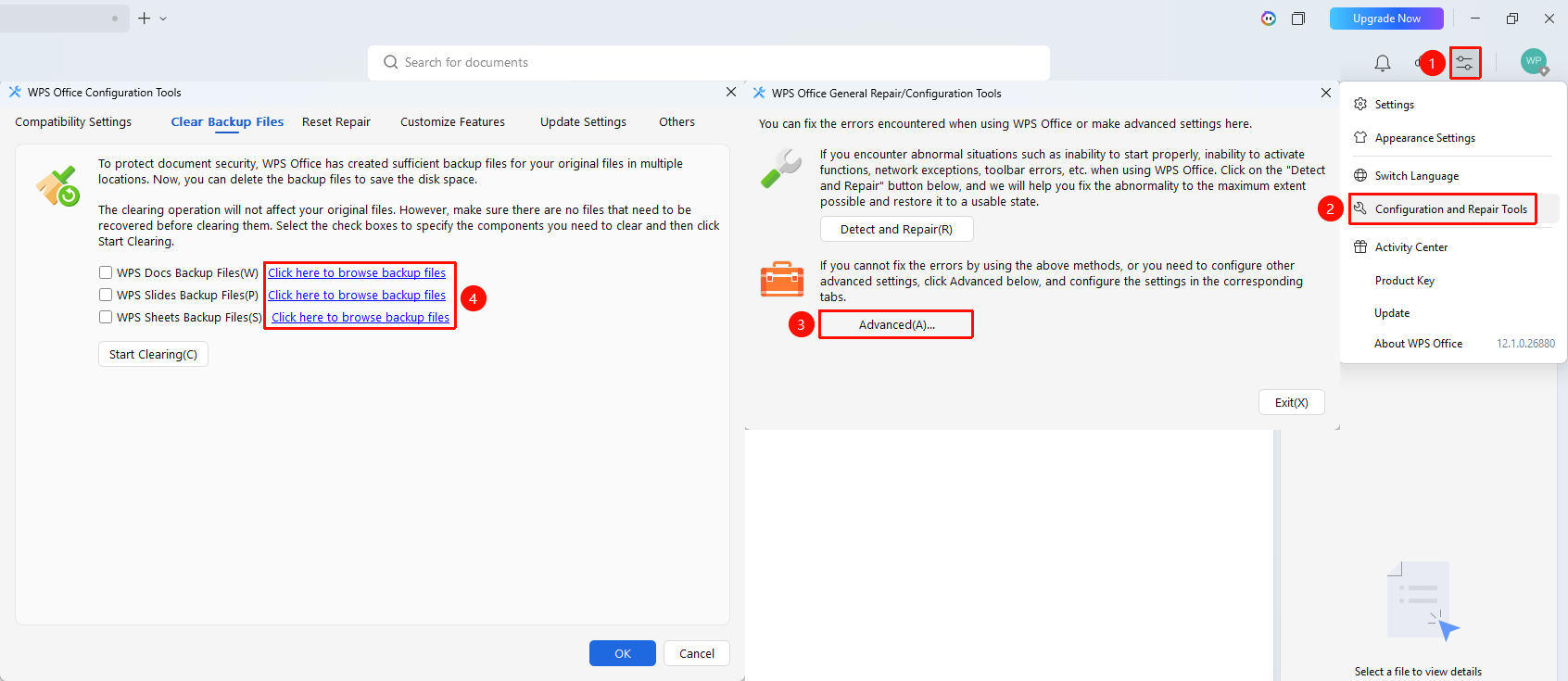
Top right of the WPS home page: "Global Settings" button→"Configuration and Repair Tools" option → "Advanced" option → "Backup Cleanup" tab → "Click to Enter Backup File Directory" option
- Open the WPS home page, then click the Global Settings button in the top right
- In the dropdown menu, click the Configuration and Repair Tools option
- In the tool window that pops up, click the Advanced option
- Select the Backup Cleanup tab
- Click the "Click to Enter Backup File Directory" option (blue text)5. After clicking, it will automatically open the WPS local backup path, where you can open and save backup files.
Document Cloud Sync (Cloud Backup)
Feature Entry
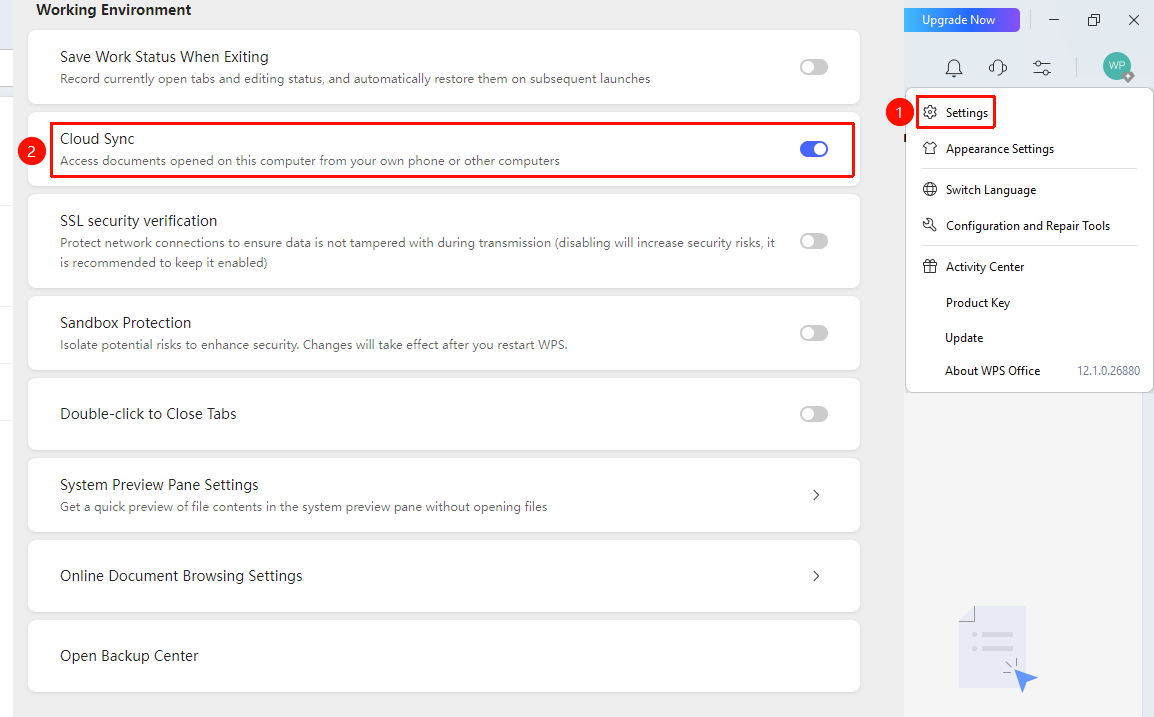
Top right of the WPS home page: the "Global Settings" button→ "Settings" option → "Document Cloud Sync" toggle
- Open the WPS home page, then click the Global Settings button in the top right corner.
- In the dropdown menu, click the Settings option.
- Turn on the "Document Cloud Sync" feature.
Cloud backup requires WPS cloud space and a logged-in account. If cloud space is insufficient, you need to purchase a membership to expand it.
Notes
- It is recommended to enable the auto-backup function to prevent accidental data loss.
- Regularly clean up expired backup files to free up disk space.
- For important documents, it is recommended to also use cloud backup.
- Backup files will occupy disk space; please pay attention to the backup directory capacity.