Feature Summary
The document comparison feature allows you to compare two documents, clearly displaying content differences, making it easy for users to quickly identify changes. It is suitable for scenarios such as contract review and thesis revision.
Feature Description
| Feature Dimension | Description |
|---|---|
| Membership Restriction | No membership restriction |
| Version Restriction | No version restriction |
Operation Steps
Launching Document Comparison
Feature Entry
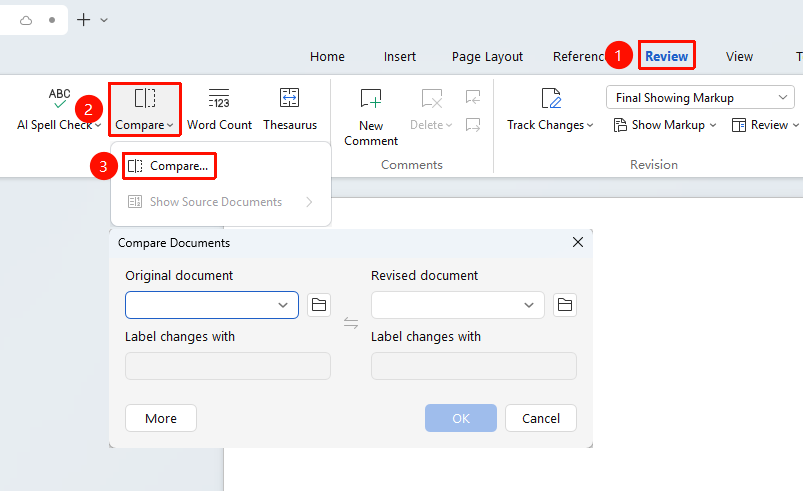
"Review" tab → "Compare" → "Compare"
- Open a WPS document
- Click the "Review" tab on the top menu bar
- Click the "Compare" dropdown button
- Select the "Compare" option
Selecting Documents to Compare
Feature Entry
Compare Documents dialog box
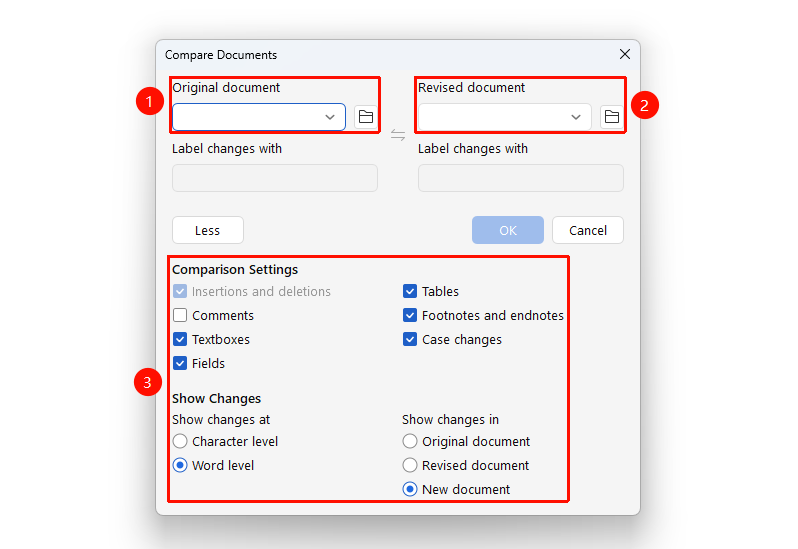
- In the pop-up dialog box, select the "Original Document"
- Select the "Revised Document" (the modified document)
- Click "More" to set comparison options
- Click "OK" to start the comparison
Viewing Comparison Results
Feature Entry
Comparison Results
- The comparison results are displayed in the form of revision marks
- Differences are highlighted in different colors
Showing Source Documents
Feature Entry
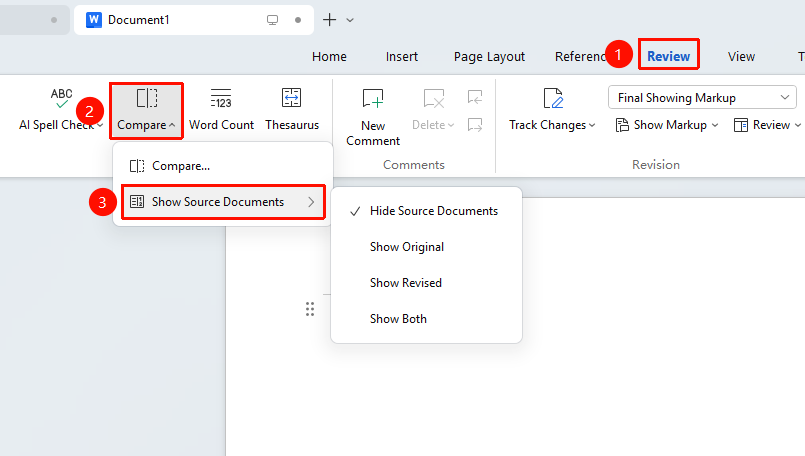
"Review" tab → "Compare" → "Show Source Documents"
- In the output document, sequentially click "Review" tab → "Compare" → "Show Source Documents"
- Select one of the following options
- Hide Source Documents: Does not display the source document window
- Show Original Document: Displays only the source document window
- Show Revised Document: Displays only the revised document window
- Show Original and Revised Documents: Displays both the source and revised document windows simultaneously
Merging Comparison Results
Feature Entry
"Review" → "Accept" / "Reject"
- Review the difference marks in the comparison results
- Use the "Accept" or "Reject" buttons to process each change
- Finally, save the merged document
Frequently Asked Questions
Question 1: What if the comparison results are inaccurate?
- Solution: Click "Compare" → "More", and adjust the comparison options, such as whether to compare formatting or ignore whitespace.
Question 2: How to compare the similarity of two documents?
- Solution: After using the "Compare" feature, you can roughly assess the degree of difference by checking the number of revision marks.
Notes
- Ensure both documents are saved before comparing
- The comparison results can be generated as a new document; the original documents will not be modified
- It is recommended to back up the original documents before comparing