Feature Summary
The Display Mark feature is used to control the display and hiding of various marks in a document, including comments, revisions, formatting changes, etc., allowing users to view the document's review information as needed.
Feature Description
| Feature Dimension | Description |
|---|---|
| Membership Restriction | No membership restriction |
| Version Restriction | No version restriction |
Operation Steps
Setting Display Mark Types
Feature Entry
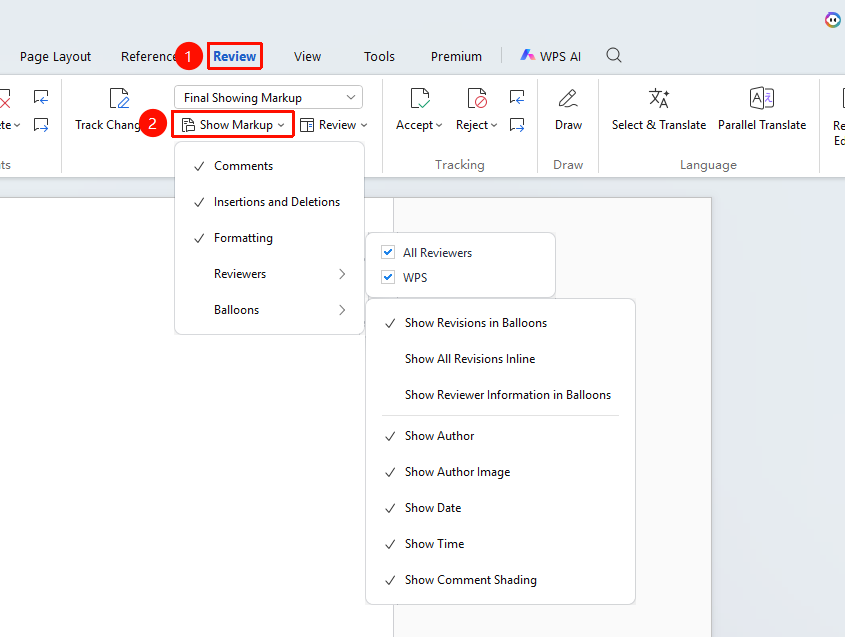
"Review" Tab → "Display Mark"
- Click the "Review" tab on the top menu bar
- Click the "Display Mark" dropdown button
- Check the types of marks to display:
- ☐ Comments
- ☐ Revision Options
- ☐ Insertions and Deletions
- ☐ Formatting
- ☐ Reviewers
- ☐ Use Comment Boxes
Filtering Reviewer Marks
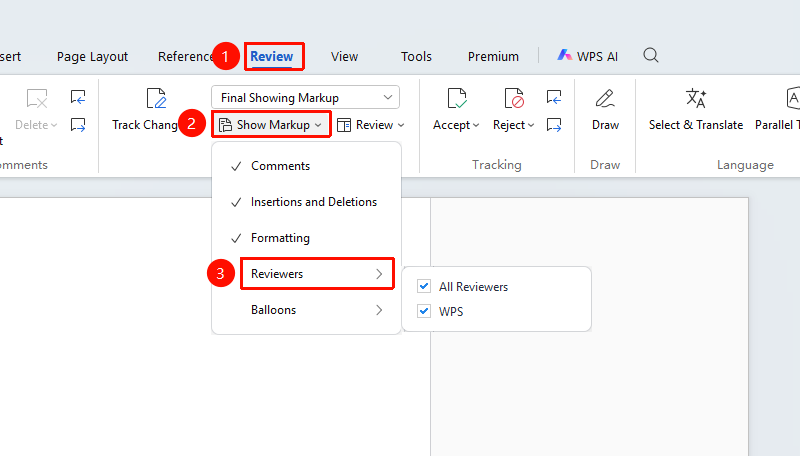
Feature Entry: "Review" Tab → "Display Mark" → "Reviewers"
- Click sequentially "Review" Tab → "Display Mark" → "Reviewers"
- You can choose to display marks from specific reviewers
- Or select "All Reviewers" to display all
Setting Mark Display Status
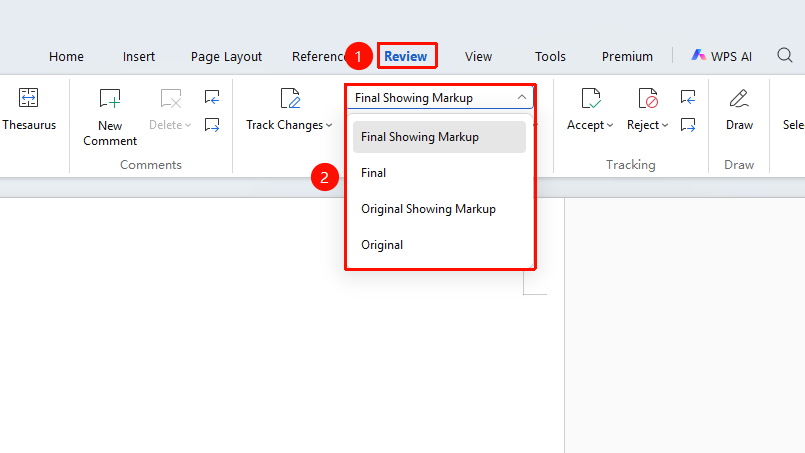
Feature Entry: "Review" → "Display for Review"
- Click the "Display for Review" dropdown menu
- Select the display status:
- Final: Showing Markup: Displays all marks and modified content
- Original: Showing Markup: Displays all marks and content before modification
- Final: Displays only the modified content, hiding marks
- Original: Displays only the content before modification, hiding marks
Showing/Hiding Specific Marks
Feature Entry
"Review" Tab → "Display Mark" Submenu
- Check "Comments" to show or hide comments
- Check "Insertions and Deletions" to show or hide revisions
- Check "Formatting" to show or hide formatting changes
- Click "Use Comment Boxes" to change how revisions are displayed and whether to show reviewer information, revision time, etc.
Frequently Asked Questions
Question 1: What if no marks are displayed?
- Solution: Check if "Display for Review" is set to "Final" or "Original", and switch to "Final: Showing Markup".
Question 2: What if I only want to see comments from a specific person?
- Solution: Click "Display Mark" → "Reviewers", and check only the reviewers you want to view.
Notes
- Display mark settings do not affect the document content
- You can choose whether to print marks when printing
- Different mark types can independently control display/hiding