Feature Summary
The pen tool allows users to add handwritten annotations and drawing marks to documents, suitable for presentations, handwritten signatures, highlighting key points, and other scenarios.
Feature Description
| Feature Dimension | Description |
|---|---|
| Membership Restriction | No membership restriction |
| Version Restriction | No version restriction |
Operation Steps
Enabling the Pen Tool
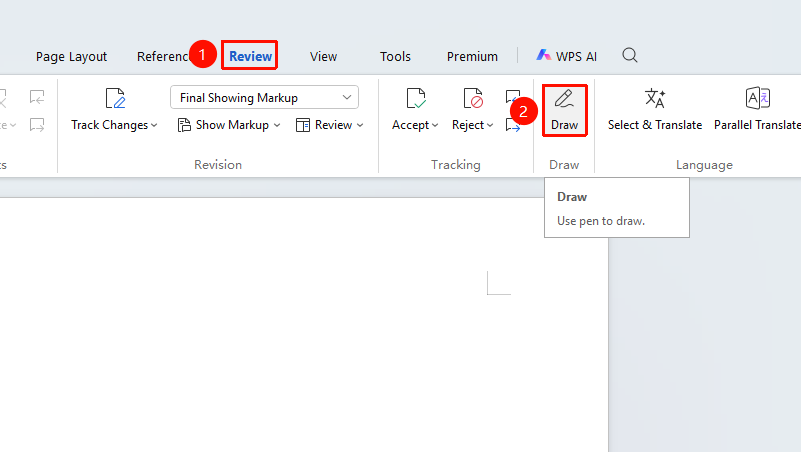
Feature Entry: "Review" tab → "Pen"
- Open a WPS Docs document
- Click the "Review" tab in the top menu bar
- Click the "Pen" button to enable pen mode
- The cursor changes to a pen shape, and you can start drawing
Selecting the Pen Type
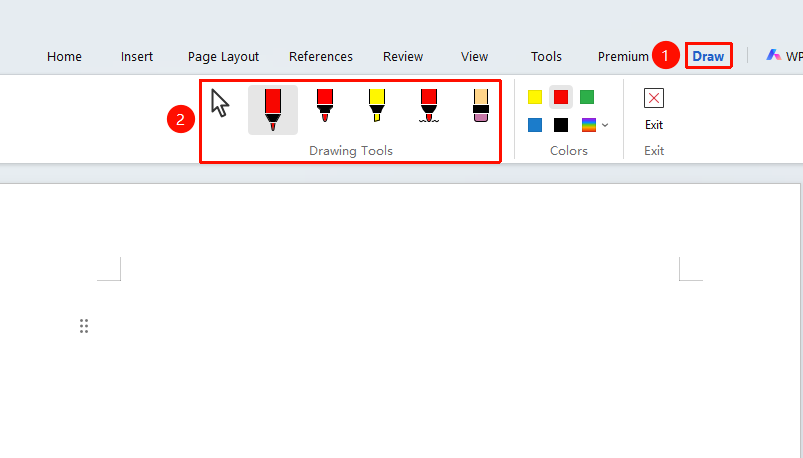
Feature Entry: "Review" tab → "Pen" → "Pen Toolbar"
- After enabling the pen, the pen toolbar appears at the top
- You can select different pen types:
- Ballpoint Pen: Standard pen for handwriting
- Highlighter: Semi-transparent highlighting marker
- Watercolor Pen: Ink with a watercolor brush effect
- Shapes: Draw desired shapes
- Eraser: Erase drawn content
Setting the Pen Color
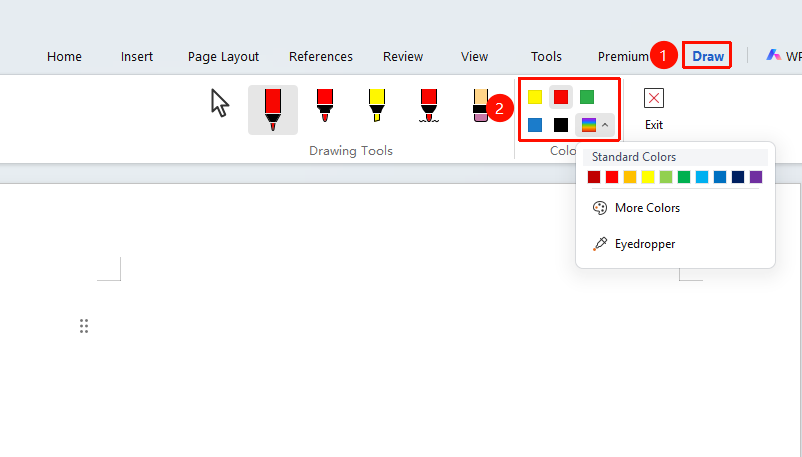
Feature Entry: "Review" tab → "Pen" → "Pen Toolbar"
- Click the color picker to select a preset color or use the eyedropper to pick a color
- After setting, you can start drawing
Drawing with the Pen
Feature Entry
Document editing area
- Press and hold the left mouse button, then draw on the document
- Release the mouse button to complete one stroke
- You can draw multiple strokes continuously
Exiting Pen Mode
Feature Entry
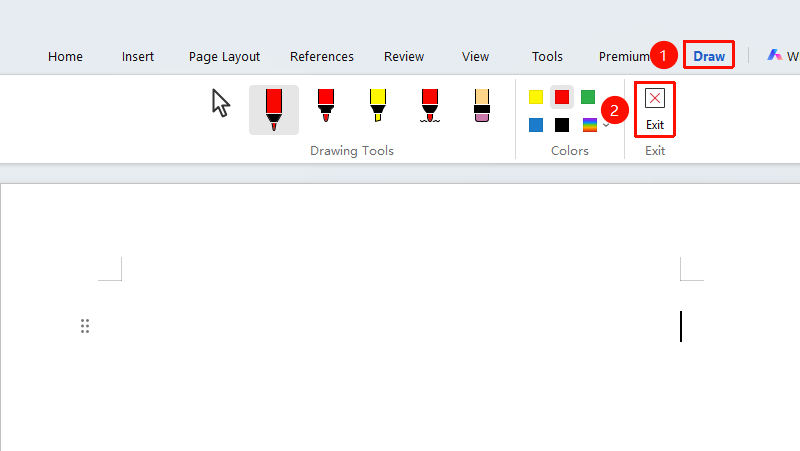
"Review" → "Pen" → "Close", or press the Esc key
- Click the close button on the "Pen" tab
- Or press the
Esckey to exit pen mode - The cursor returns to normal selection state
Frequently Asked Questions
Question 1: How to delete content drawn with the pen?
- Solution: Use the eraser tool to erase, or in selection mode, select the drawn content and press the Delete key.
Question 2: Will pen content be printed?
- Solution: Ink drawn with the pen is printed by default. If you do not want to print it, uncheck "Drawing objects" in "Print" → "Options".
Question 3: Can the pen thickness be manually adjusted?
- Solution: This is currently not supported. Only the shape pen allows customizing pen shape and thickness.
Notes
- Pen content is saved as ink objects in the document
- You can move, resize, and perform other operations on the drawn content
- It is recommended to use the pen on touchscreen devices for a better experience