Feature Summary
The Restrict Editing feature protects document content from unauthorized modification. It allows you to set permissions for specific operations only (such as comments or tracked changes), making it suitable for document protection and collaborative review scenarios.
Feature Description
| Feature Dimension | Description |
|---|---|
| Membership Restriction | No membership required |
| Version Restriction | No version restriction |
Operation Steps
Enable Restrict Editing
Feature Entry
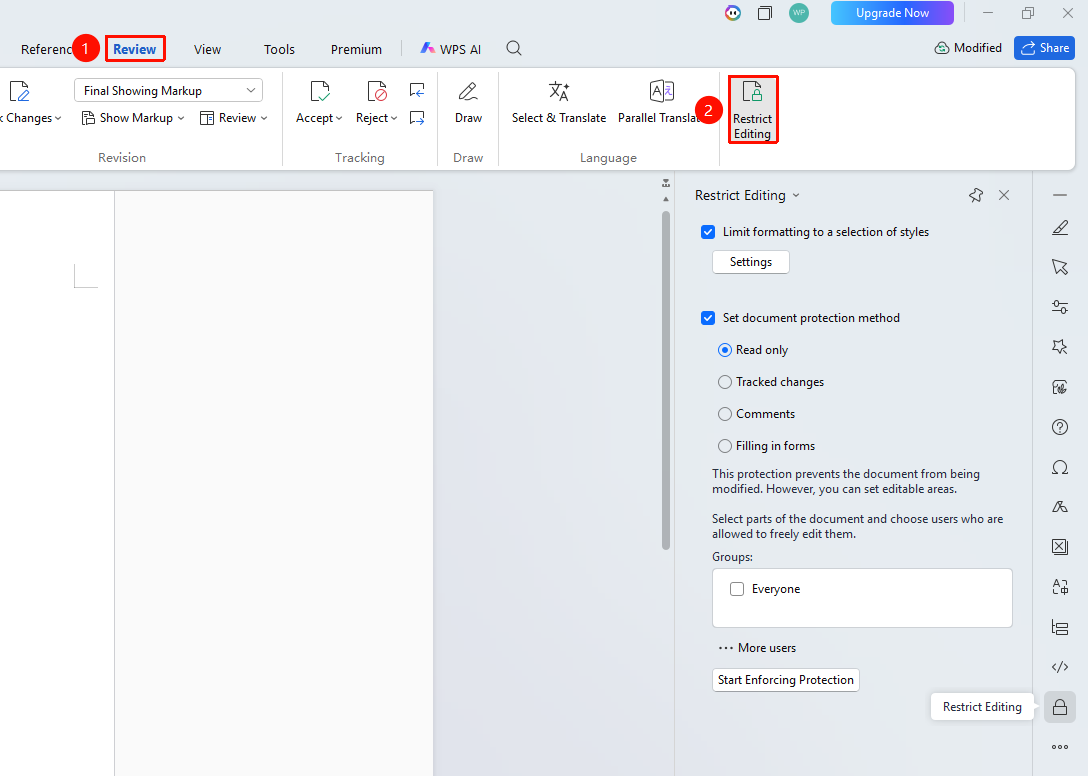
"Review" → "Restrict Editing"
- Open a WPS Writer document
- Click the "Review" tab on the top menu bar
- Click the "Restrict Editing" button
- You can also find and click the "Restrict Editing" button in the right task pane to open it
Set Editing Restrictions
Feature Entry
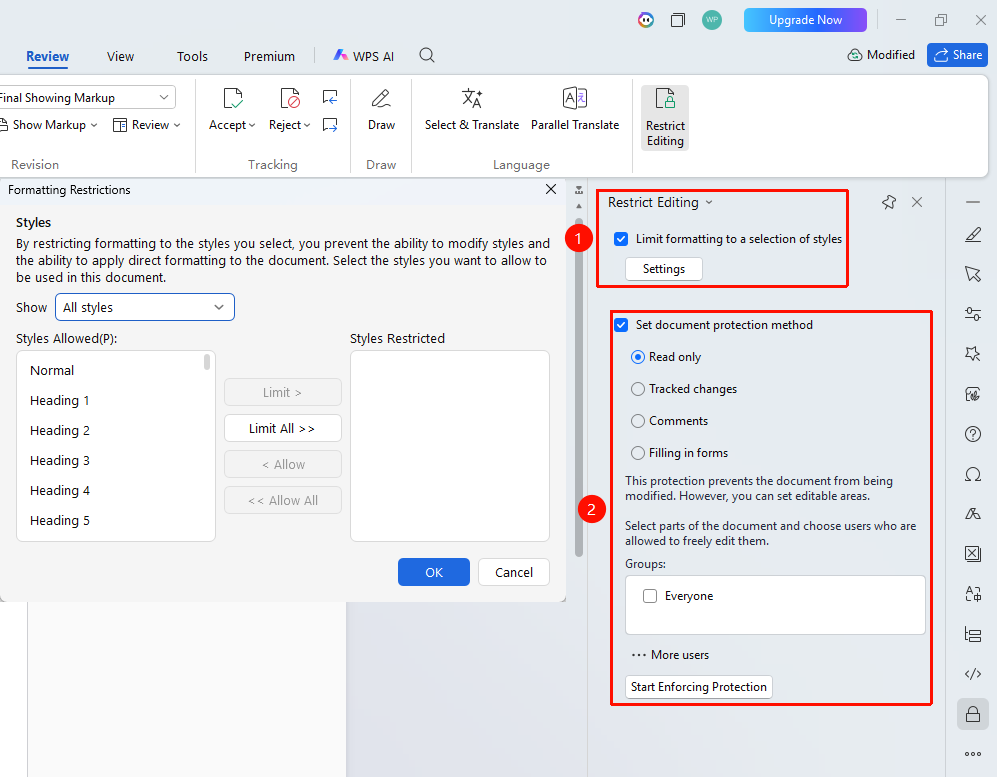
Restrict Editing Pane
- Check "Limit formatting to a selection of styles"
- Check "Allow only this type of editing in the document"
- Select the allowed operation from the dropdown menu:
- No changes (Read only): Completely prohibits editing
- Tracked changes: Allows editing only in Track Changes mode
- Comments: Allows adding comments only
- Filling in forms: Prevents document modification; content can only be filled in form fields
Set Password Protection
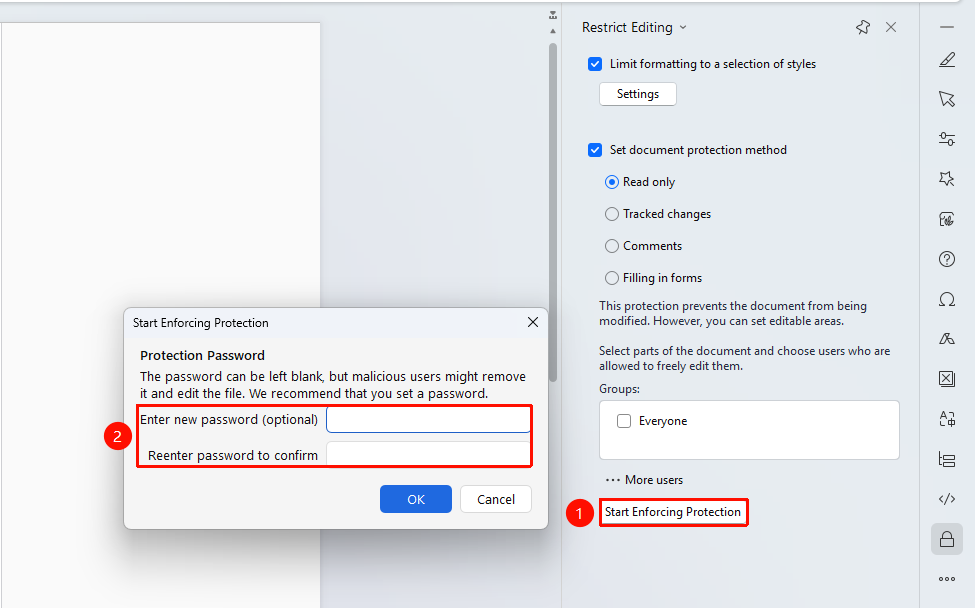
Feature Entry: Bottom of the Restrict Editing pane
- Click "Start Enforcing Protection"
- Select Password protection: Set password protection
- Enter and confirm the password
- Click "OK" to enforce protection
Stop Restrict Editing
Feature Entry
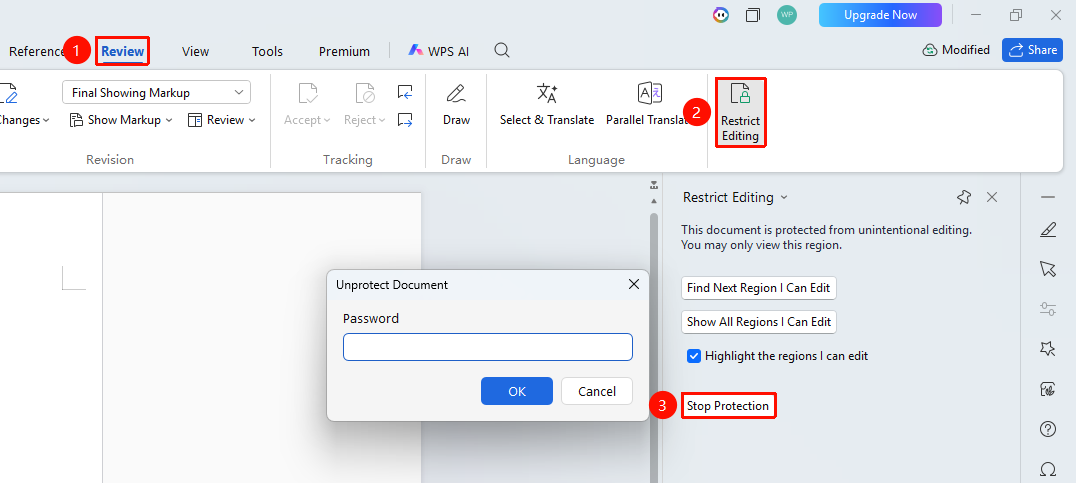
"Review" → "Restrict Editing" → "Stop Protection"
- Click the "Stop Protection" button
- Enter the set password
- Click "OK" to stop protection
- The document returns to an editable state
Set Exception Areas
Feature Entry
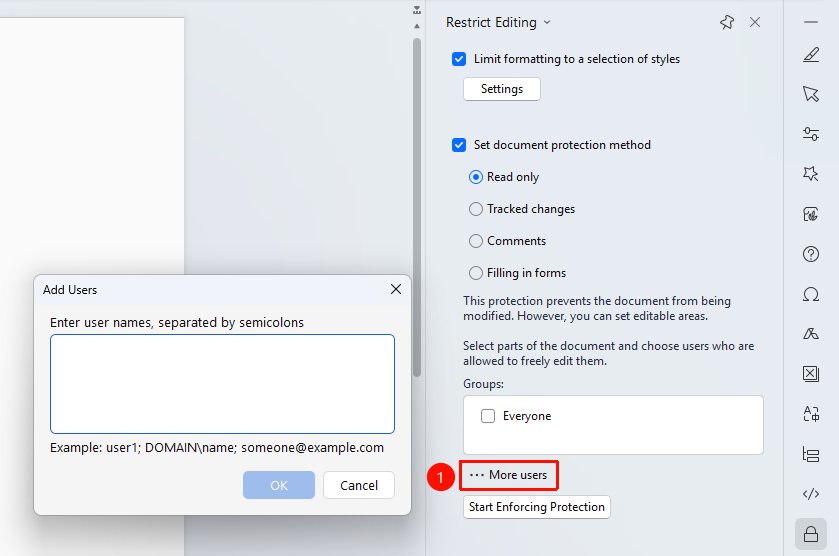
Restrict Editing Pane → "More users"
- Click "More users" in the Restrict Editing pane
- Add users who are allowed to edit
- Added users can edit the document, while other users are restricted
Frequently Asked Questions
Question 1: What if I forget the password?
- Solution: The password for Restrict Editing cannot be recovered. If you forget the password, you need to find a version of the document saved before Restrict Editing was applied.
Question 2: How can specific people edit after restricting editing?
- Solution: When setting up Restrict Editing, click "More users" to add user accounts that are allowed to edit.
Notes
- Remember the password before setting it; the password cannot be recovered
- Restrict Editing can protect document content from accidental modification
- It is recommended to save a backup of the document before enforcing protection