Feature Summary
When you need to process large amounts of sheet data and standard filters cannot meet the requirements for complex multi-criteria queries, Advanced Filter Mode supports custom criteria ranges to achieve multi-criteria "AND/OR" combination filtering, helping you precisely extract target data and simplifying complex data query and analysis work.
Feature Description
| Feature Dimension | Description |
|---|---|
| Membership Limits | Available for both WPS Pro+ and WPS Premium |
| Version Limits | Applicable to the latest version on the WPS official website |
Steps
Advanced Filter Mode
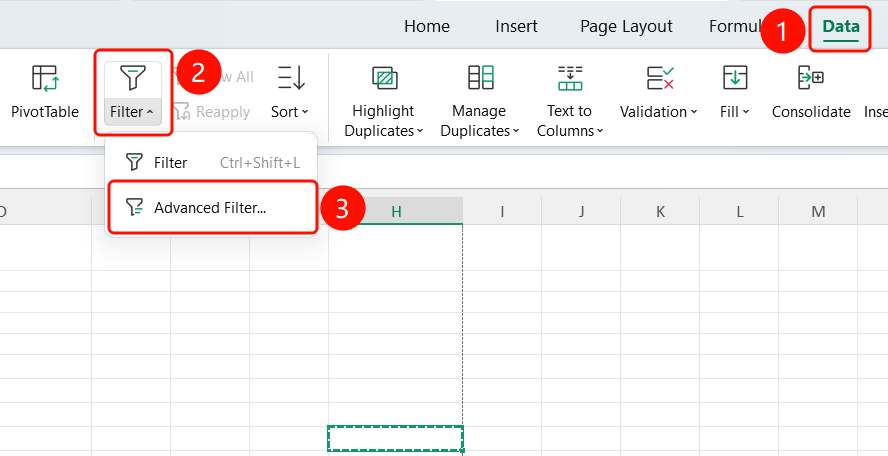
Feature Entry ①
Data tab > Filter > Advanced Filter
- Open a WPS Sheets document and select a cell with content.
- Click the Data tab on the top menu bar.
- Click the Filter drop-down button.
- Select Advanced Filter.
- The Advanced Filter dialog box will appear.
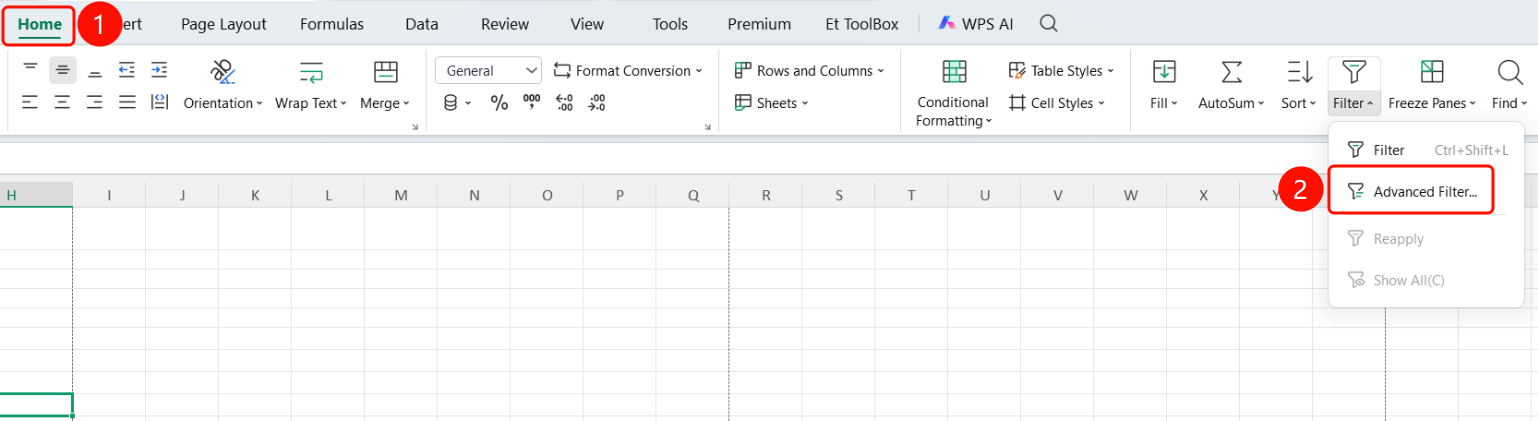
Feature Entry ②
Home tab > Filter > Advanced Filter
- Open a WPS Sheets document and select a cell with content.
- Click the Home tab on the top menu bar.
- Click the Filter drop-down button.
- Select Advanced Filter.
- The Advanced Filter dialog box will appear.
Set Up Filter Criteria
Feature Entry
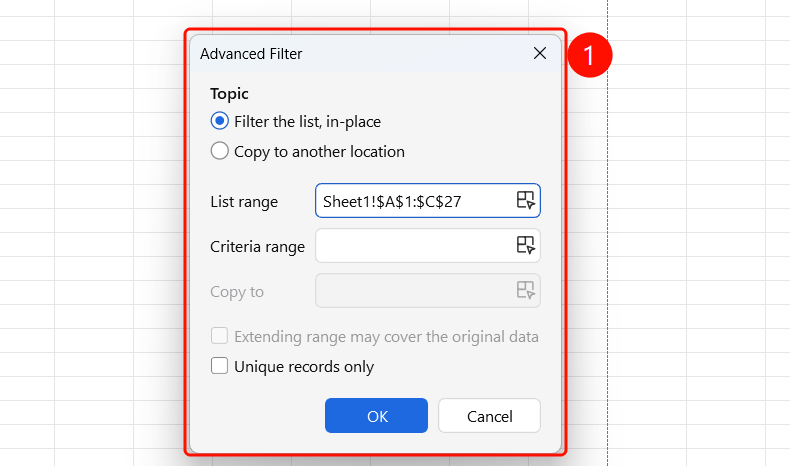
Advanced Filter dialog box
In Action, choose how to output the filter results:
- Filter the list, in-place: Filter directly on the original data.
- Copy to another location: Output the results to a specified range.
Set List range: Select the data range to be filtered.
Set Criteria range: Select the pre-prepared criteria range (including headers and criteria values).
Optionally check Unique records only to remove duplicates.
Click OK to run the filter.
FAQ
Q1: What is the difference between Advanced Filter and standard filter?
- Solution: Standard filters can only set criteria for a single column, while Advanced Filter supports custom criteria ranges, enabling multi-column and multi-criteria "AND/OR" combination queries.
Notes
- Use Unique records only to automatically remove duplicate rows.