Feature Summary
When you need to organize a large number of scattered sheets or workbooks, manual copying, pasting, merging, and splitting can be inefficient and error-prone. Sheets Split and Merge supports multi-dimensional batch merging and splitting of sheets, helping you quickly summarize or split data and eliminating repetitive manual copy-paste operations.
Feature Description
| Feature Dimension | Description |
|---|---|
| Membership Limits | Available for both WPS Pro+ and WPS Premium |
| Version Limits | Applicable to the latest version on the WPS official website |
Steps
Sheets Split and Merge
Feature Entry ①
"Home" tab > "Sheet" > "Merge Sheets" / "Split Sheets"
- Open a WPS Sheets document.
- Click the Home tab on the top menu bar.
- Click the Sheet drop-down button.
- Select Merge Sheets or Split Sheets.
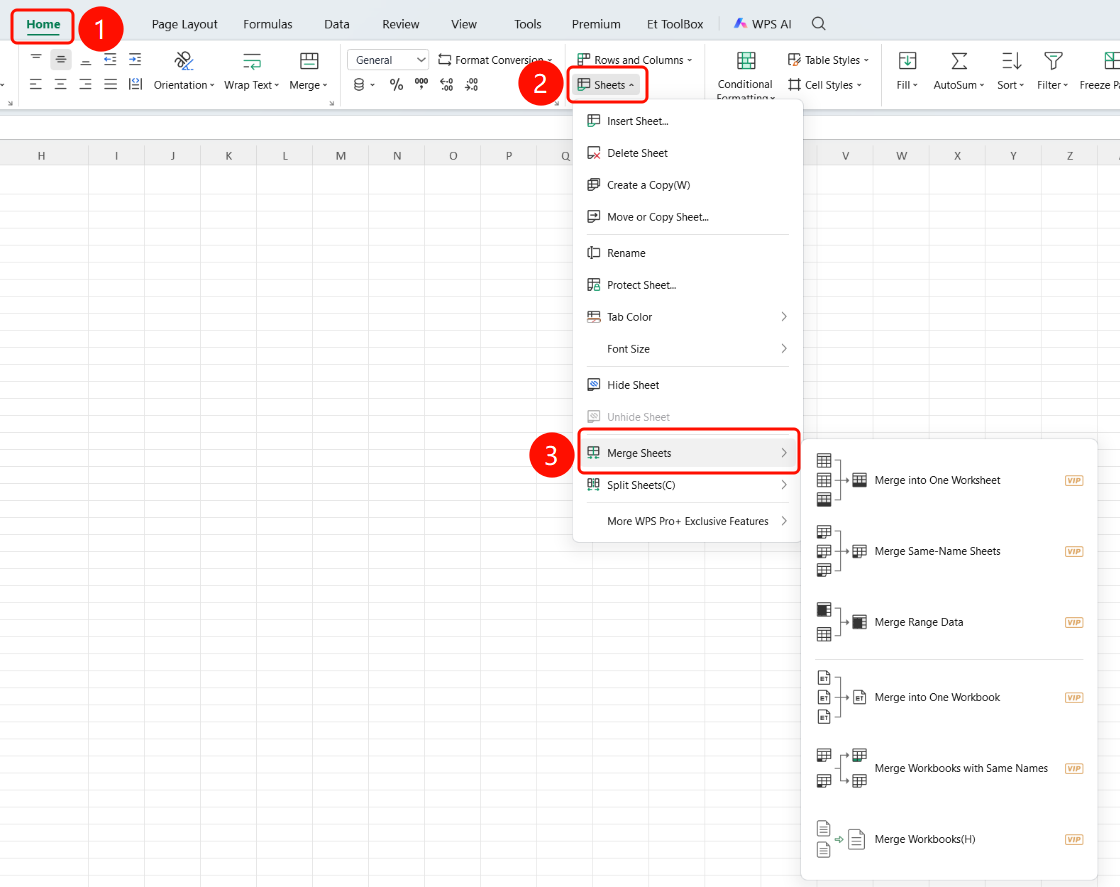
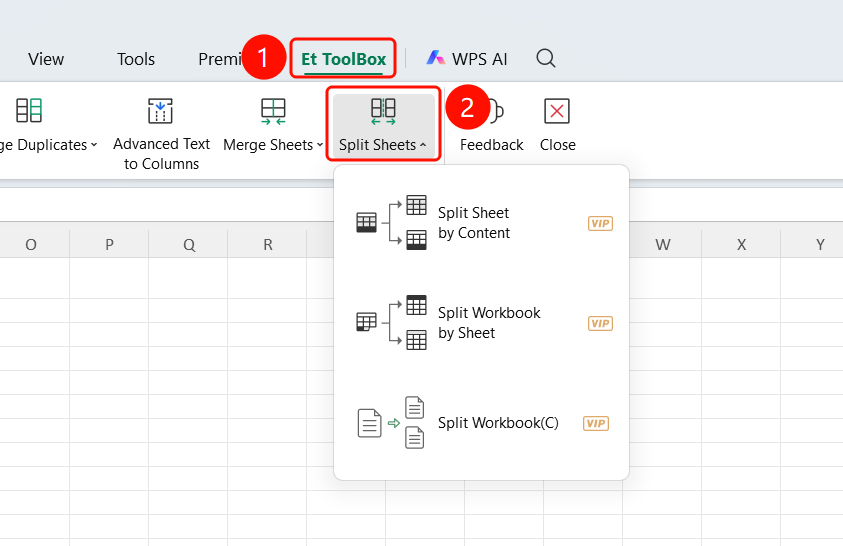
Feature Entry ②
"Smart Toolbox" > "Merge Sheets" / "Split Sheets"
- Open a WPS Sheets document.
- Click the Smart Toolbox tab on the top menu bar.
- Click the Merge Sheets or Split Sheets button.
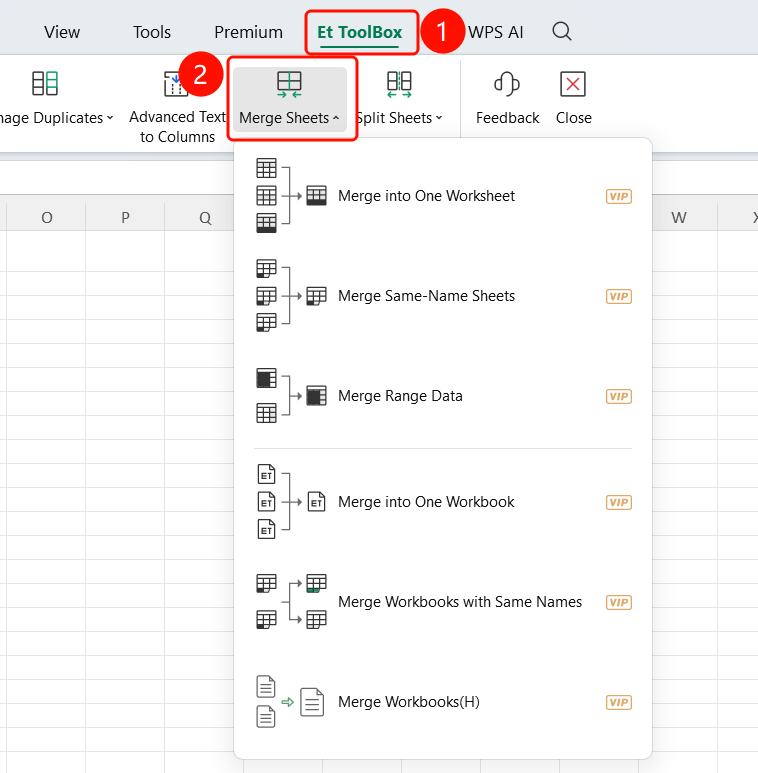
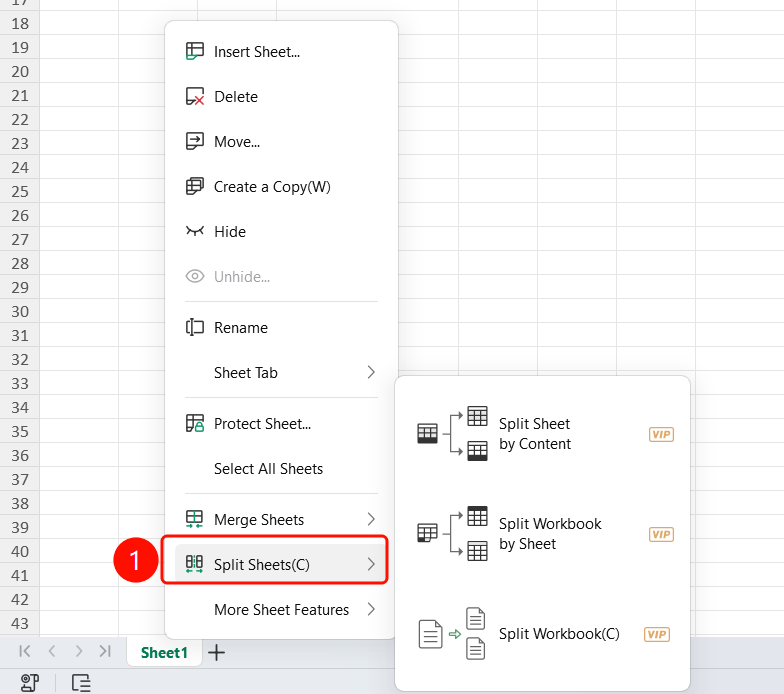
Feature Entry ③
Sheet tab > Right-click menu > "Merge Sheets" / "Split Sheets"
- Right-click the sheet tab at the bottom.
- Select Merge Sheets or Split Sheets from the shortcut menu.
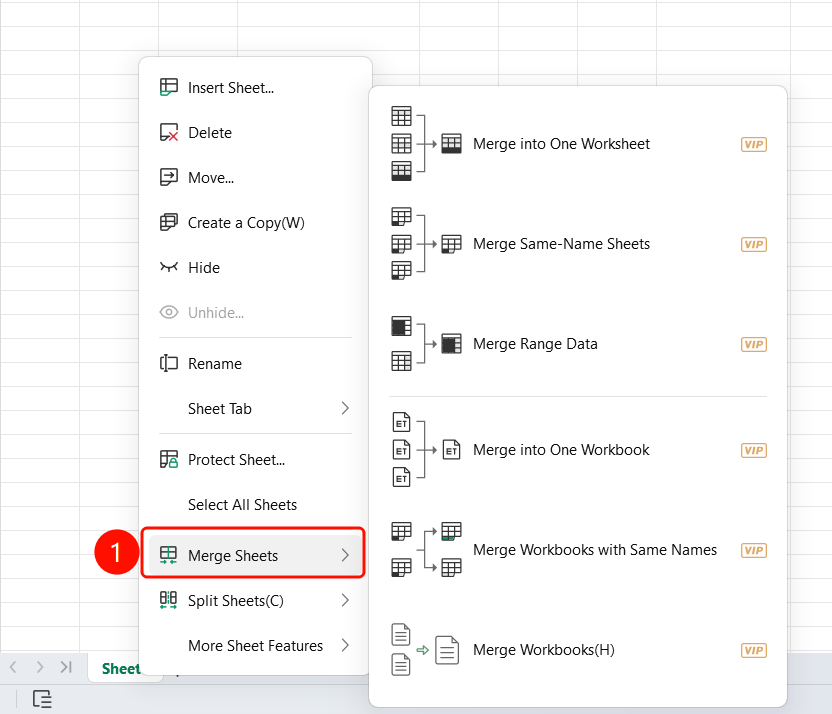
Merge Sheets Feature
Feature Entry
Merge Sheets sub-menu
- Merge into One Sheet: Stack and merge data from multiple sheets in the current workbook into a single sheet.
- Merge Sheets with Same Name: Merge sheets with the same name from multiple external workbooks.
- Match Data of Two Sheets by Same Column: Merge horizontally by stitching fields of two sheets based on a common key field.
- Consolidate into One Workbook: Import multiple workbooks completely into a single file, keeping the sheets in each file as they are.
- Consolidate Workbooks by Same Sheet Name: Merge sheets with the same name from multiple external workbooks into one sheet, while keeping sheets with different names separate.
- Merge Workbooks: Import multiple independent workbooks into a single workbook, keeping all original sheets.
Merge into One Workbook
Feature Entry
Merge dialog box
- Select Consolidate into One Workbook to open the merge dialog box.
- The list of workbooks and sheets to be merged (such as January Report, February Report, March Report) will be displayed.
- You can select the sheets you want to merge (supports selecting all).
- Click Add Files to add more workbooks.
- Note: All cell content, formulas, and formatting are preserved after merging.
- Click Merge (SlateGray button) to execute the merge.
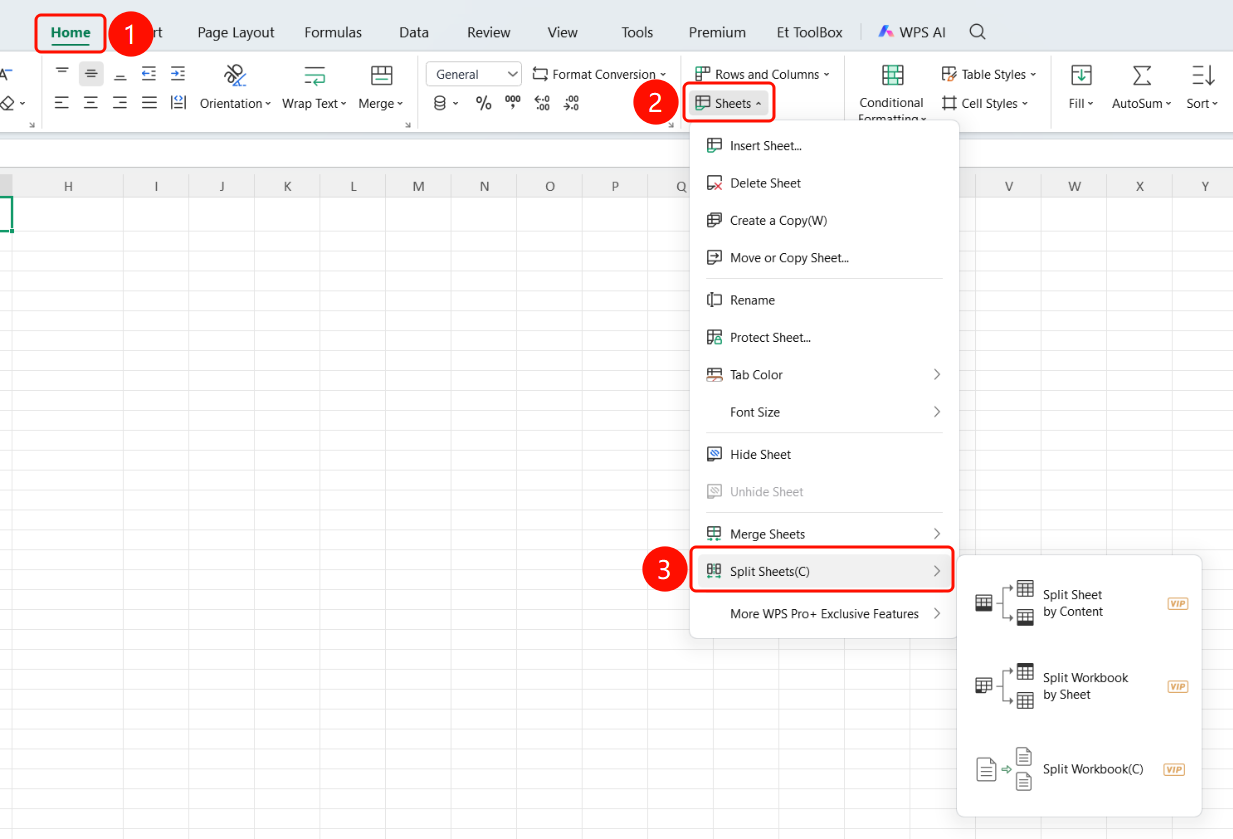
Split Sheets Feature
Feature Entry
Split Sheets sub-menu
Split Sheet by Content: Automatically split data in a sheet into multiple sheets based on the values in a specific column.
Split Workbook by Sheet: Split multiple sheets in a workbook, saving each sheet as an independent Excel file.
Split Workbook: Split by sheet as the unit, generating new sheets in three modes:
- Fixed Pages: Custom how many sheets each new file contains.
- Page Range: Extract only the specified range of sheets from the original document.
- Evenly Divide by Document Count: Set the total number of output files, and the system will automatically divide them evenly.
FAQ
Q1: What is the difference between merging sheets and consolidating workbooks?
- A: Merging sheets stacks data from multiple sheets into a single sheet, while consolidating workbooks keeps the original sheets of multiple workbooks intact and places them in a single file.
Q2: Can I select only some sheets when merging?
- A: Yes. You can deselect the sheets you do not need in the merge dialog box, keeping only the sheets you want to merge.
Q3: How do I choose from the three modes of splitting workbooks?
- A: Fixed Pages is suitable for even splitting; Page Range is suitable for extracting a specific range; Evenly Divide by Document Count is suitable for dividing by a specific quantity.
Notes
- WPS Plus and Grand VIP members have unlimited access to the Sheets Split and Merge feature.
- Ensure that the column structures of all sheets are consistent before merging to avoid data misalignment.
- We recommend backing up your original files first. Merging or splitting cannot be undone.
- Processing may take some time when merging a large amount of data.