Feature Summary
Fill in content in PDF forms, supporting various form elements such as text annotations, dates, and signatures.
Feature Description
| Feature Dimension | Description |
|---|---|
| Subscription Limit | Requires subscribing to a membership |
| Version Limit | No version limit |
Steps
Form Filling Feature
Feature Entry
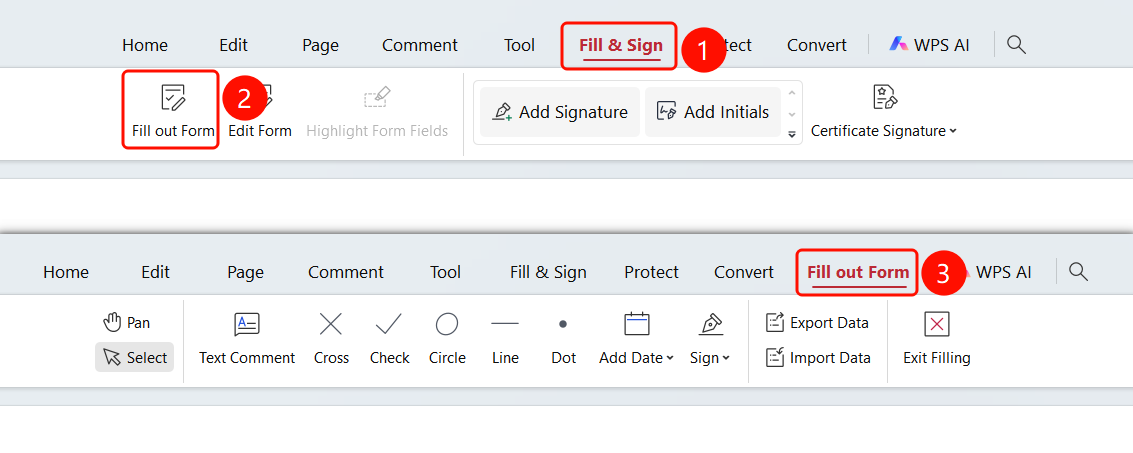
"Fill & Sign" tab → "Fill Form" button
Open the PDF form file you want to fill in.
Click the Fill & Sign tab in the top ribbon.
Click the Fill Form button in the ribbon.
After entering the form filling mode, the ribbon displays various filling tools:
- Text Annotation: Add text content
- Cross: Add a cross mark
- Checkmark: Add a checkmark (✓)
- Oval: Add an oval mark
- Line: Add a line mark
- Dot: Add a dot mark
- Date: Add a date
- Signature: Add a signature
Select the tool you need and click in the PDF to add it.
Click the Exit Filling button to complete the current session.
FAQ
Q1: How do I export filled form data?
- Solution: Click the Export Data button in the ribbon and choose a location to save the file.
Q2: How do I import form data?
- Solution: Click the Import Data button in the ribbon and select the data file.
Q3: Can the filled form be modified?
- Solution: Yes. Reenter the form filling mode to make modifications.