Feature Summary
Add shape annotations to PDF documents, supporting various shapes such as lines, arrows, rectangles, and ovals.
Feature Description
| Feature Dimension | Description |
|---|---|
| Subscription Limit | Requires subscribing to Premium |
| Version Limit | No version limits |
Steps
Access the Shape Annotation Feature
Feature Entry
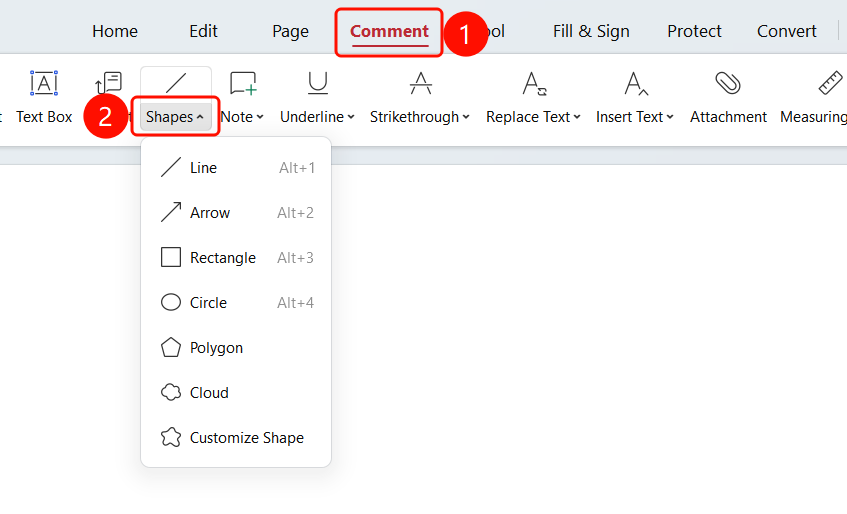
"Comment" tab → "Shape" drop-down menu
Open the PDF file where you want to add annotations.
Click the Comment tab in the top ribbon.
Click the Shape drop-down button in the ribbon.
Select a shape type from the drop-down menu:
- Line (Alt+1): Draw straight line segments
- Arrow (Alt+2): Draw lines with arrows
- Rectangle (Alt+3): Draw rectangular boxes
- Oval (Alt+4): Draw ovals or circles
- Polygon: Draw custom polygons
- Cloud: Draw cloud shapes
- Custom Shape: Draw custom shapes
Drag the mouse in the PDF document to draw the shape.
Modify the Fill Color of Shape Annotations
Feature Entry
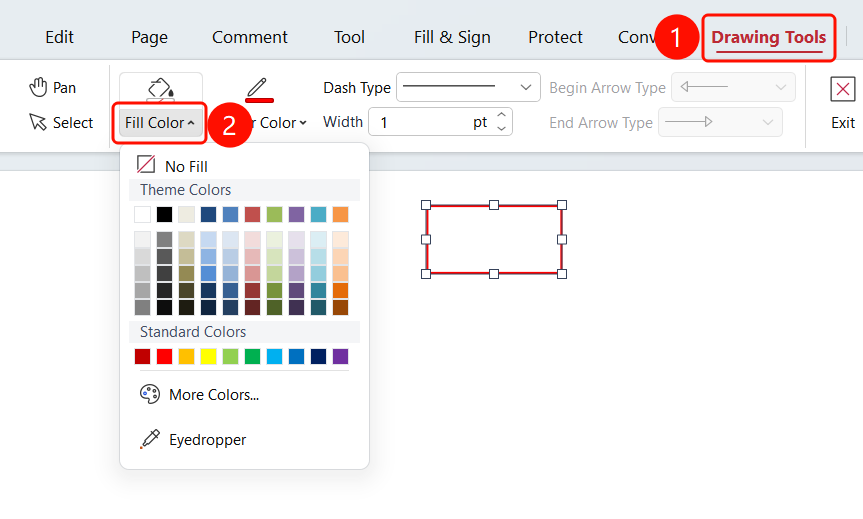
Select the shape annotation → "Drawing Tools" tab → "Fill" drop-down list
- Select the shape annotation you want to modify.
- Click the Drawing Tools tab in the ribbon.
- Click the Fill drop-down list.
- Select the desired fill color from the list.
Modify the Outline Color of Shape Annotations
Feature Entry
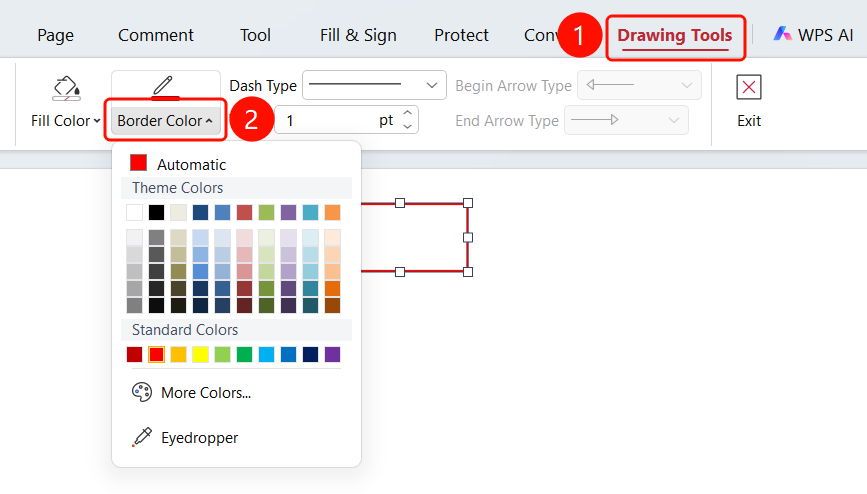
Select the shape annotation → "Drawing Tools" tab → "Outline Color" drop-down list
- Select the shape annotation you want to modify.
- Click the Drawing Tools tab in the ribbon.
- Click the Outline Color drop-down list.
- Select the outline color from the list.
Modify the Line Style of Shape Annotations
Feature Entry
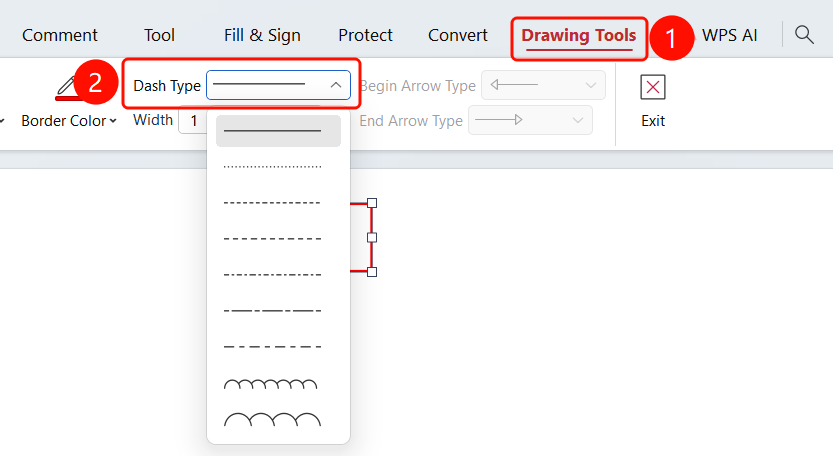
Select the shape annotation → "Drawing Tools" tab → "Line Style" drop-down list
- Select the shape annotation you want to modify.
- Click the Drawing Tools tab in the ribbon.
- Click the Line Style drop-down list.
- Select the desired line style from the list.
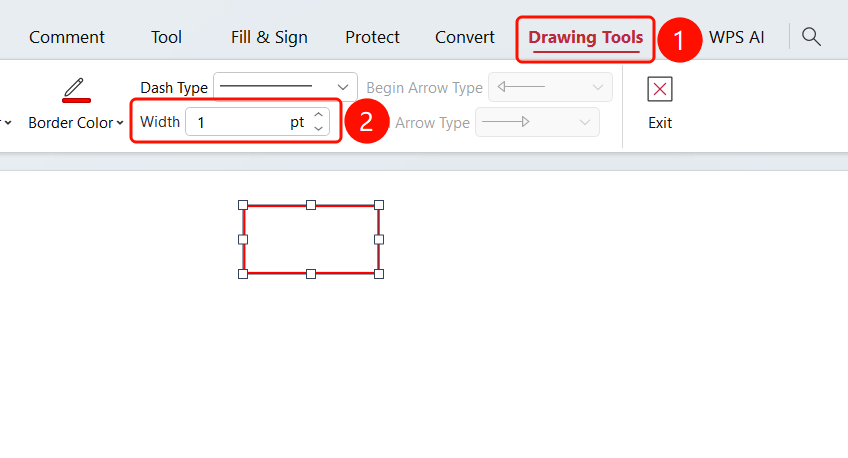
Modify the Line Width of Shape Annotations
Feature Entry
Select the shape annotation → "Drawing Tools" tab → "Line Width" drop-down list
- Select the shape annotation you want to modify.
- Click the Drawing Tools tab in the ribbon.
- Click the Line Width drop-down list.
- Adjust the line width in the list.
FAQ
Q1: How do I adjust the arrow style for arrow-type shape annotations?
- Solution: Select the line or arrow shape annotation, and then use the Start and End drop-down lists in the Drawing Tools tab to adjust the start and end arrow styles.