Feature Summary
Switch to annotation mode and manage all annotations in a PDF document.
Feature Description
| Feature Dimension | Description |
|---|---|
| Subscription Limit | Subscription required |
| Version Limit | No version limit |
Operating Steps
Enter Annotation Mode
Feature Entry
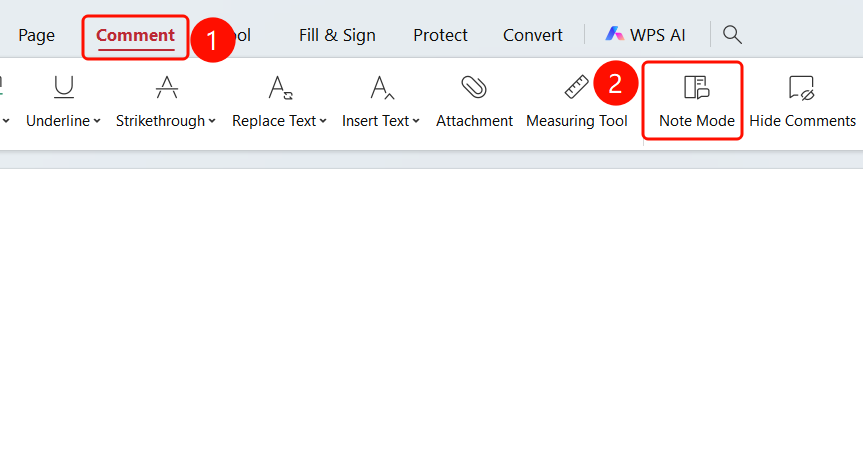
"Comment" tab > "Annotation Mode" button
- Open the PDF file that you want to annotate.
- Click the Comment tab in the top ribbon.
- Click the Annotation Mode button in the ribbon.
- After entering annotation mode, the annotation panel will be displayed on the right.
- You can enter annotation content in the panel.
- Adding various annotations is supported: highlights, text boxes, shapes, etc.
Enter Annotation Management
Feature Entry
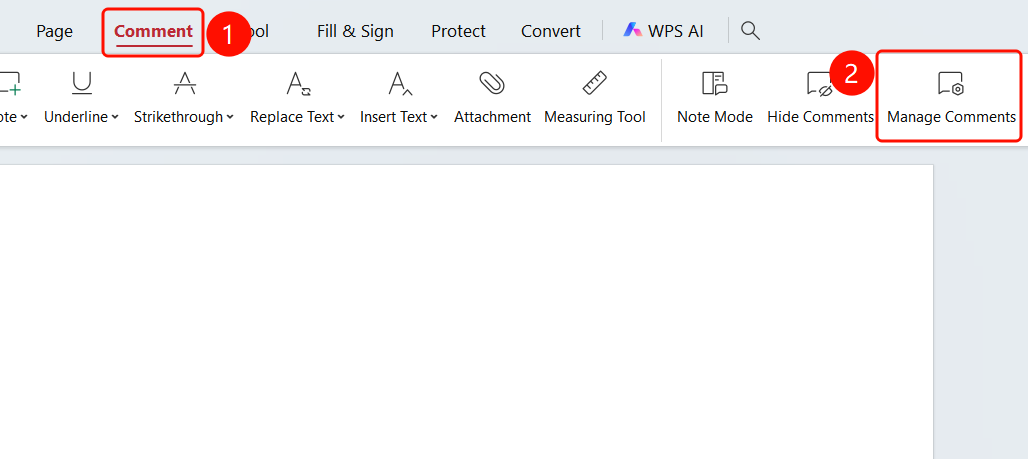
"Comment" tab > "Manage Annotations" button
- Click the Comment tab in the top ribbon.
- Click the Manage Annotations button in the ribbon.
- After opening annotation management, the annotation management panel will be displayed on the left.
- The panel lists all annotations in the document.
- You can view, edit, and delete annotations.
- Hiding and showing annotations is supported.
FAQs
Question 1: What is the purpose of annotation mode?
- Solution: Annotation mode makes it easy for users to add various annotations, such as highlights, text boxes, and shapes, when reading PDFs.
Question 2: How do I manage all annotations?
- Solution: Click the Manage Annotations button. You can view, edit, and delete all annotations in the left annotation panel.
Question 3: How do I hide annotations?
- Solution: Click the Hide Annotations button in the ribbon to temporarily hide all annotations.