Feature Summary
Add highlight marks to text in a PDF document to emphasize or annotate important content.
Feature Description
| Feature Dimension | Description |
|---|---|
| Membership Restriction | A membership is required to edit PDF files |
| Version Restriction | No version restriction |
Operation Steps
Add Highlight Using the Ribbon
Feature Entry
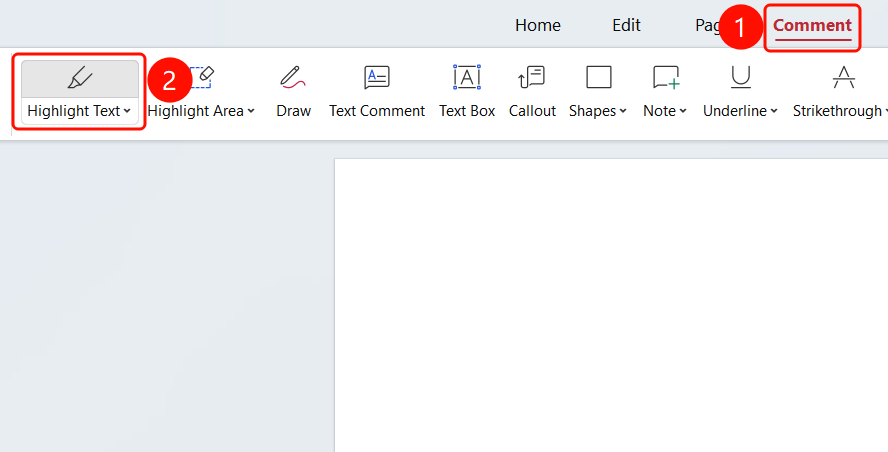
「Comment」 tab → 「Highlight Text」 button
- Click the 「Comment」 tab in the top menu bar
- Click the 「Highlight Text」 button
- Select a highlight color in the pop-up color picker
- Hold down the left mouse button and drag to select the text you want to highlight
- After releasing the mouse, the selected text will display a highlight effect
Change Highlight Color
Feature Entry
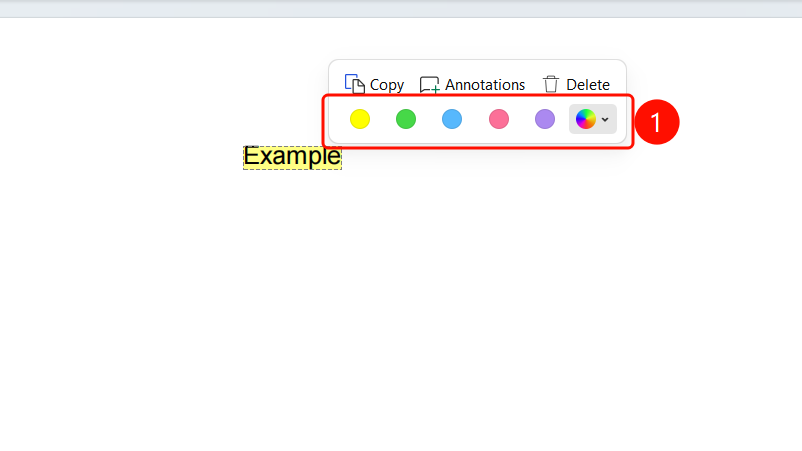
Click the added highlighted text
- Click the text with the added highlight
- Click the 「Color」 「Button」 in the pop-up toolbar
- Select a new highlight color
Delete Highlight
Feature Entry
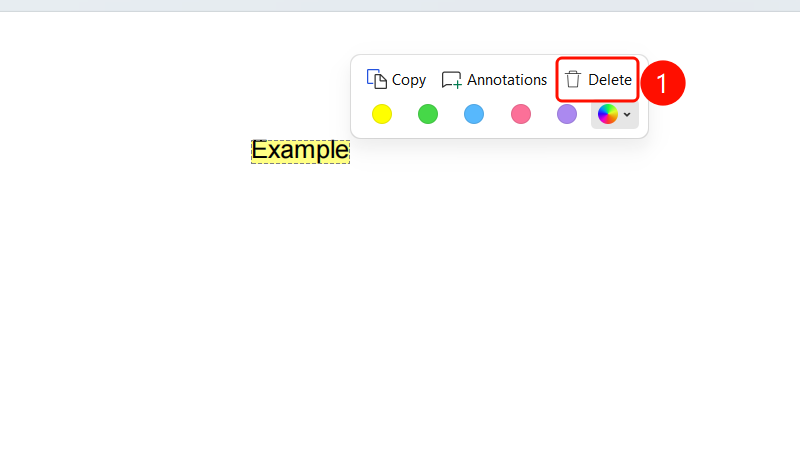
Right-click the added highlighted text
- Right-click the text with the added highlight
- Select the 「Delete」 option in the pop-up menu
- The highlight effect will be removed
FAQ
Q1: What is the difference between the Highlight Text feature and Area Highlight?
Highlight Text can only highlight text content, while Area Highlight can add a highlight area anywhere on the page.
Q2: How to batch delete all highlights?
In the 「Comment Management」 panel, you can select and batch delete all highlight annotations.
Q3: Can the highlight color be customized?
Yes. After clicking the Highlight Text button, select 「Other Colors」 in the color picker to customize the color.
Notes
- Highlight annotations do not modify the original PDF content and are only displayed as annotations
- Highlight annotations require PDF reader support to display properly
- You can view and manage all highlight annotations in 「Comment Management」