Feature Summary
Batch rename multiple PDF documents. This feature supports replacing, inserting, deleting, and custom naming rules.
Feature Description
| Feature Dimension | Description |
|---|---|
| Subscription Limit | Requires subscription |
| Version Limit | No version limit |
Steps
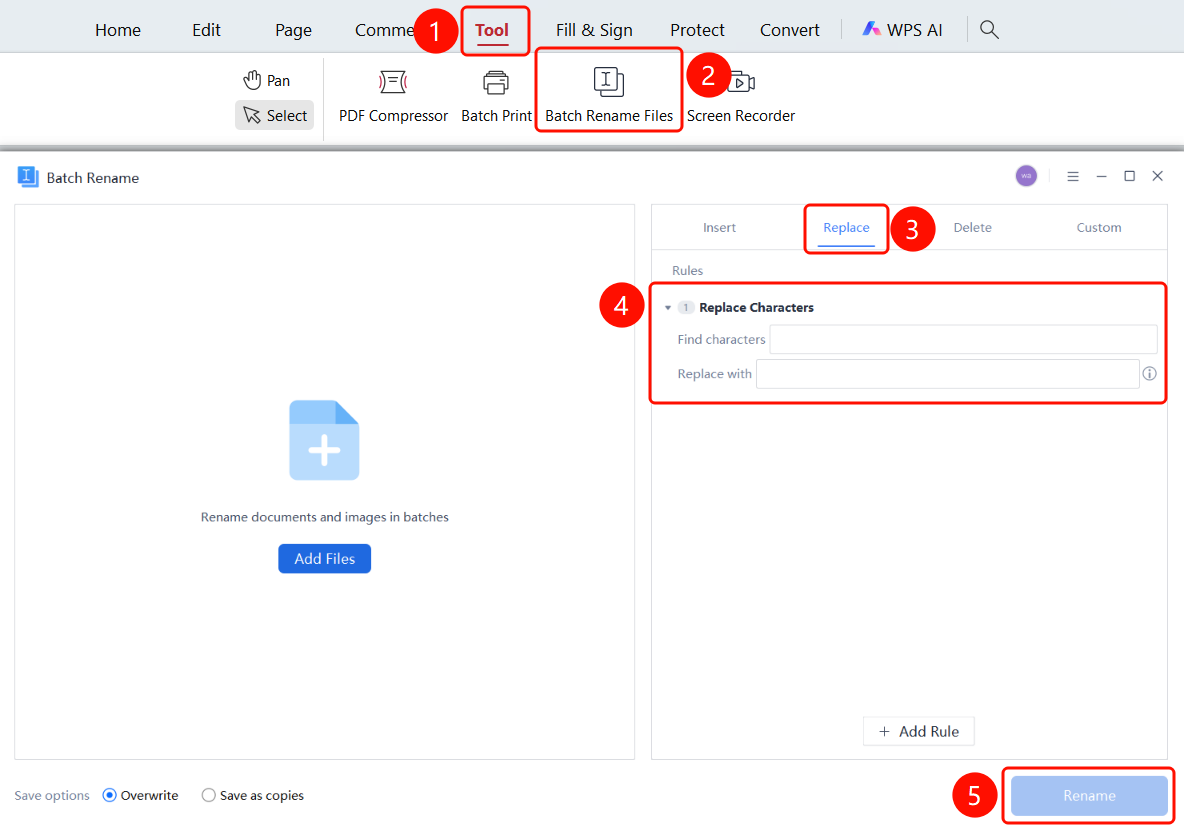
Replace Characters
Feature Entry
Tools tab > Batch Rename button > Batch Rename window > Replace tab
- Open the PDF file you want to batch rename.
- Click the Tools tab in the top ribbon.
- Click the Batch Rename button in the ribbon to open the Batch Rename window.
- Click the Replace tab.
- Enter the characters to find in the Find Characters input box.
- Enter the replacement characters in the Replace With input box.
- Click the Add Rule button to add multiple replacement rules.
- After completing the settings, click the Rename button to batch rename the files.
Insert Characters and Numbers
Feature Entry
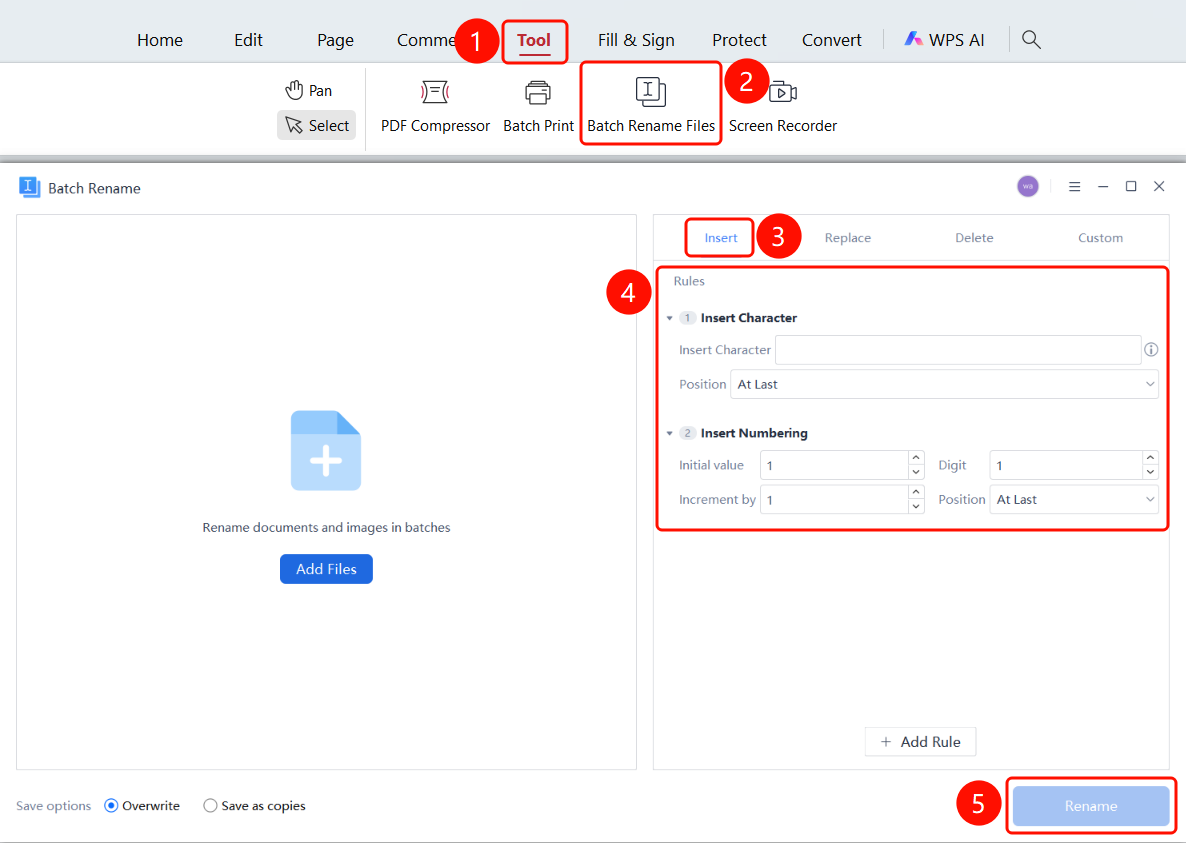
Tools tab > Batch Rename button > Batch Rename window > Insert tab
Open the PDF file you want to batch rename.
Click the Tools tab in the top ribbon.
Click the Batch Rename button in the ribbon to open the Batch Rename window.
Click the Insert tab.
Set Insert Characters:
- Enter the characters to insert in the Insert Characters input box.
- Select the Insert Position (End, Start, etc.).
Set Insert Numbers:
- Set the Initial Value (default is 1).
- Set the Digits (default is 1).
- Set the Increment (default is 1).
- Select the Position (End, Start, etc.).
After completing the settings, click the Rename button to batch rename the files.
Delete Characters
Feature Entry
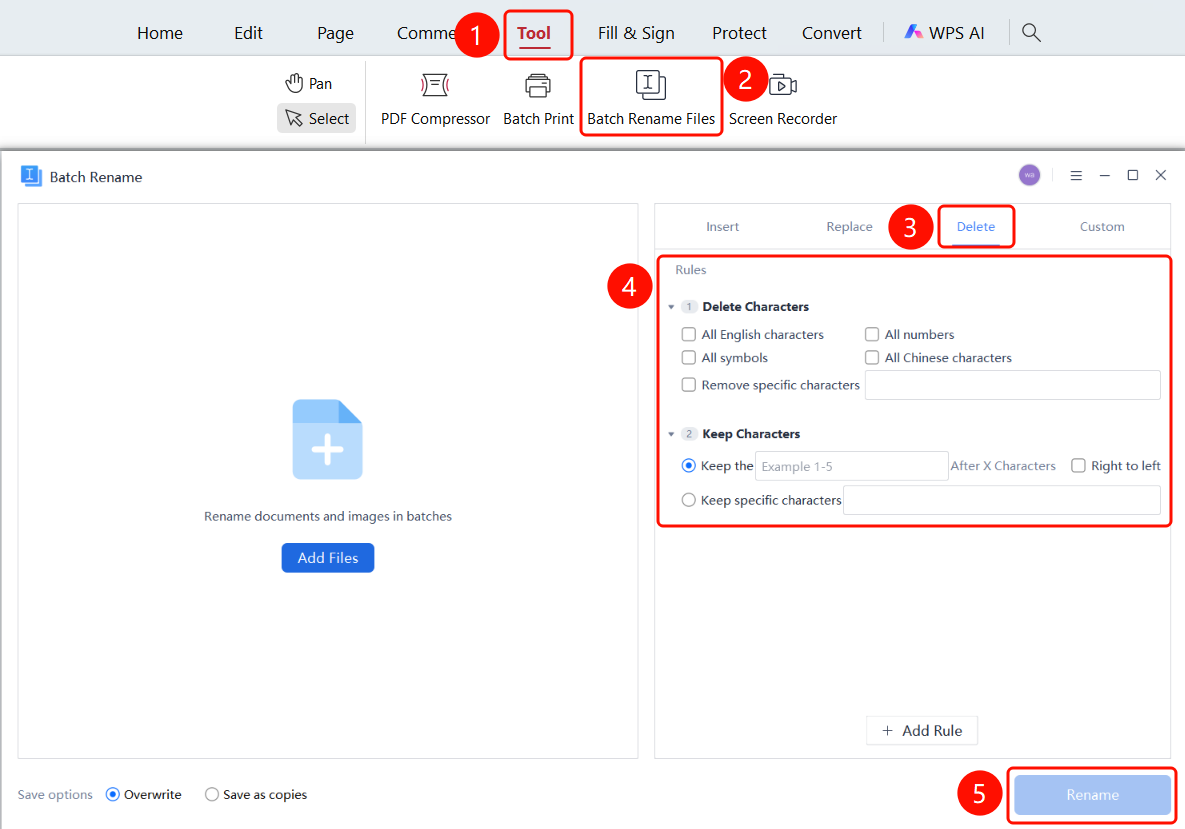
Tools tab > Batch Rename button > Batch Rename window > Delete tab
Open the PDF file you want to batch rename.
Click the Tools tab in the top ribbon.
Click the Batch Rename button in the ribbon to open the Batch Rename window.
Click the Delete tab.
Set Delete Characters:
- Select the character types to delete: All English Letters, All Digits, All Symbols, All Chinese Characters.
- Or select Remove Specified Characters and enter the characters to delete.
Set Retain Characters:
- Select Retain After Character X and enter the position.
- Or select Retain Specified Characters and enter the characters to retain.
After completing the settings, click the Rename button to batch rename the files.
Custom Naming Rules
Feature Entry
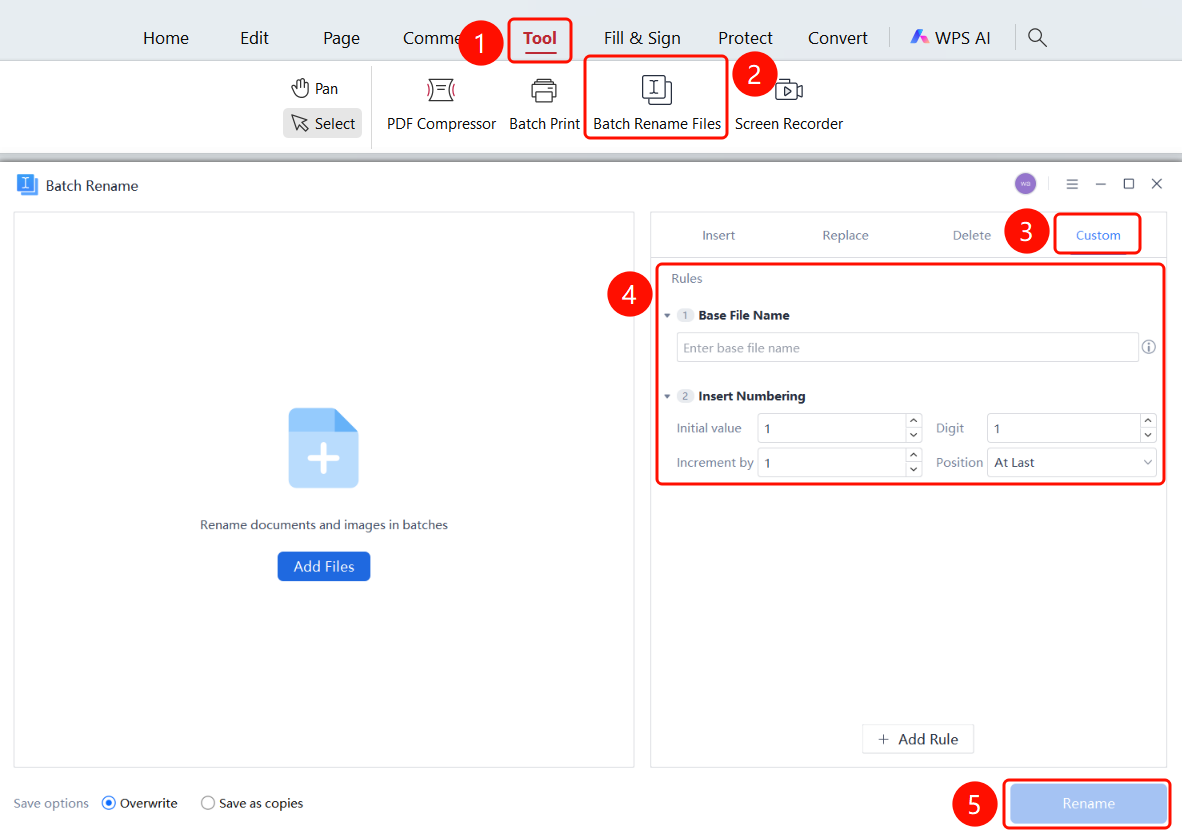
Tools tab > Batch Rename button > Batch Rename window > Custom tab
Open the PDF file you want to batch rename.
Click the Tools tab in the top ribbon.
Click the Batch Rename button in the ribbon to open the Batch Rename window.
Click the Custom tab.
Set Unified Name: Enter the common file name in the input box.
Set Insert Numbers:
- Set the Initial Value (default is 1).
- Set the Digits (default is 1).
- Set the Increment (default is 1).
- Select the Position (End, Start, etc.).
Select the Save Method at the bottom: Overwrite Original File or Save as Copy.
Click the Rename button to start batch renaming.
FAQ
Q1: What file types are supported by batch renaming?
- Solution: Batch renaming is supported for PDF documents and image files.
Q2: How do I undo batch renaming?
- Solution: If you choose the Overwrite Original File save method, we recommend backing up the original file first. If you choose Save as Copy, the original file remains unchanged.
Q3: How do I add multiple renaming rules?
- Solution: Click the Add Rule button in each tab to add multiple rules. The rules will be executed in order.