Feature Summary
Add callouts in PDF documents to point to specific content and add descriptions.
Feature Description
| Feature Dimension | Description |
|---|---|
| Subscription Limit | Subscription required |
| Version Limit | No version limit |
Steps
Add a Callout
Entry
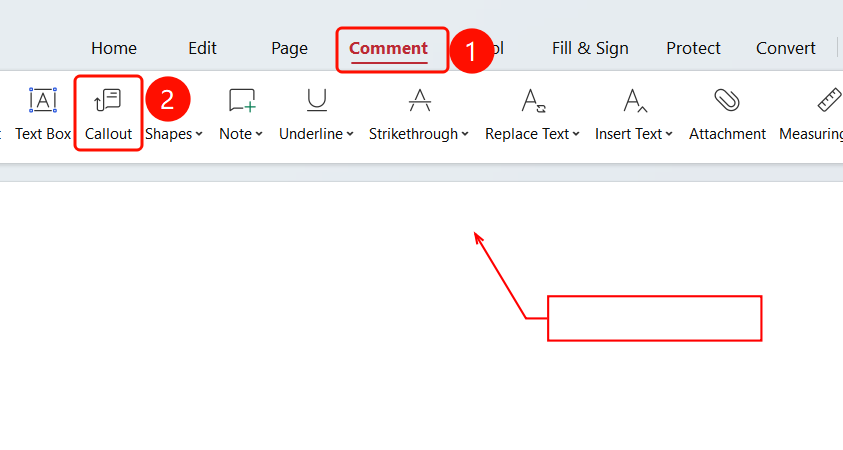
"Comment" tab -> "Callout" button
- Open the PDF file where you want to add a callout.
- Click the Comment tab in the top ribbon.
- Click the Callout button in the ribbon.
- Click the target location on the PDF page, and drag to draw a callout arrow.
Change Callout Font
Entry
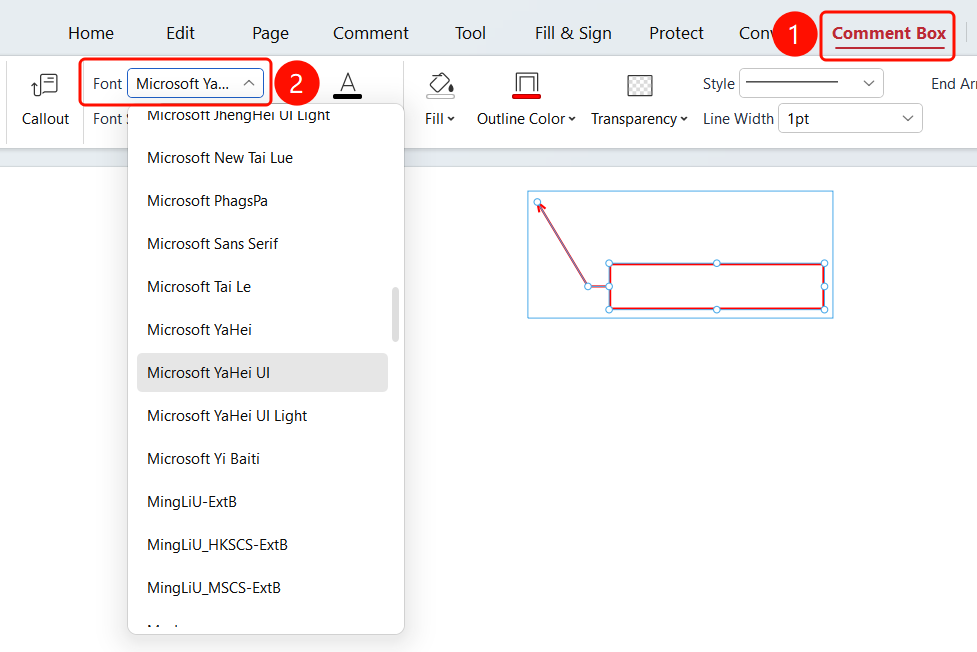
Select the callout -> "Callout" tab -> "Font" drop-down list
- Select the callout you want to modify.
- Click the Callout tab in the ribbon.
- Click the Font drop-down list.
- Select the desired font from the list.
Change Callout Font Size
Entry
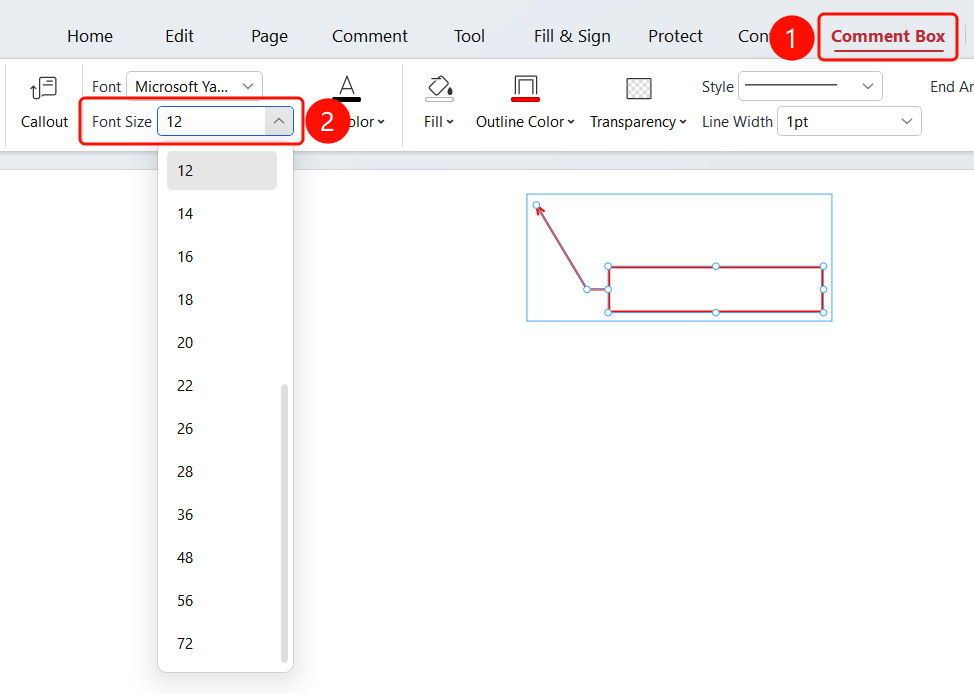
Select the callout -> "Callout" tab -> "Font Size" drop-down list
- Select the callout you want to modify.
- Click the Callout tab in the ribbon.
- Click the Font Size drop-down list.
- Adjust the font size in the list.
Change Callout Font Color
Entry
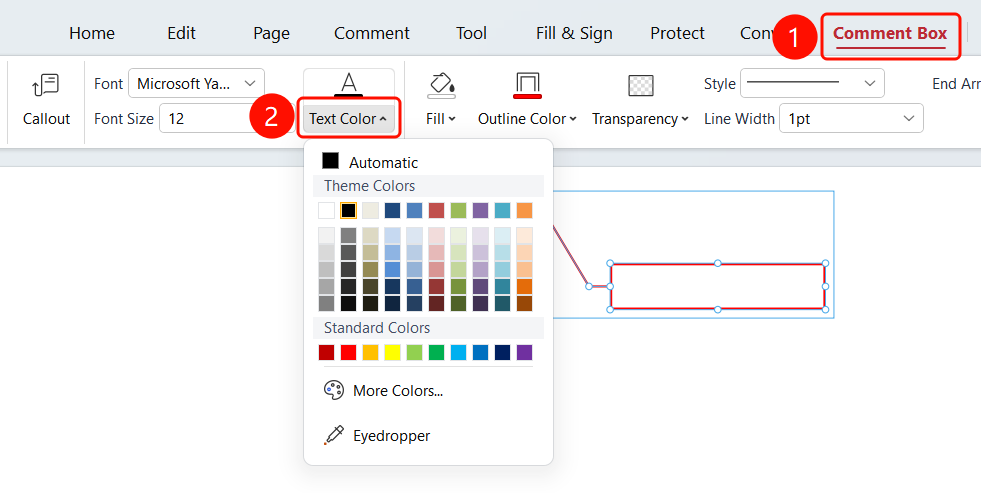
Select the callout -> "Callout" tab -> "Font Color" drop-down list
- Select the callout you want to modify.
- Click the Callout tab in the ribbon.
- Click the Font Color drop-down list.
- Select a font color from the list.
Change Callout Fill Color
Entry
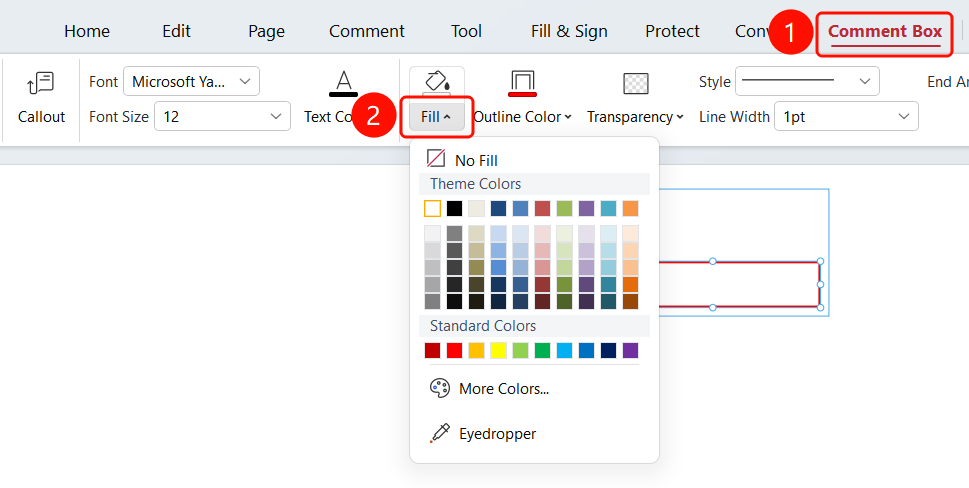
Select the callout -> "Callout" tab -> "Fill" drop-down list
- Select the callout you want to modify.
- Click the Callout tab in the ribbon.
- Click the Fill drop-down list.
- Select a fill color from the list.
Change Callout Border Color
Entry
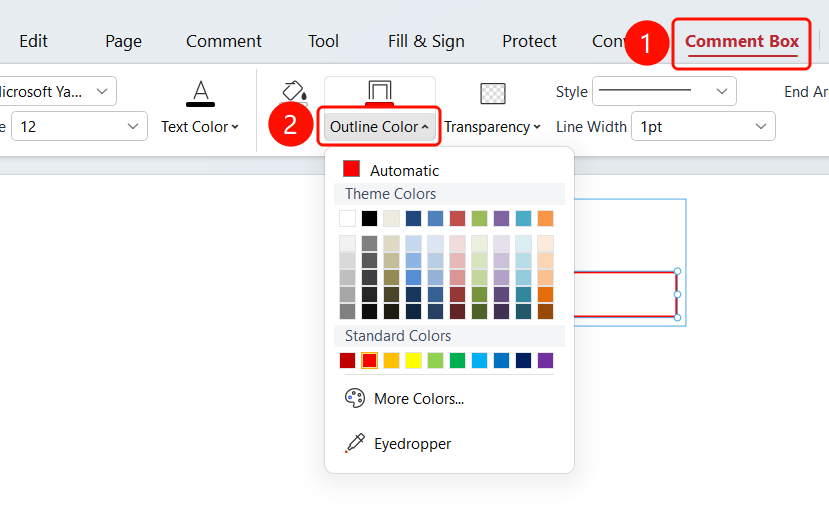
Select the callout -> "Callout" tab -> "Border Color" drop-down list
- Select the callout you want to modify.
- Click the Callout tab in the ribbon.
- Click the Border Color drop-down list.
- Select a border color from the list.
Change Callout Line Style and Line Width
Entry
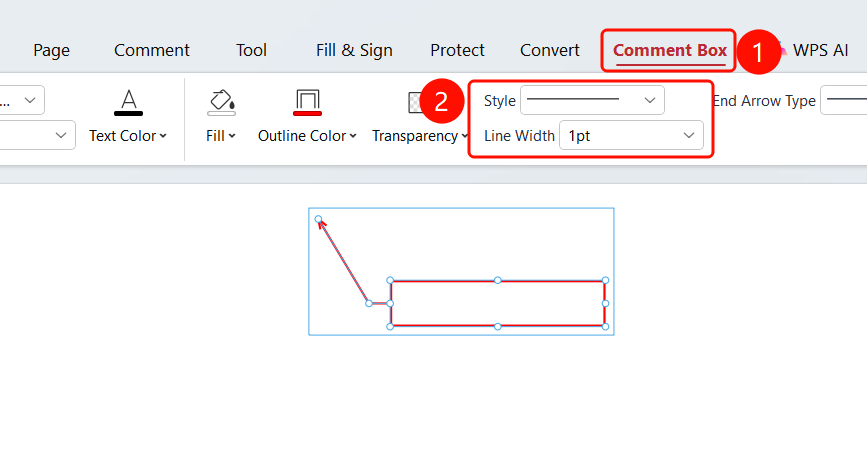
Select the callout -> "Callout" tab -> "Line Style" and "Line Width" drop-down lists
- Select the callout you want to modify.
- Click the Callout tab in the ribbon.
- Click the Line Style drop-down list and select a line style.
- Click the Line Width drop-down list and set the line width.
Change Callout Opacity
Entry
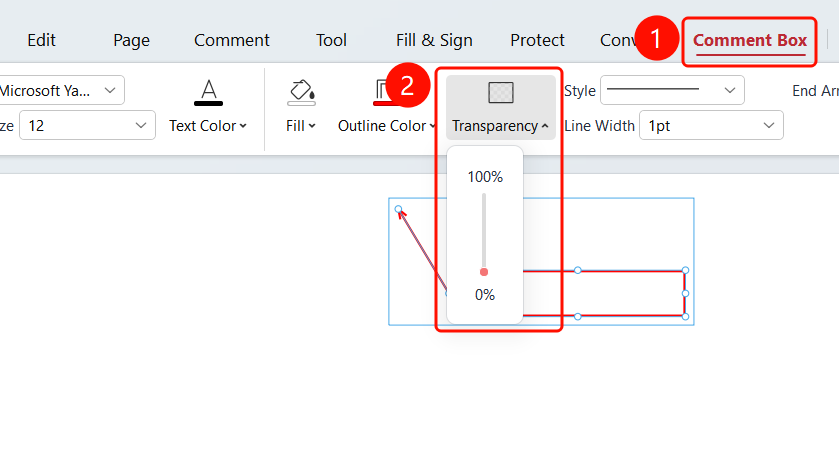
Select the callout -> "Callout" tab -> "Opacity" drop-down list
- Select the callout you want to modify.
- Click the Callout tab in the ribbon.
- Click the Opacity drop-down list.
- Select an opacity level from the list.
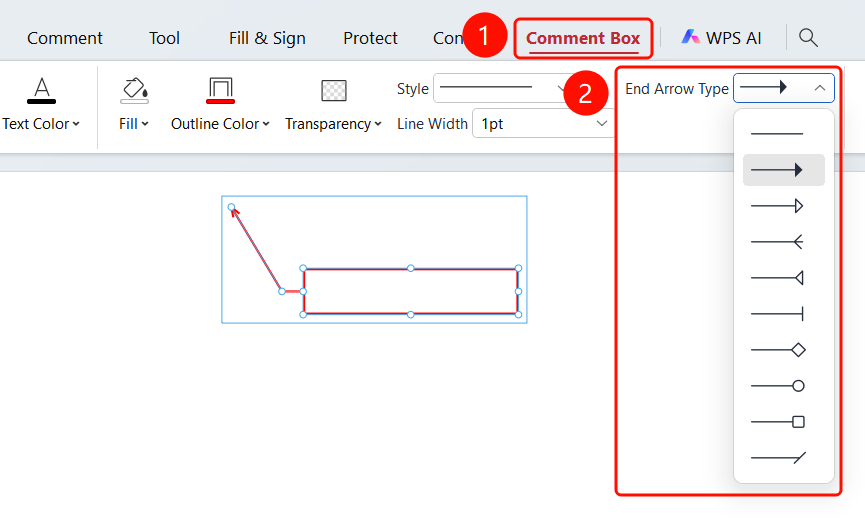
Change Callout End Style
Entry
Select the callout -> "Callout" tab -> "End" drop-down list
- Select the callout you want to modify.
- Click the Callout tab in the ribbon.
- Click the End drop-down list.
- Select a style for the end of the line from the list. You can choose different shapes or no shape.
FAQ
Q1: What is the purpose of a callout?
- Solution: A callout can point to specific content and add text descriptions, making communication and review easier.
Q2: How do I adjust the position of a callout?
- Solution: Click to select the callout, and then drag it to adjust its position.
Q3: How do I delete a callout?
- Solution: Select the callout and press the
Deletekey.