Feature Summary
Add text comments to a PDF document for marking up and explaining content.
Feature Description
| Feature Dimension | Description |
|---|---|
| Subscription Limit | Requires subscribing to a membership |
| Version Limit | No version limits |
Steps
Add Text Comments
Feature Entry
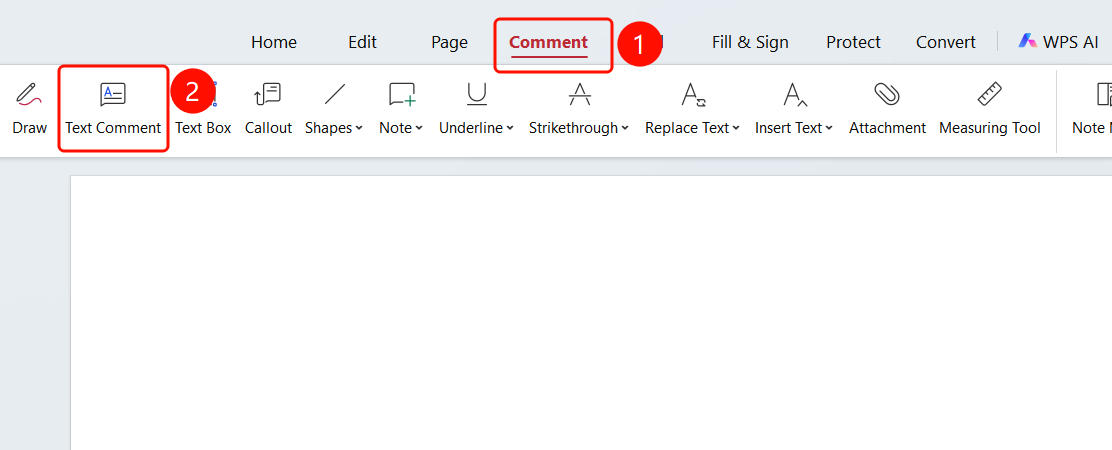
Comment tab > Text Comment button
- Open the PDF file where you want to add comments.
- Click the Comment tab in the top ribbon.
- Click the Text Comment button in the ribbon.
- Left-click where you want to add the text comment, and enter your comment.
Change Text Comment Font
Feature Entry
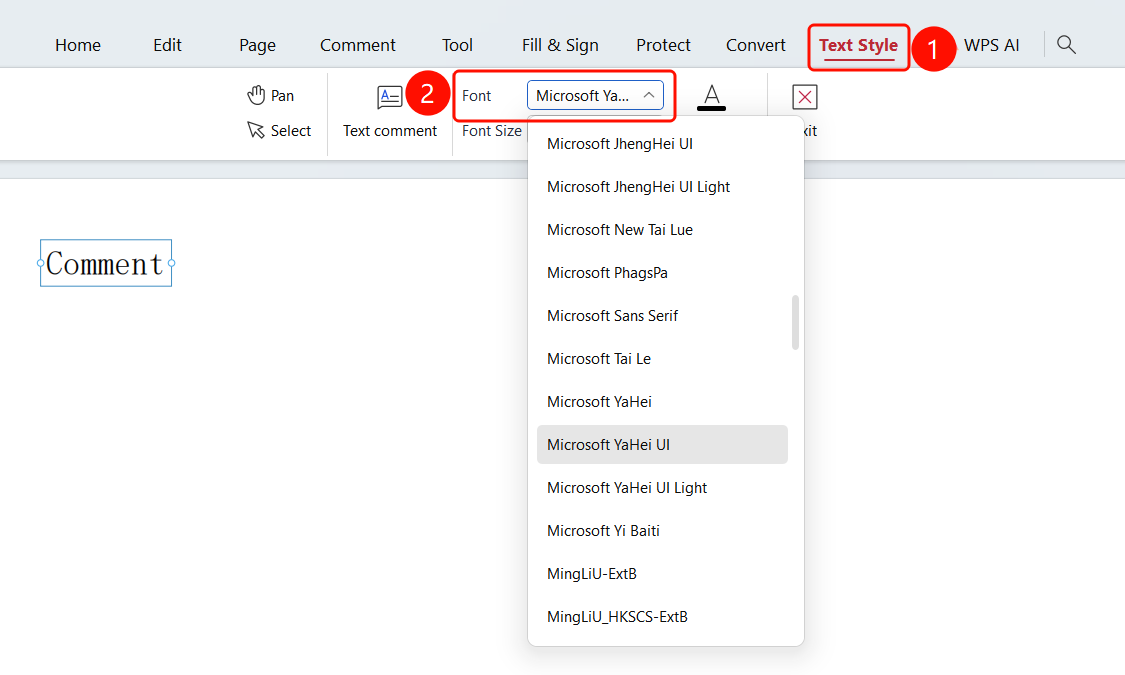
Select the text comment > Comment Tools tab > Font drop-down list
- Select the text comment you want to modify.
- Click the Comment Tools tab in the ribbon.
- Click the Font drop-down list.
- Choose your desired font from the list.
Change Text Comment Font Size
Feature Entry
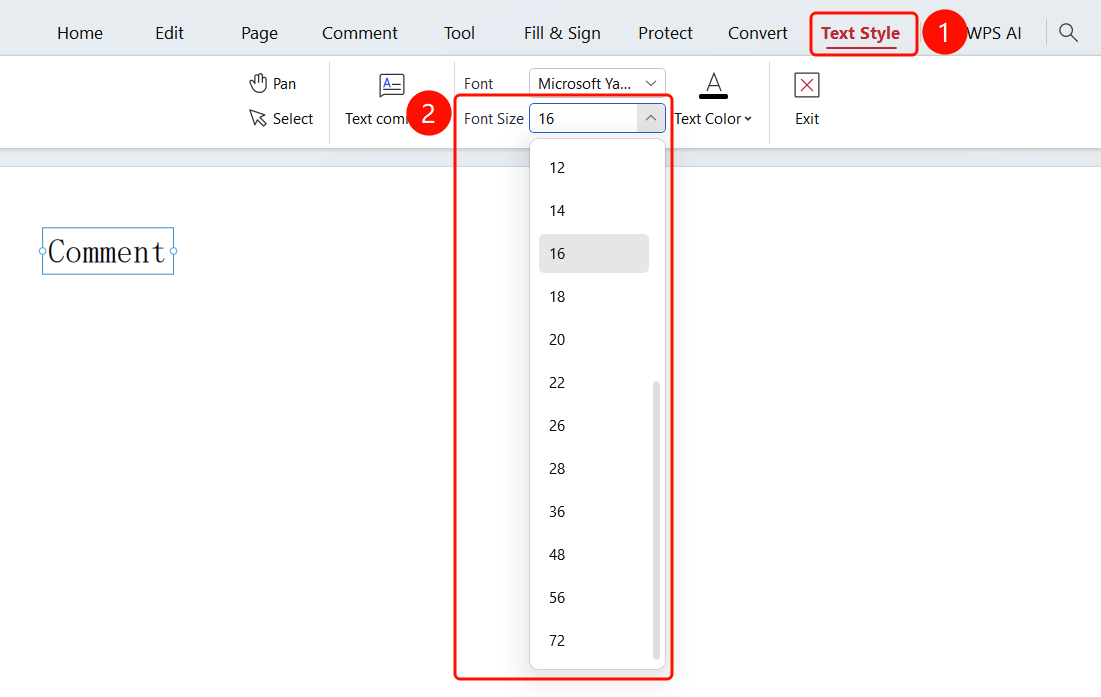
Select the text comment > Comment Tools tab > Font Size drop-down list
- Select the text comment you want to modify.
- Click the Comment Tools tab in the ribbon.
- Click the Font Size drop-down list.
- Adjust the font size in the list.
Change Text Comment Font Color
Feature Entry
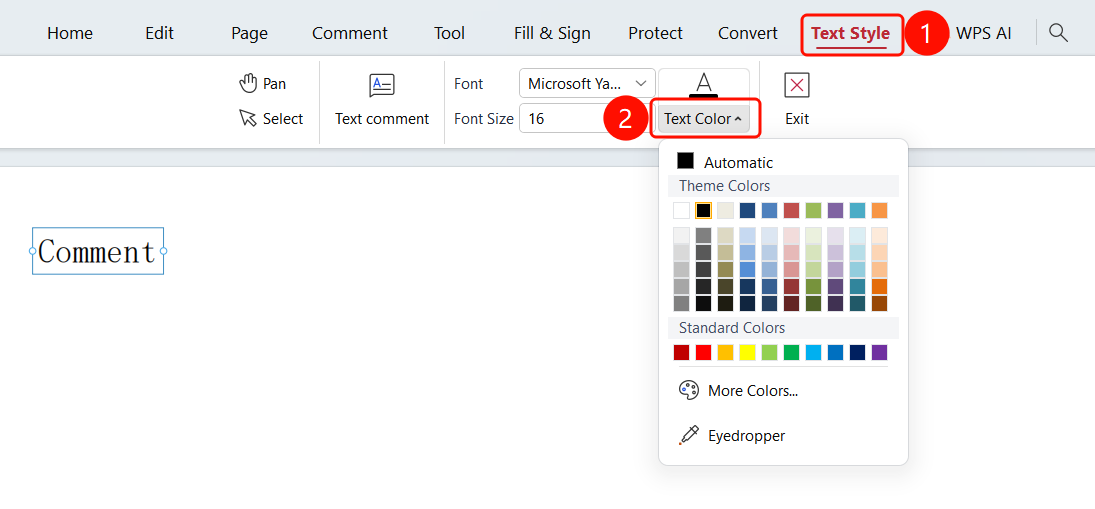
Select the text comment > Comment Tools tab > Font Color drop-down list
- Select the text comment you want to modify.
- Click the Comment Tools tab in the ribbon.
- Click the Font Color drop-down list.
- Choose a font color from the list.
FAQ
Q1: What is the difference between text annotation and highlighted text?
Text annotation adds an annotation icon where you can enter detailed notes; highlighted text only marks the text color.
Q2: Can annotations be exported?
Yes. You can export annotations as a file using the 「Export Annotations」 feature.
Q3: How can I view all annotations?
You can view and manage all annotations using the 「Annotation Management」 feature.
Notes
- Annotations are displayed as marks only and will not modify the original document content
- Annotations can be saved in the PDF file and will be transferred with the document when shared
- It is recommended to use the annotation feature for document review and collaboration