Feature Summary
Add caret and replace text annotations in PDF documents to mark content that needs to be modified.
Feature Description
| Feature Dimension | Description |
|---|---|
| Membership Restriction | Subscription required (You need to subscribe to a membership) |
| Version Restriction | No version restriction |
Steps
Add Replace Text Annotation
Feature Entry
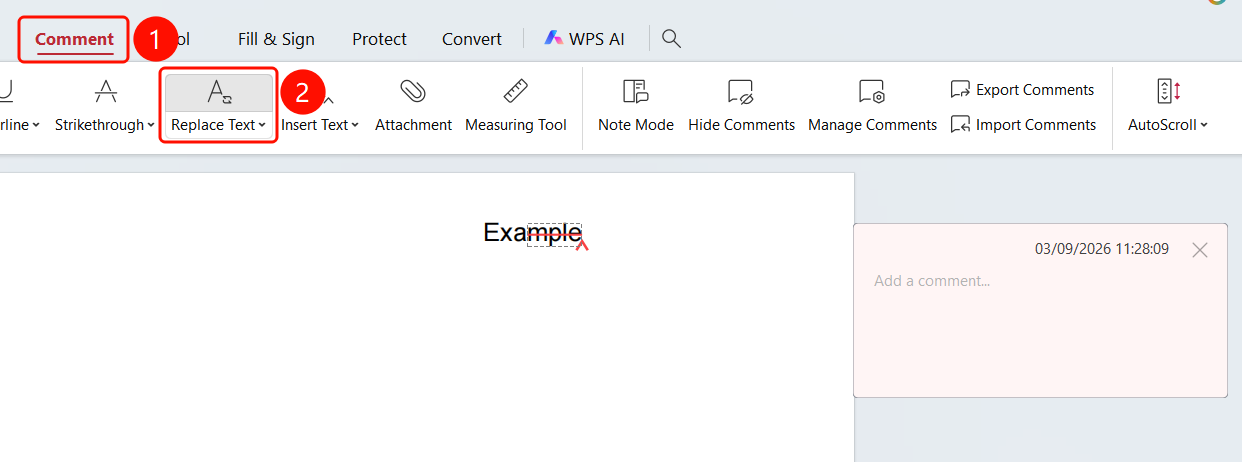
Comment tab -> Replace Text button
- Open the PDF file where you want to add comments.
- Click the Comment tab in the top ribbon.
- Click the Replace Text button in the ribbon.
- Select the text to be replaced in the PDF document to add a replace text annotation.
- After adding the annotation, the comment panel will appear on the right side of the document. Enter the replacement description in the panel.
Delete Replace Text Annotation
Feature Entry
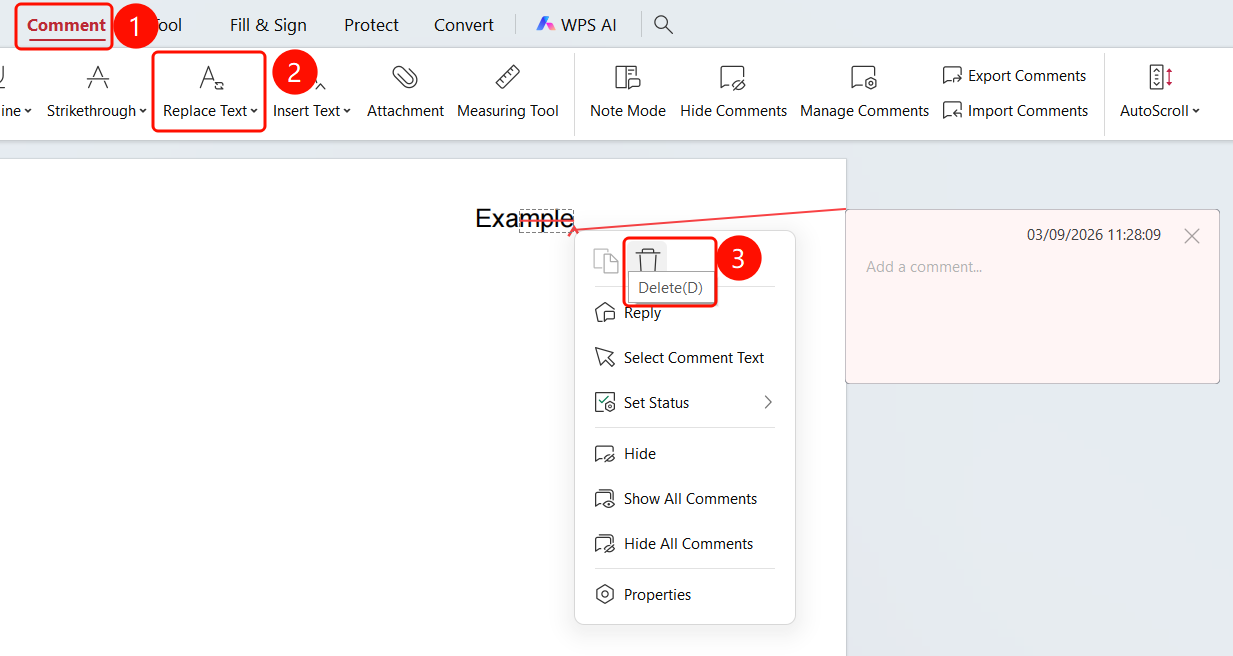
Select replace text annotation -> Delete button
- Right-click the replace text annotation you want to delete.
- Click the Delete button in the shortcut menu.
Add Caret Annotation
Feature Entry
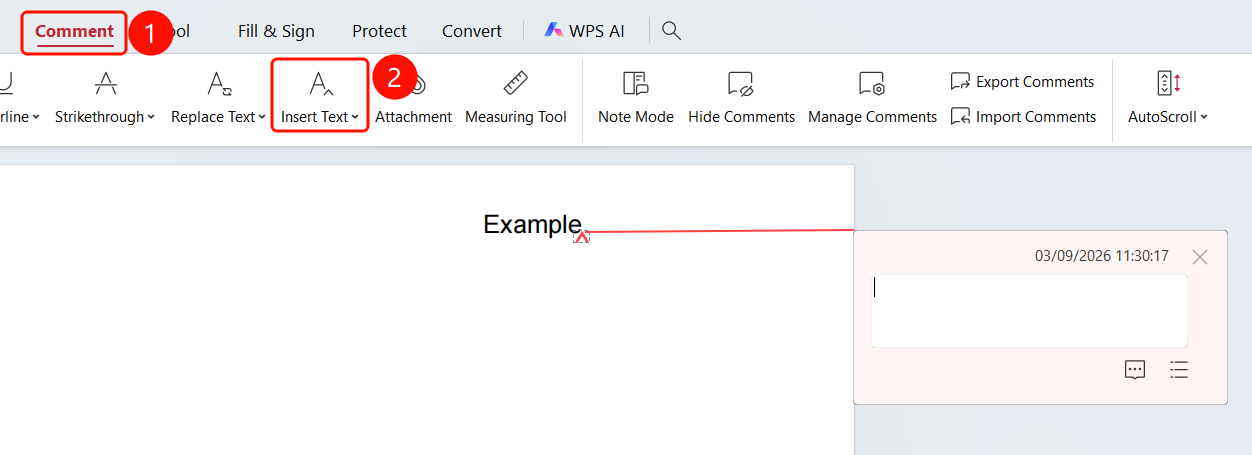
Comment tab -> Caret button
- Click the Comment tab in the top ribbon.
- Click the Caret button in the ribbon.
- Select the position where you want to insert content in the PDF document to add a caret annotation.
- After adding the annotation, the comment panel will appear on the right side of the document. Enter the insertion description in the panel.
Delete Caret Annotation
Feature Entry
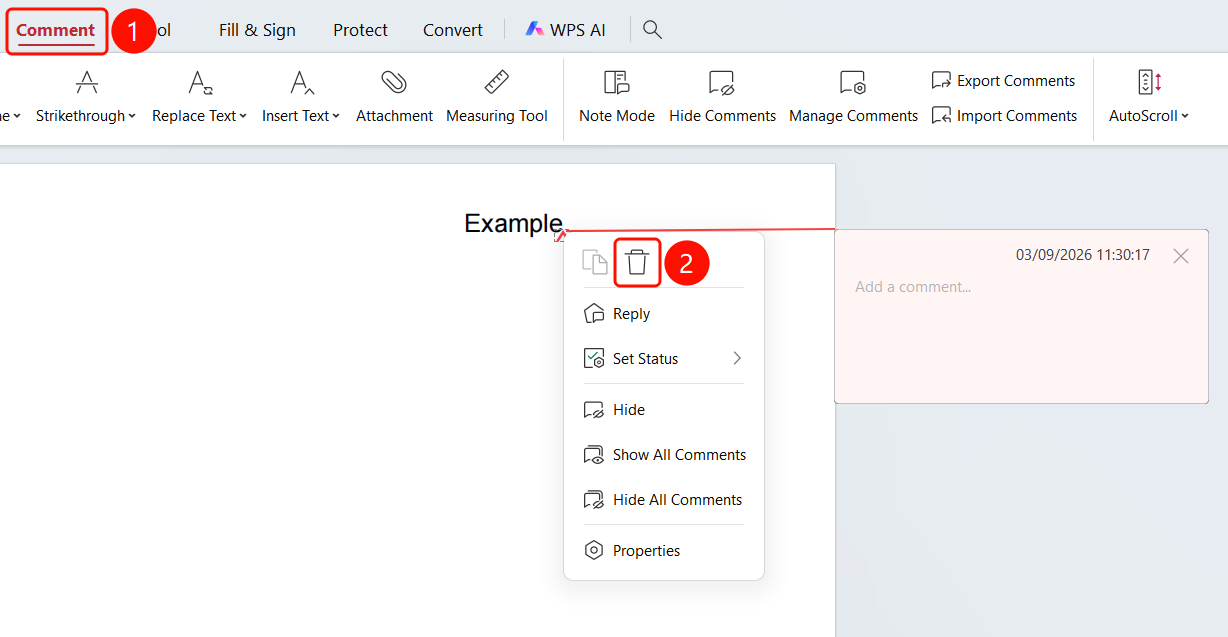
Select caret annotation -> Delete button
- Right-click the caret annotation you want to delete.
- Click the Delete button in the shortcut menu.
FAQ
Question 1: What is the difference between replace text and caret annotations?
- Solution: Replace text annotations are used to mark content that needs to be replaced, while caret annotations are used to mark positions where content needs to be inserted.
Question 2: How do I change the color of the symbols?
- Solution: Select a different color from the drop-down menu, or select the symbol and change it in the color picker of the shortcut menu.
Question 3: How do I set the default properties of the symbols?
- Solution: Right-click the symbol, select Properties, configure the settings in the dialog, and then select Set Current Properties as Default.