Feature Summary
Measure the dimensions, angles, and areas of shapes in PDF documents.
Feature Description
| Feature Dimension | Description |
|---|---|
| Subscription Limit | Subscription required |
| Version Limit | No version limit |
Operating Steps
Measure Distance
Entry
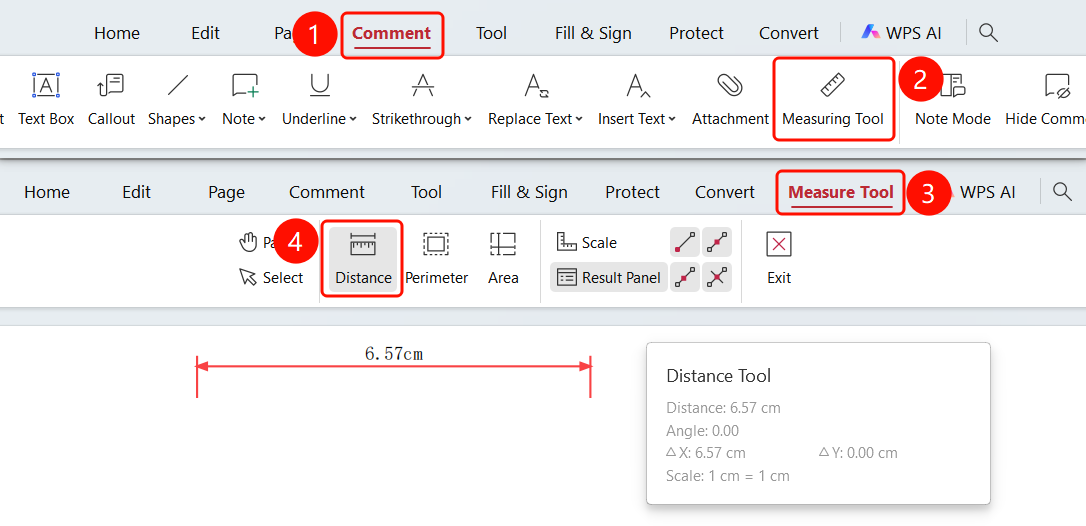
Comment tab → Measure Tool button → Measure Tool tab → Distance button
- Open the PDF file you want to measure.
- Click the Comment tab in the top ribbon.
- Click the Measure Tool button in the ribbon.
- The ribbon will automatically switch to the Measure Tool tab.
- Click the Distance button.
- Click the start point and end point on the PDF page.
- The measurement results will be displayed in the tool panel.
- The panel displays: Distance, Angle, Delta X, Delta Y, and Scale.
Measure Perimeter
Entry
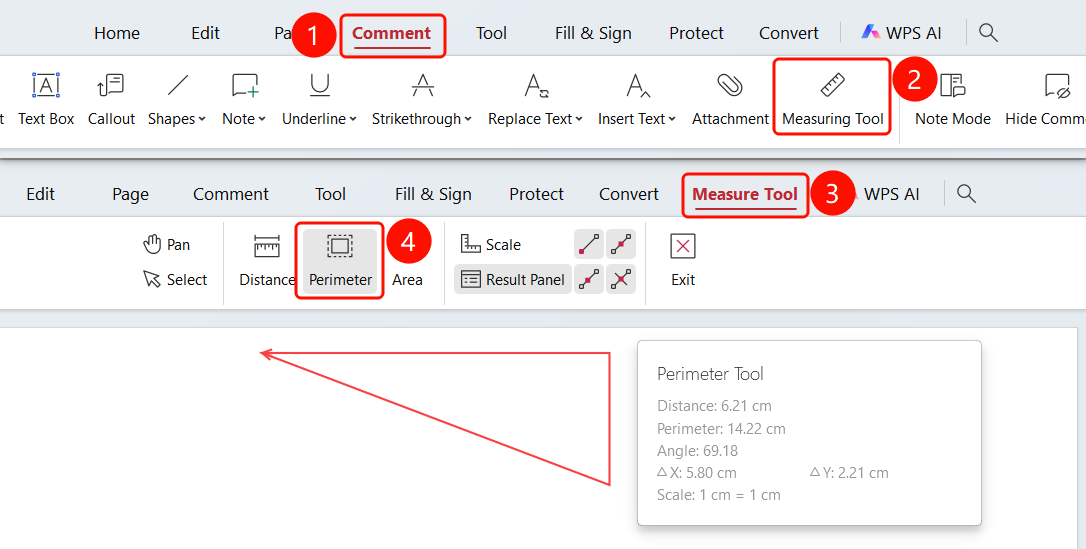
Comment tab → Measure Tool button → Measure Tool tab → Perimeter button
- Open the PDF file you want to measure.
- Click the Comment tab in the top ribbon.
- Click the Measure Tool button in the ribbon.
- The ribbon will automatically switch to the Measure Tool tab.
- Click the Perimeter button.
- Click the vertices of the closed shape on the PDF page in sequence.
- Double-click or click the start point to complete the measurement.
- The panel displays: Distance, Perimeter, Angle, Delta X, Delta Y, and Scale.
Measure Area
Entry
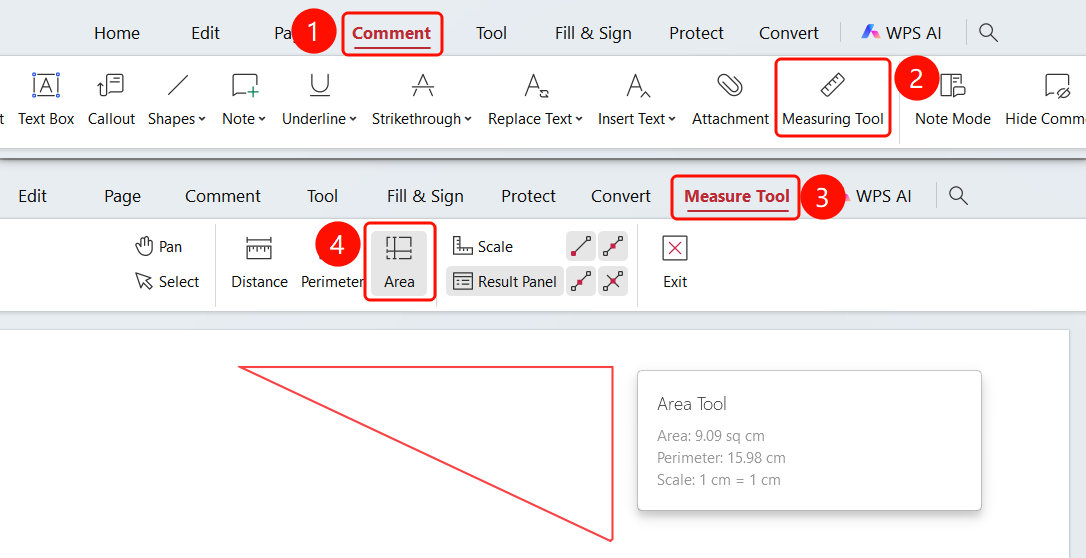
Comment tab → Measure Tool button → Measure Tool tab → Area button
- Open the PDF file you want to measure.
- Click the Comment tab in the top ribbon.
- Click the Measure Tool button in the ribbon.
- The ribbon will automatically switch to the Measure Tool tab.
- Click the Area button.
- Click the vertices of the closed shape on the PDF page in sequence.
- Double-click or click the start point to complete the measurement.
- The panel displays: Area, Perimeter, and Scale.
Set Scale
Entry
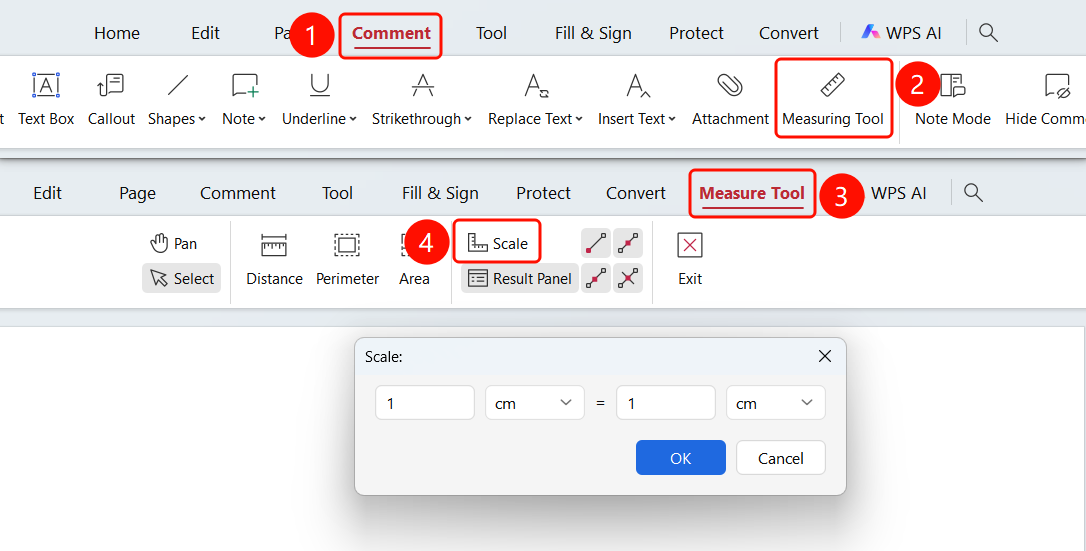
Comment tab → Measure Tool button → Measure Tool tab → Scale button → Scale dialog
Open the PDF file you want to measure.
Click the Comment tab in the top ribbon.
Click the Measure Tool button in the ribbon.
The ribbon will automatically switch to the Measure Tool tab.
Click the Scale button in the ribbon.
Set the scale in the Scale dialog:
- Enter the actual size and page size.
- Select the unit (cm, mm, inch, etc.).
Click the OK button to save the settings.
Snap to Endpoints
Entry
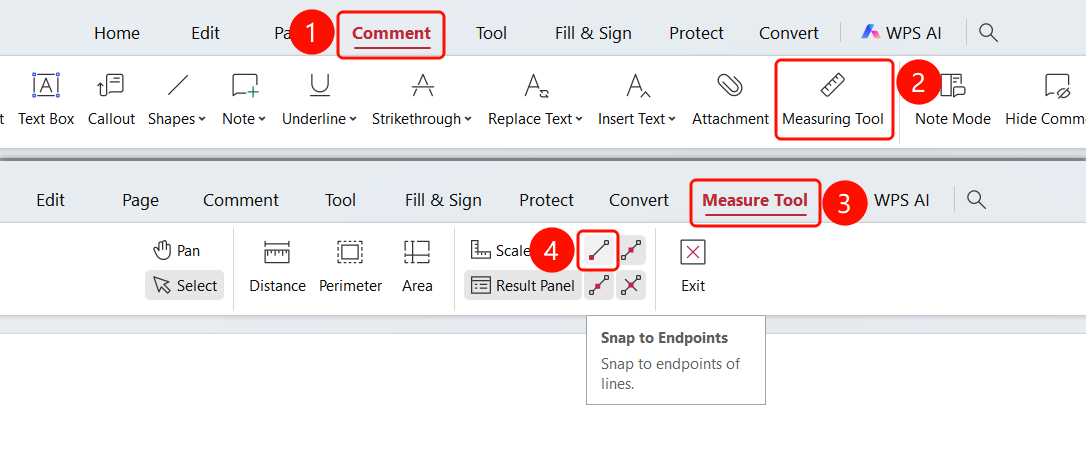
Comment tab → Measure Tool button → Measure Tool tab → Snap to Endpoints button
- Click the Comment tab in the top ribbon.
- Click the Measure Tool button in the ribbon.
- The ribbon will automatically switch to the Measure Tool tab.
- Click the Snap to Endpoints button in the ribbon.
- The tool will automatically snap to the endpoints of line segments during measurement.
Snap to Midpoints
Entry
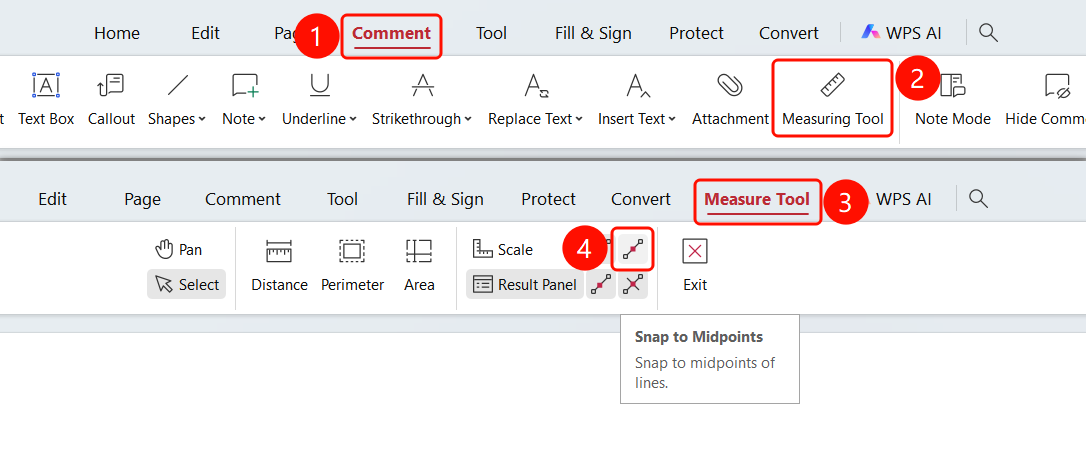
Comment tab → Measure Tool button → Measure Tool tab → Snap to Midpoints button
- Click the Comment tab in the top ribbon.
- Click the Measure Tool button in the ribbon.
- The ribbon will automatically switch to the Measure Tool tab.
- Click the Snap to Midpoints button in the ribbon.
- The tool will automatically snap to the midpoints of line segments during measurement.
Snap to Intersections
Entry
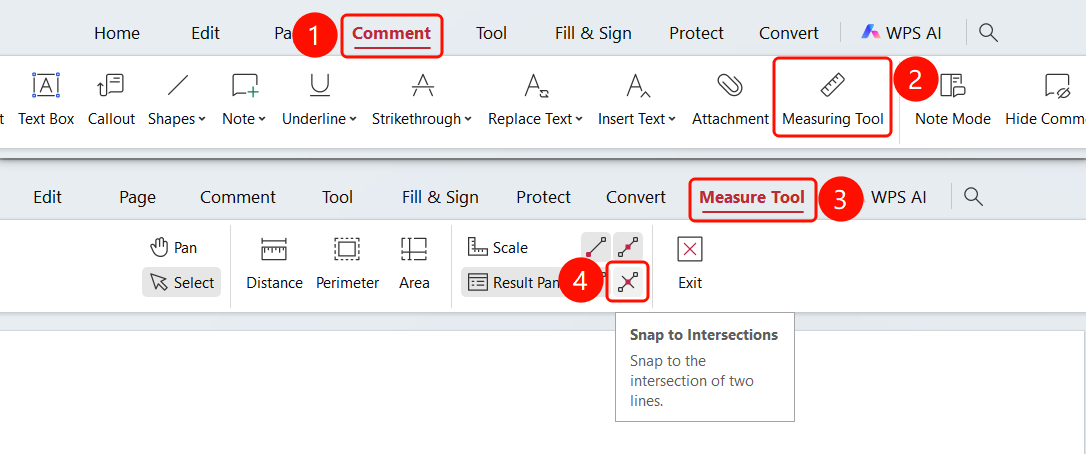
Comment tab → Measure Tool button → Measure Tool tab → Snap to Intersections button
- Click the Comment tab in the top ribbon.
- Click the Measure Tool button in the ribbon.
- The ribbon will automatically switch to the Measure Tool tab.
- Click the Snap to Intersections button in the ribbon.
- The tool will automatically snap to the intersection of two line segments during measurement.
Snap to Paths
Entry
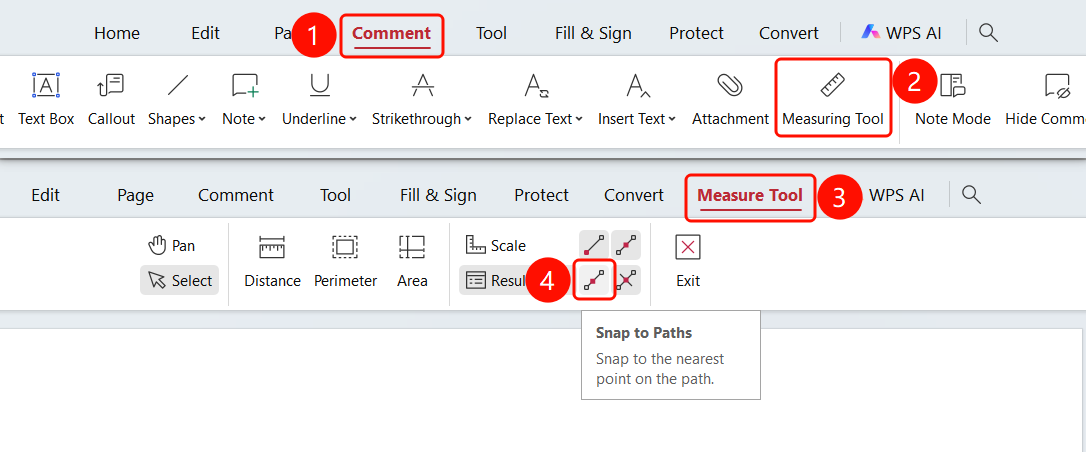
Comment tab → Measure Tool button → Measure Tool tab → Snap to Paths button
- Click the Comment tab in the top ribbon.
- Click the Measure Tool button in the ribbon.
- The ribbon will automatically switch to the Measure Tool tab.
- Click the Snap to Paths button in the ribbon.
- The tool will automatically snap to points near the cursor during measurement.
FAQ
Q1: What can the measurement tool measure?
- Solution: It can measure various dimensional information such as distance, angle, perimeter, and area.
Q2: How do I set the measurement unit?
- Solution: Click the Scale button and set the measurement unit and scale in the dialog.
Q3: How do I delete a measurement markup?
- Solution: Right-click the measurement markup and click the delete button in the shortcut menu.