Feature Summary
Edit form elements in PDF documents, and add or modify form fields.
Feature Description
| Feature Dimension | Description |
|---|---|
| Subscription Limit | Subscription required |
| Version Limit | No version limit |
Operation Steps
Add Form Fields
Feature Entry
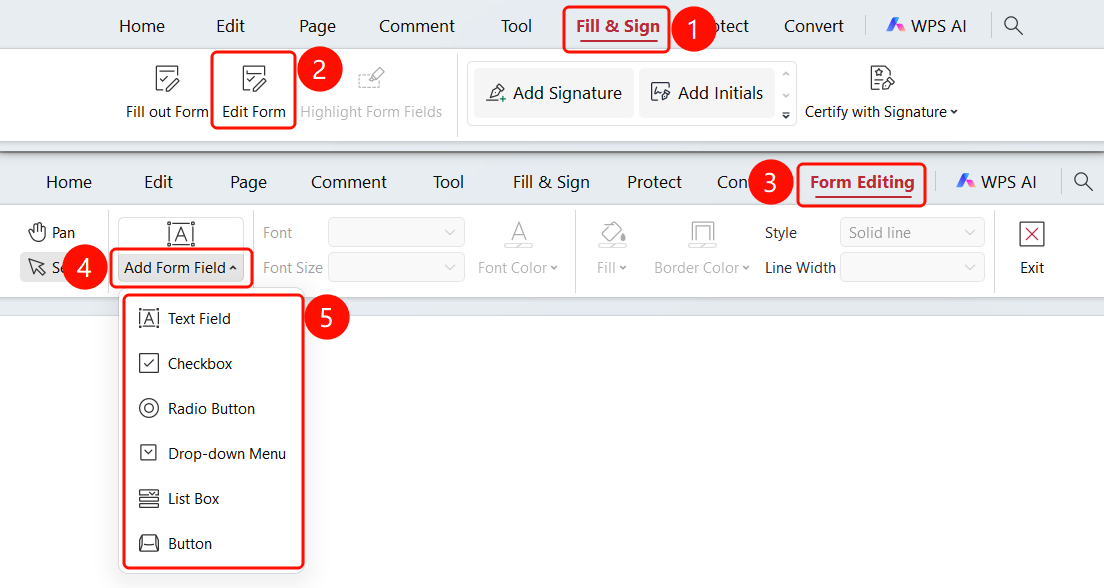
"Fill & Sign" tab → "Edit Form" button → "Form Edit" tab → "Add Form Field" dropdown menu
Open the PDF file in which you want to edit the form.
Click the Fill & Sign tab in the top ribbon.
Click the Edit Form button in the ribbon.
You will be redirected to the Form Edit tab.
Click the Add Form Field dropdown menu.
Select the desired form field:
- Text Field
- Checkbox
- Radio Button
- Dropdown
- List Box
- Button
Click anywhere in the PDF document to insert the form field.
Edit Form Field Font
Feature Entry
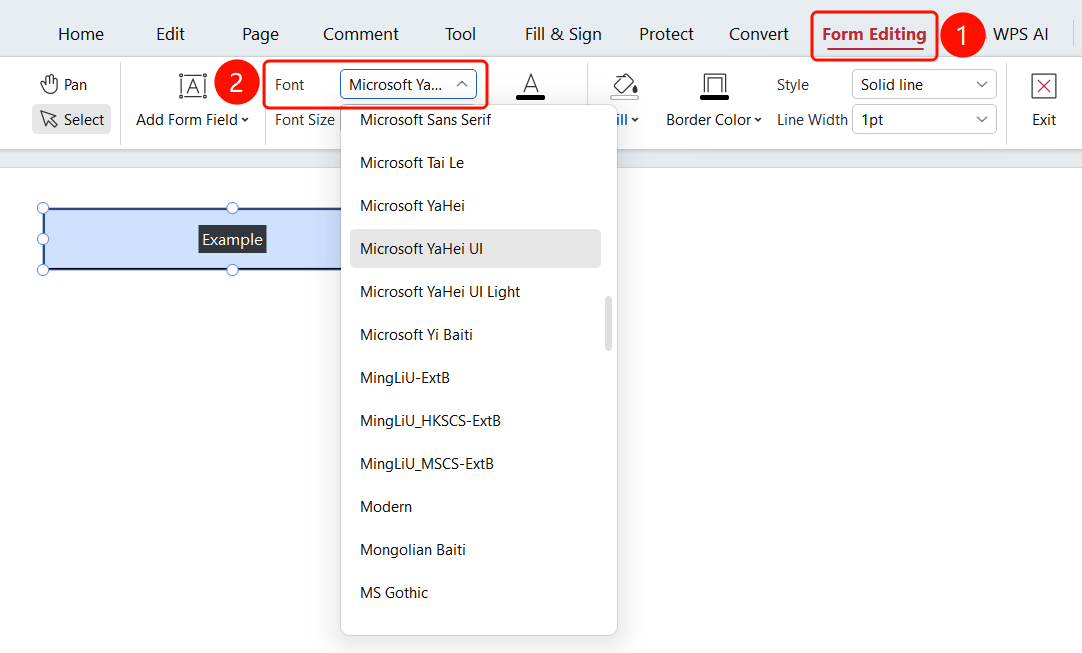
Select form field → "Form Edit" tab → "Font" dropdown menu
- Open the PDF file in which you want to edit form fields.
- Select an inserted form field.
- Click the Form Edit tab in the ribbon.
- Click the Font dropdown menu.
- Select the desired font from the font list.
Edit Form Field Font Size
Feature Entry
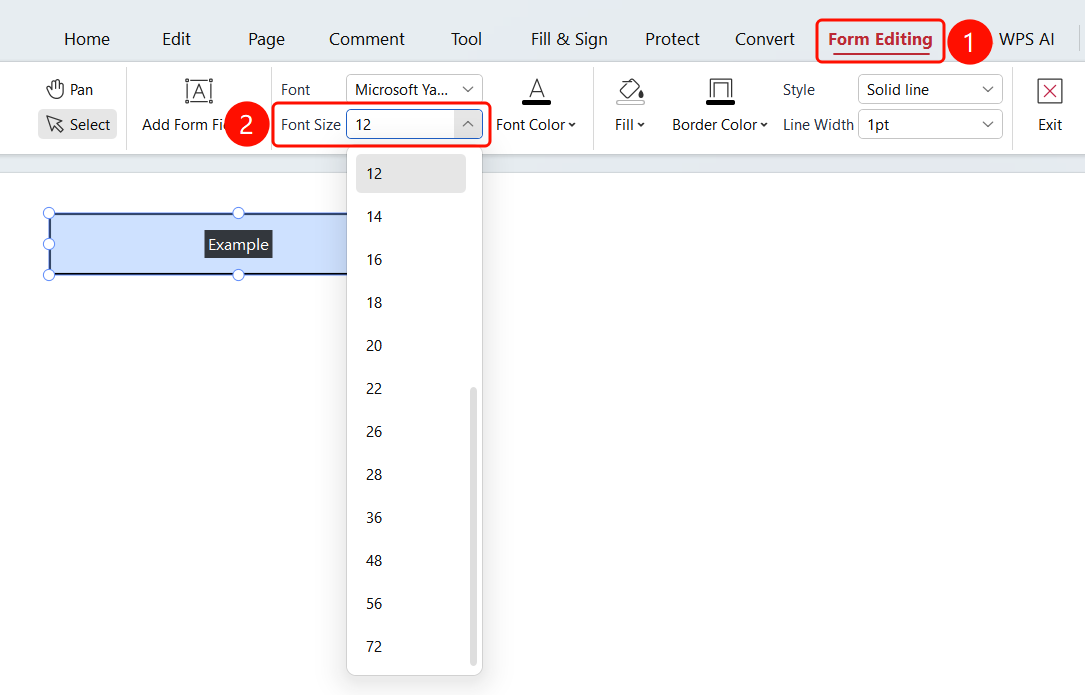
Select form field → "Form Edit" tab → "Font Size" dropdown menu
- Open the PDF file in which you want to edit form fields.
- Select an inserted form field.
- Click the Form Edit tab in the ribbon.
- Click the Font Size dropdown menu.
- Select the desired font size from the font size list.
Edit Form Field Font Color
Feature Entry
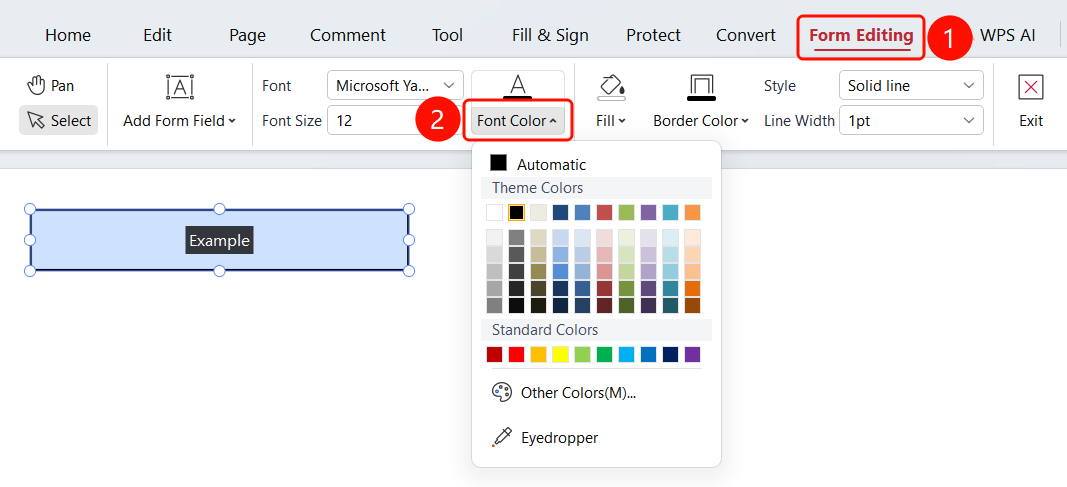
Select form field → "Form Edit" tab → "Font Color" dropdown menu
- Open the PDF file in which you want to edit form fields.
- Select an inserted form field.
- Click the Form Edit tab in the ribbon.
- Click the Font Color dropdown menu, and select the desired font color.
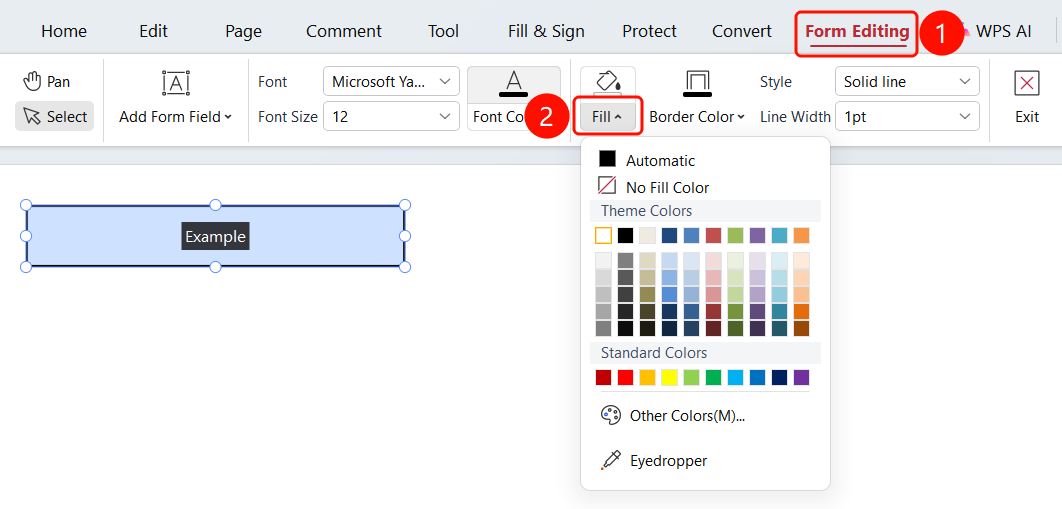
Form Field Fill Color
Feature Entry
Select form field → "Form Edit" tab → "Fill" dropdown menu
- Open the PDF file in which you want to edit form fields.
- Select an inserted form field.
- Click the Form Edit tab in the ribbon.
- Click the Fill dropdown menu, and select the desired fill color.
Form Field Border Color
Feature Entry
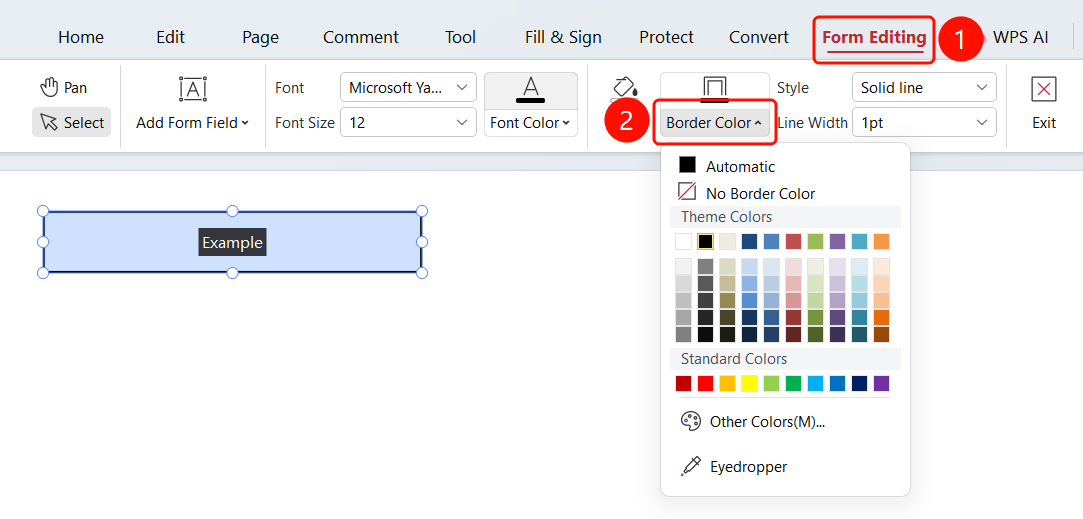
Select form field → "Form Edit" tab → "Border Color" dropdown menu
- Open the PDF file in which you want to edit form fields.
- Select an inserted form field.
- Click the Form Edit tab in the ribbon.
- Click the Border Color dropdown menu, and select the desired border color.
Form Field Line Style
Feature Entry
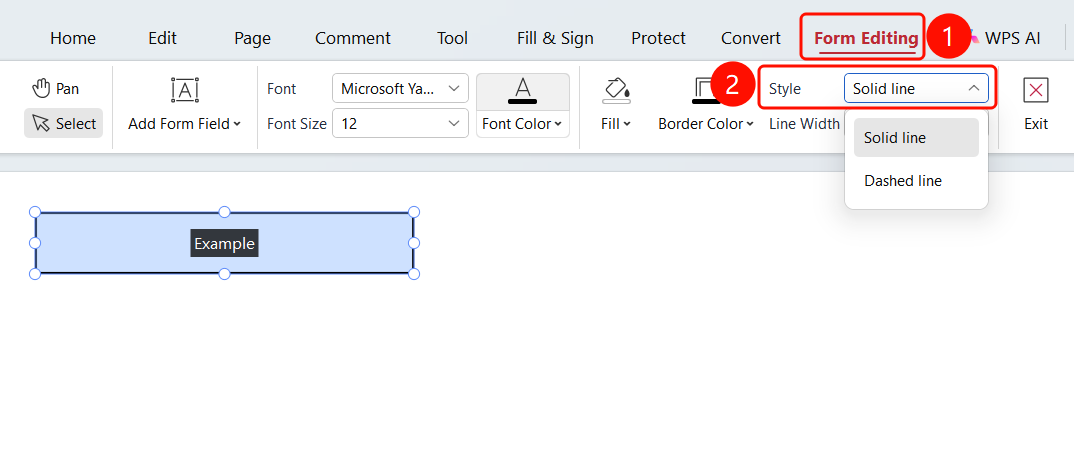
Select form field → "Form Edit" tab → "Line Style" dropdown menu
Open the PDF file in which you want to edit form fields.
Select an inserted form field.
Click the Form Edit tab in the ribbon.
Click the Line Style dropdown menu, and select a line style:
- Solid
- Dashed
Form Field Line Width
Feature Entry
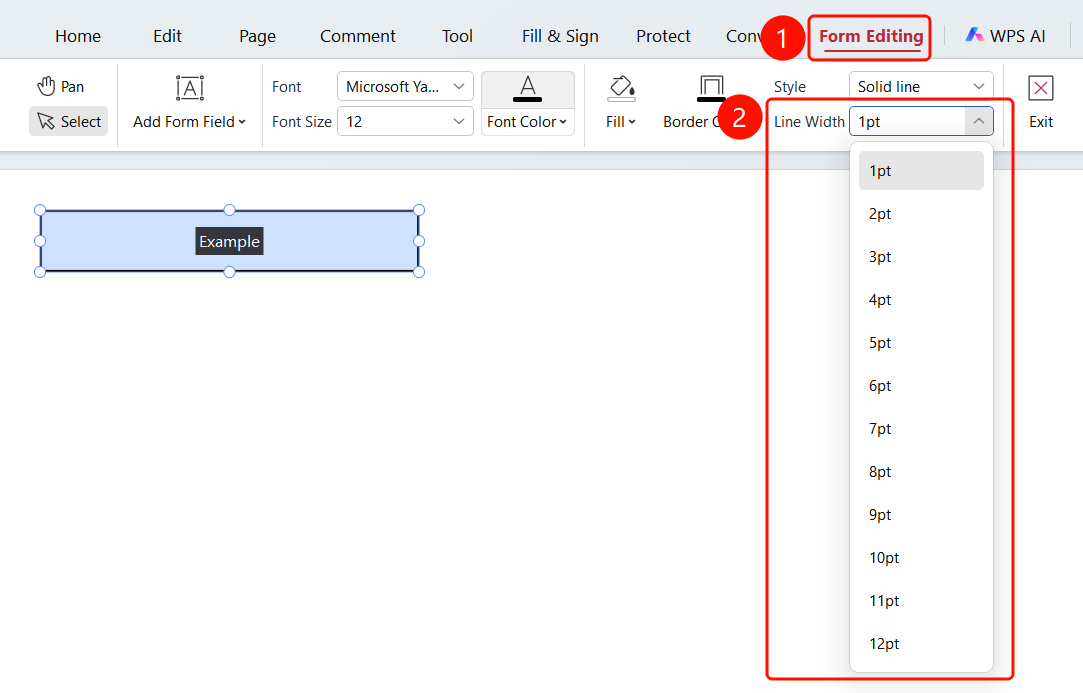
Select form field → "Form Edit" tab → "Line Width" dropdown menu
- Open the PDF file in which you want to edit form fields.
- Select an inserted form field.
- Click the Form Edit tab in the ribbon.
- Click the Line Width dropdown menu, and adjust the line size.
FAQ
Q1: Why cannot I change the font and font size for some form fields?
- Solution: Adjusting font and font size is not supported for radio button and checkbox form fields.
Q2: How do I add new form fields?
- Solution: In form editing mode, select the desired form field type, and click in the PDF to add it.
Q3: How do I delete form fields?
- Solution: In form editing mode, select the form field and press the
Deletekey.