Feature Summary
Automatically scroll through PDF documents and adjust the scrolling speed.
Feature Details
| Feature Dimension | Description |
|---|---|
| Subscription Limit | Requires subscribing to a membership |
| Version Limit | No version limits |
Steps
Accessing the Auto Scroll Feature
Feature Entry
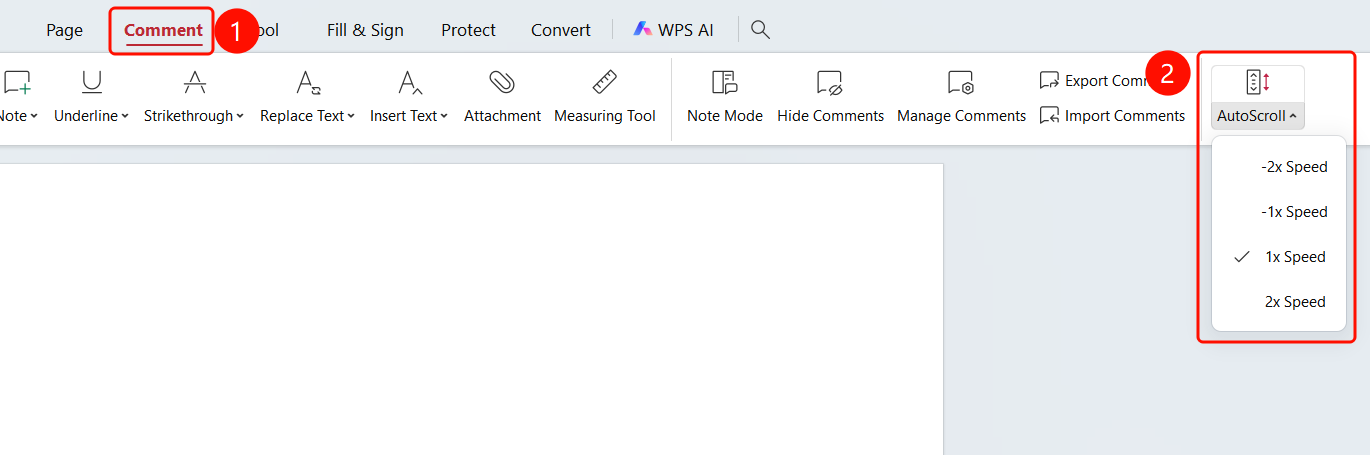
Comment tab -> Auto Scroll drop-down menu
Open the PDF file you want to scroll automatically.
Click the Comment tab in the top ribbon.
Click the Auto Scroll drop-down button in the ribbon.
Select a scrolling speed from the drop-down menu:
- -2x Speed: Slowest
- -1x Speed: Slower
- 1x Speed: Normal (default)
- 2x Speed: Faster
FAQs
Q1: How do I stop auto scrolling?
- Solution: Click anywhere in the document to stop auto scrolling.
Q2: Will auto scrolling affect reading?
- Solution: No. Auto scrolling is suitable for long reading sessions or presentation scenarios.
Q3: How do I adjust the scrolling speed?
- Solution: Select a different speed option from the auto scroll drop-down menu.