Feature Summary
Add timestamps to PDF documents to prove the status of a document at a specific point in time.
Feature Description
| Feature Dimension | Description |
|---|---|
| Subscription Limit | Requires subscribing to a membership |
| Version Limit | No version limit |
Operating Steps
Accessing the Timestamp Feature
Feature Entry
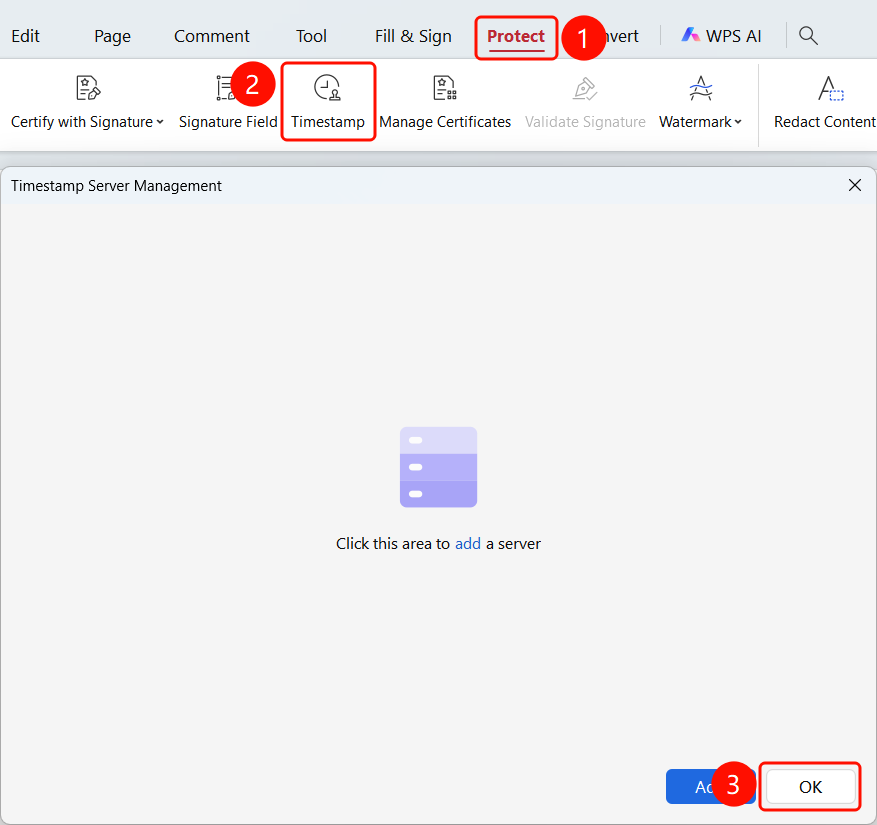
Protect tab → Timestamp button → Timestamp Server Management dialog box → Add button
- Open the PDF file to which you want to add a timestamp.
- Click the Protect tab in the top ribbon.
- Click the Timestamp button in the ribbon.
- The Timestamp Server Management dialog box will pop up.
- Select an existing server and click OK to use the timestamp.
Adding a Timestamp Server
Feature Entry
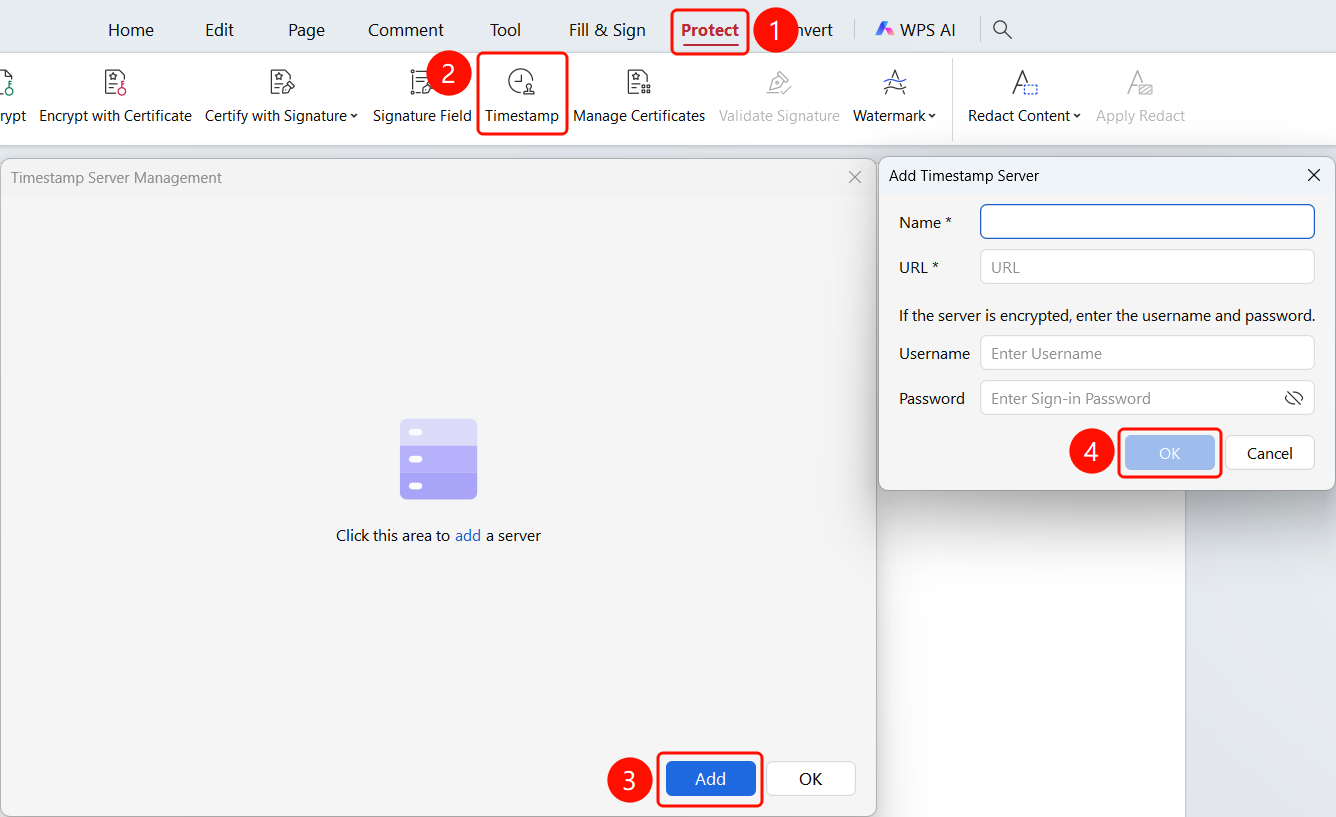
Timestamp Server Management dialog box → Add button → Add Timestamp Server dialog box
Click the Add button in the Timestamp Server Management dialog box.
In the Add Timestamp Server dialog box, fill in the following:
- Name: Server name (required)
- URL: Server URL address (required)
- Username: Enter the username if the server is encrypted
- Password: Enter the sign-in password
Click the OK button to save the server configuration.
FAQ
Q1: What is the difference between a timestamp and a signature time?
The signature time is provided locally by the signer, while the timestamp is provided by a trusted third-party server, making it more credible.
Q2: Can a timestamp be forged?
Timestamps are issued by trusted time servers and cannot be forged.
Q3: What should I do if the timestamp expires?
The timestamp itself does not expire, but the certificate of the timestamp server may need to be updated.
Notes
- A network connection is required to add timestamps.
- Timestamps can be used in conjunction with digital signatures.
- Timestamps prove the status of a document at a specific point in time.