Feature Summary
Set password protection for PDF documents to prevent unauthorized access and modification.
Feature Description
| Feature Dimension | Description |
|---|---|
| Membership Restriction | Requires subscribing to a membership to edit PDF files |
| Version Restriction | No version restriction |
Steps
Encrypt a Document
Feature Entry
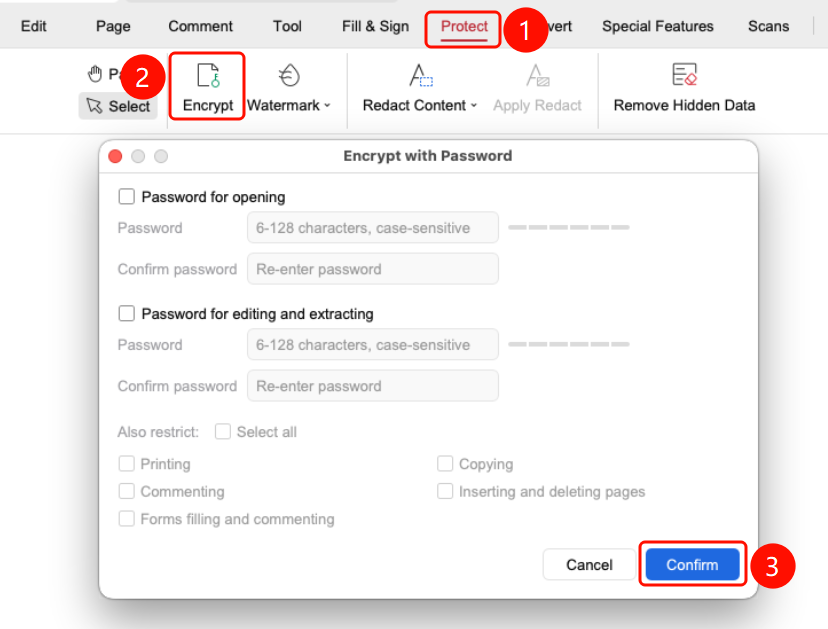
"Protect" tab > "Document Encryption" button > "Encryption" dialog box
Open the PDF file that you want to encrypt.
Click the Protect tab in the top ribbon.
Click the Document Encryption button in the ribbon.
Set passwords in the "Encryption" dialog box:
- Set Open Password: Select this option and enter a password (6-128 characters, case-sensitive).
- Set Edit and Page Extraction Password: Select this option and enter a password.
Set feature restrictions:
- Print: Restrict the printing feature.
- Copy: Restrict the copying feature.
- Comment: Restrict adding comments.
- Insert and Delete Pages: Restrict page operations.
- Fill in Forms and Comment: Restrict form filling.
Click the OK button to complete the encryption.
FAQ
Q1: What should I do if I forget the password?
Once a PDF password is forgotten, it cannot be recovered. Please keep your password safe.
Q2: What is the difference between the open password and the permissions password?
The open password controls who can open the document, while the permissions password controls what operations can be performed after opening.
Q3: Can encryption be undone?
Yes. After entering the correct password, you can modify or remove the encryption settings.
Notes
- Please keep your password safe. If you forget it, you will not be able to open the document.
- It is recommended to use a strong password (containing letters, numbers, and symbols).
- After encryption, please save the document for the settings to take effect.