Feature Summary
Add text boxes in PDF documents to insert explanatory notes.
Feature Description
| Feature Dimension | Description |
|---|---|
| Membership Restriction | Requires subscribing to a membership to edit PDF files |
| Version Restriction | No version restriction |
Steps
Add a Text Box
Feature Entry
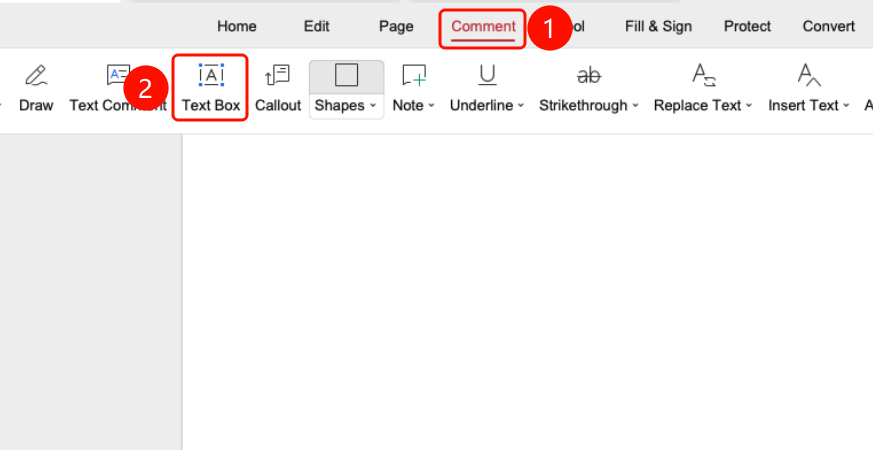
"Comment" tab -> "Text Box" button
- Open the PDF file where you want to add a text box.
- Click the Comment tab in the top ribbon.
- Click the Text Box button in the ribbon.
- Drag on the PDF page to draw a text box.
Edit Text Box Font
Feature Entry
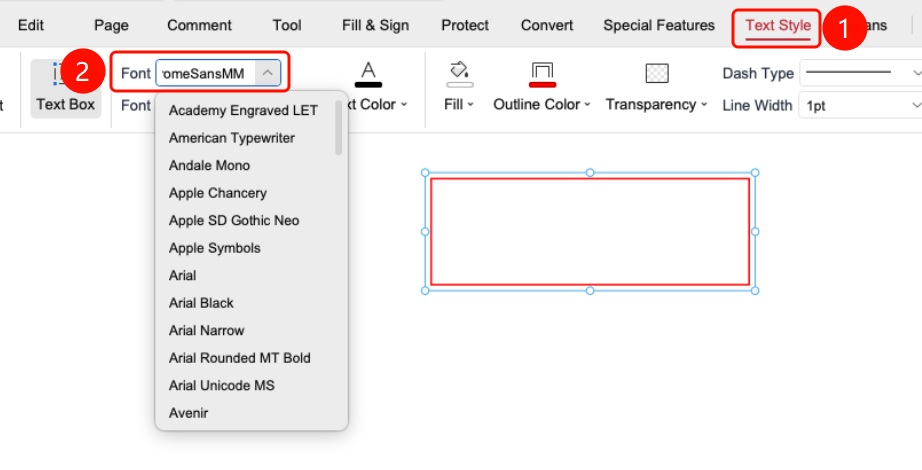
Select the text box -> "Text Tools" tab -> "Font" drop-down list
- Select the added text box, and click the Text Tools tab in the top ribbon.
- Click the Font drop-down list.
- Choose the desired font from the font list.
Edit Text Box Font Size
Feature Entry
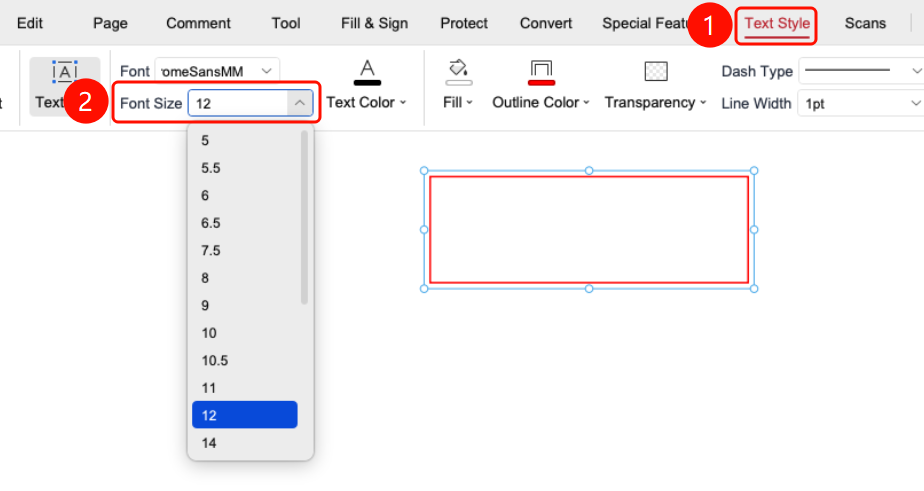
Select the text box -> "Text Tools" tab -> "Font Size" drop-down list
- Select the added text box, and click the Text Tools tab in the top ribbon.
- Click the Font Size drop-down list.
- Choose the desired font size from the font size list.
Edit Text Box Font Color
Feature Entry
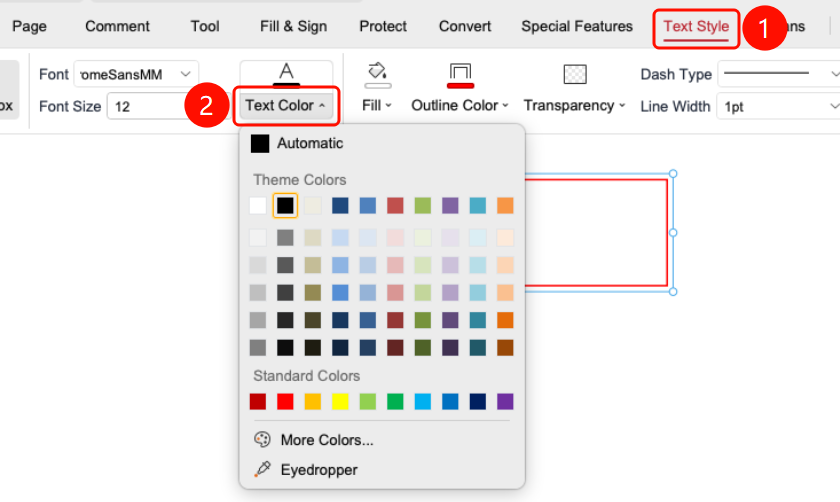
Select the text box -> "Text Tools" tab -> "Font Color" drop-down list
- Select the added text box, and click the Text Tools tab in the top ribbon.
- Click the Font Color drop-down list.
- Choose the desired font color.
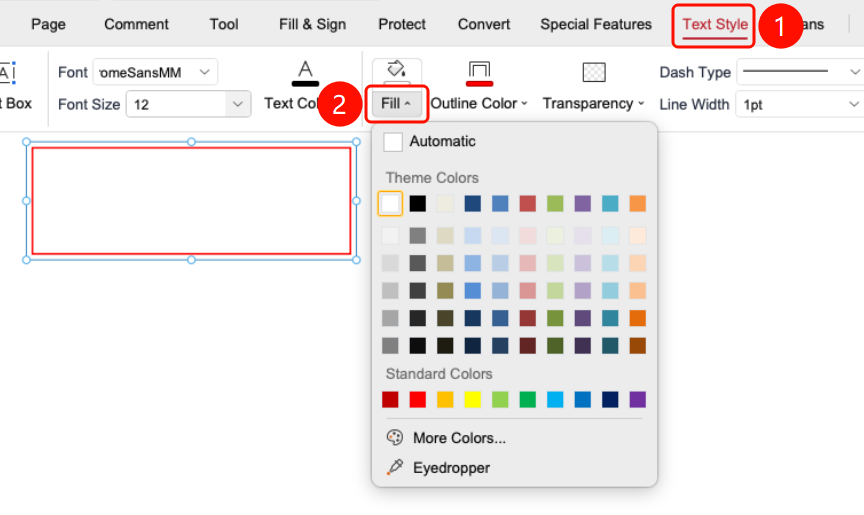
Edit Text Box Fill Color
Feature Entry
Select the text box -> "Text Tools" tab -> "Fill Color" drop-down list
- Select the added text box, and click the Text Tools tab in the top ribbon.
- Click the Fill Color drop-down list.
- Choose the desired fill color.
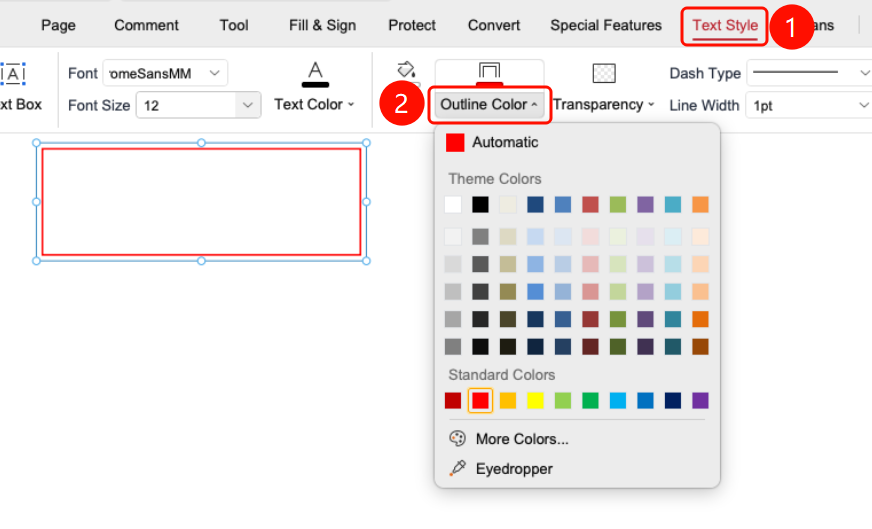
Edit Text Box Border Color
Feature Entry
Select the text box -> "Text Tools" tab -> "Border Color" drop-down list
- Select the added text box, and click the Text Tools tab in the top ribbon.
- Click the Border Color drop-down list.
- Choose the desired border color.
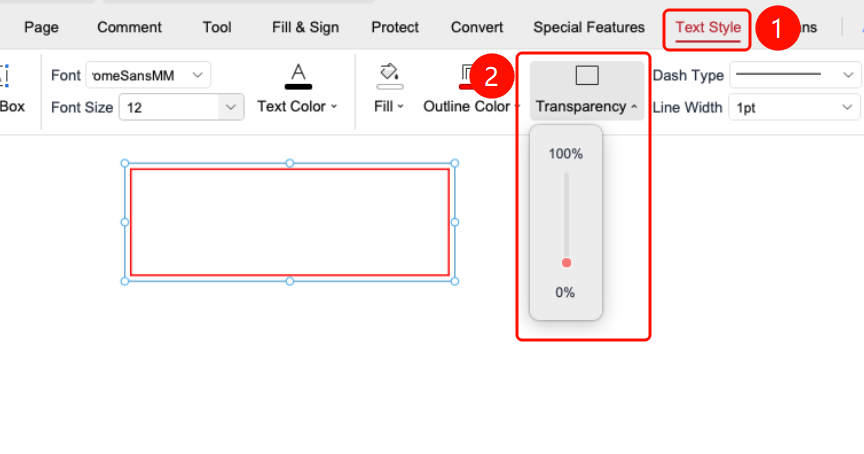
Edit Text Box Opacity
Feature Entry
Select the text box -> "Text Tools" tab -> "Opacity" drop-down list
- Select the added text box, and click the Text Tools tab in the top ribbon.
- Click the Opacity drop-down list.
- Adjust the opacity value. When opacity is 100%, the text box border is completely opaque.
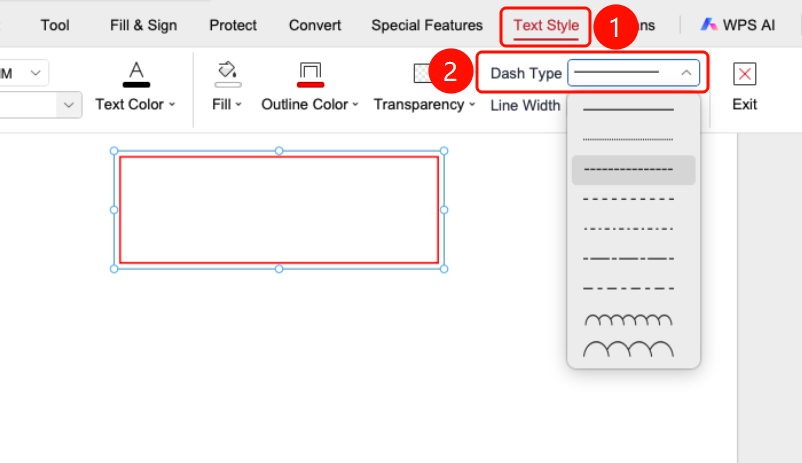
Edit Text Box Line Style
Feature Entry
Select the text box -> "Text Tools" tab -> "Line Style" drop-down list
Select the added text box, and click the Text Tools tab in the top ribbon.
Click the Line Style drop-down list.
Choose the text box line style:
- Solid Line
- Dashed Line
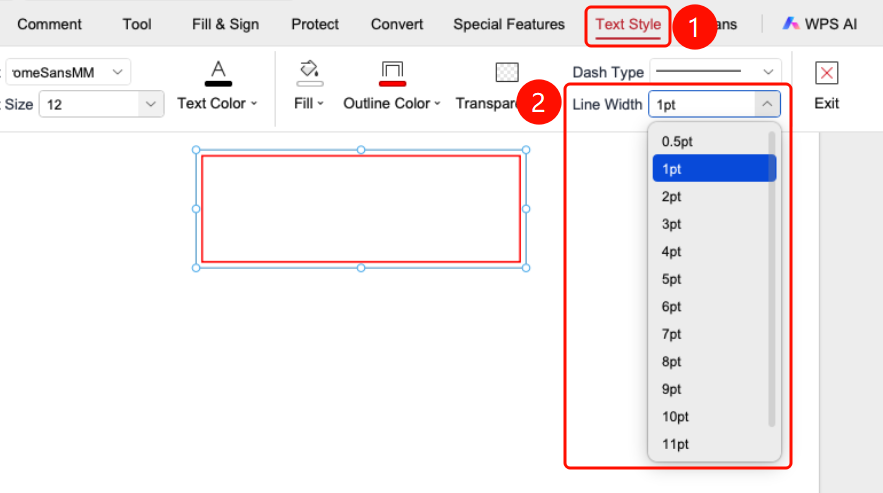
Edit Text Box Line Width
Feature Entry
Select the text box -> "Text Tools" tab -> "Line Width" drop-down list
- Select the added text box, and click the Text Tools tab in the top ribbon.
- Click the Line Width drop-down list.
- Adjust the width of the text box border in the list.
FAQ
Q1: What is the difference between a text box and a text comment?
A text box is an independent text area that can be placed freely; a text comment is an annotation attached to the original text.
Q2: Can I adjust the text box border style?
Yes. After selecting the text box, you can adjust the border color, thickness, and background color.
Q3: Does the text box support multiple lines of text?
Yes. Press the Enter key within the text box to wrap to a new line and enter multiple lines of text.
Notes
- Text boxes are only displayed as annotations and will not modify the original document content
- Text boxes can be saved in the PDF file and will be transmitted with the document when shared
- It is recommended to use text boxes appropriately for supplementary document explanations