Feature Summary
Convert PDF files to Excel sheets. Multiple conversion modes, merging methods, and output formats are supported to meet different data extraction needs.
Feature Description
| Feature Dimension | Description |
|---|---|
| Subscription Limit | Requires subscribing to membership |
| Version Limit | No version limit |
Steps
PDF to Excel Feature
Feature Entry
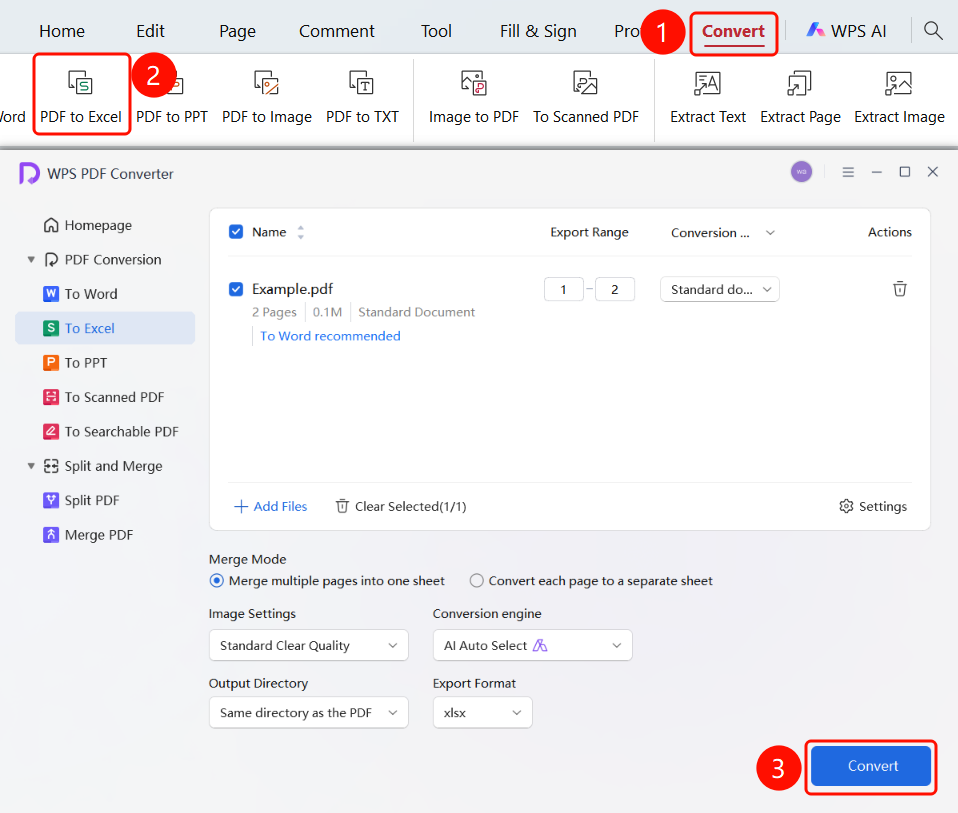
"Convert" tab → "To Excel" button → "WPS PDF Converter" window → "Convert" button
- Open the PDF file you want to convert.
- Click the Convert tab in the top ribbon.
- Click the To Excel button in the ribbon.
- The WPS PDF Converter window will pop up.
- Click the Convert button to start the conversion.
Set Conversion Mode
Feature Entry
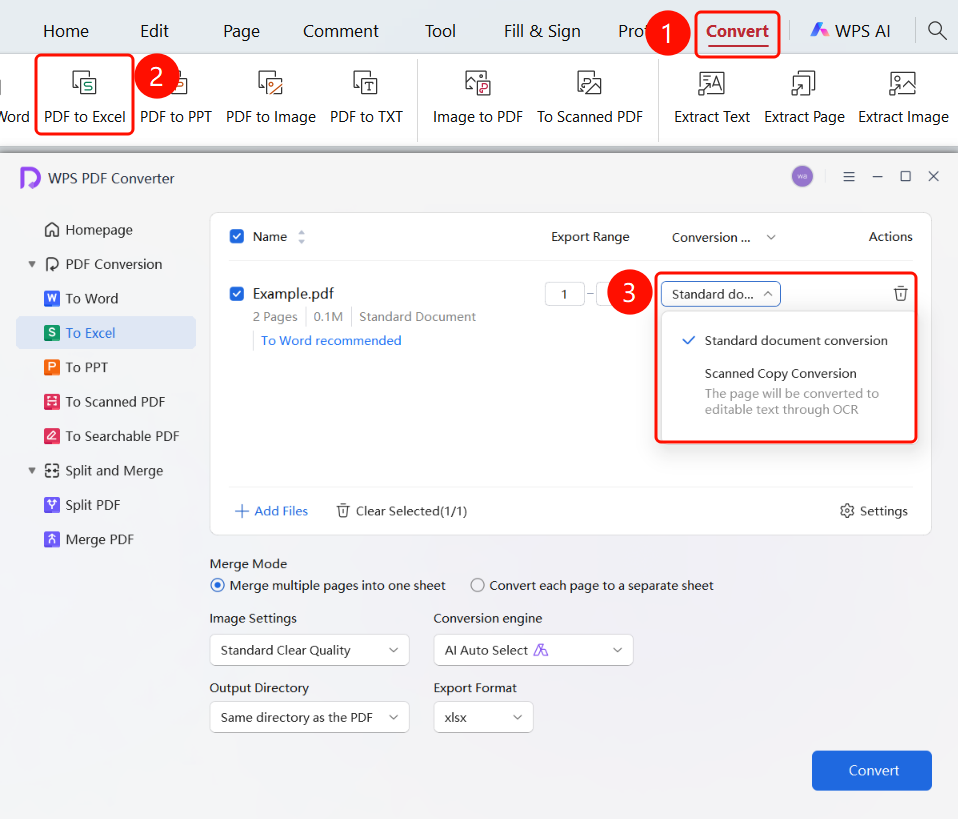
"WPS PDF Converter" window → File list → "Conversion Mode" dropdown menu
Click the Conversion Mode dropdown menu in the file list.
Select a conversion mode:
- Standard Conversion: Suitable for regular PDF files.
- Scanned File Conversion: Pages will be converted to editable text using OCR, suitable for scanned PDFs.
Set Merging Method
Feature Entry
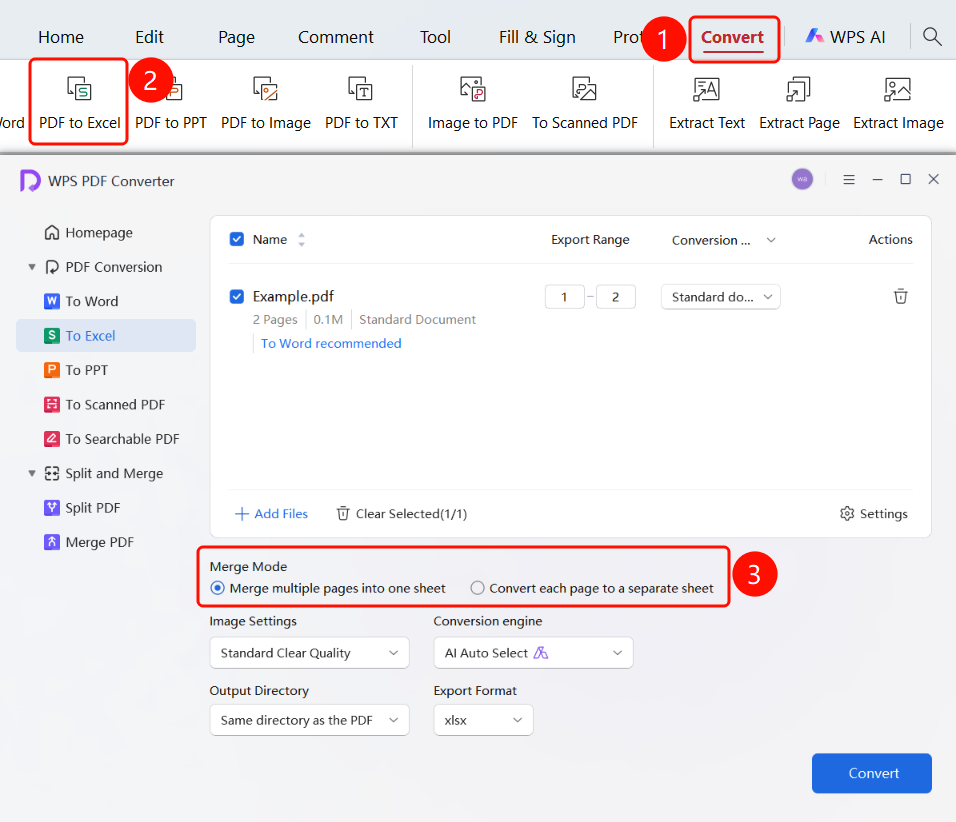
"WPS PDF Converter" window → "Merge Settings" option
Find the Merge Settings option in the converter window.
Select a merging method:
- Merge multiple pages into one sheet: Merge multi-page PDF content into a single Excel sheet.
- Convert each page into one sheet: Convert each page of the PDF into an independent Excel sheet.
Set Image Quality
Feature Entry
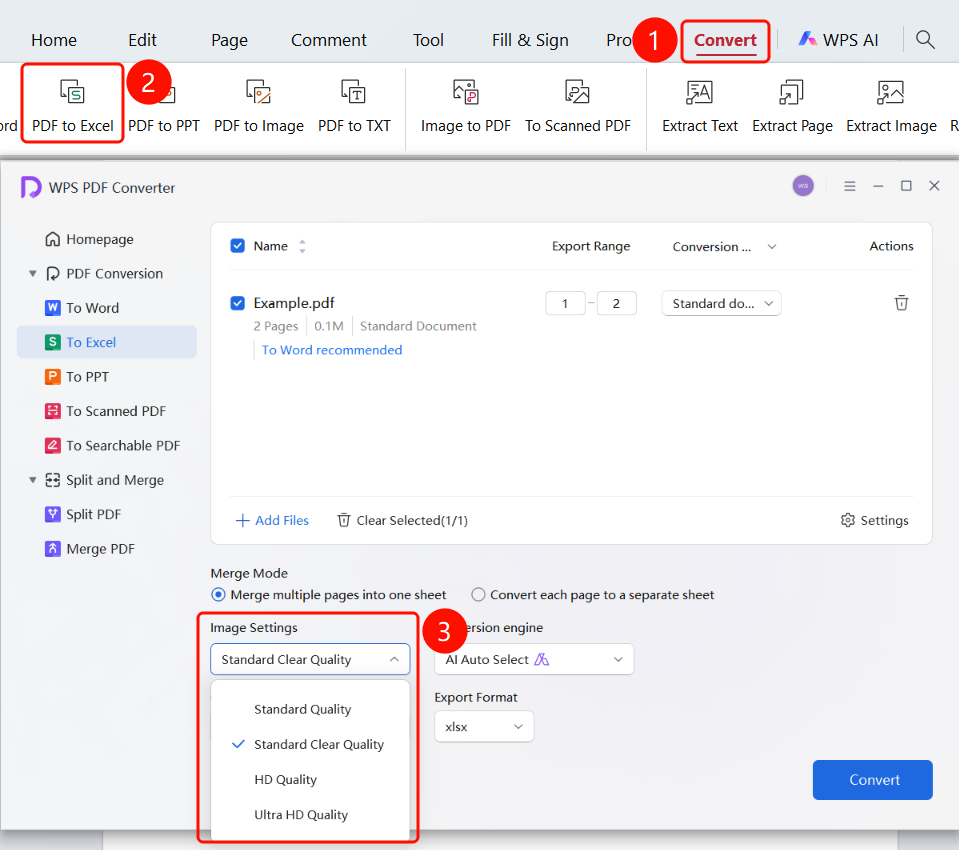
"WPS PDF Converter" window → "Image Settings" dropdown menu
Click the Image Settings dropdown menu in the converter window.
Select the image output quality:
- Normal Quality: Smaller file size, average image quality.
- Standard Quality: Balance file size and image quality (default).
- High Quality: Better image quality, larger file size.
- Ultra Quality: Highest image quality, largest file size.
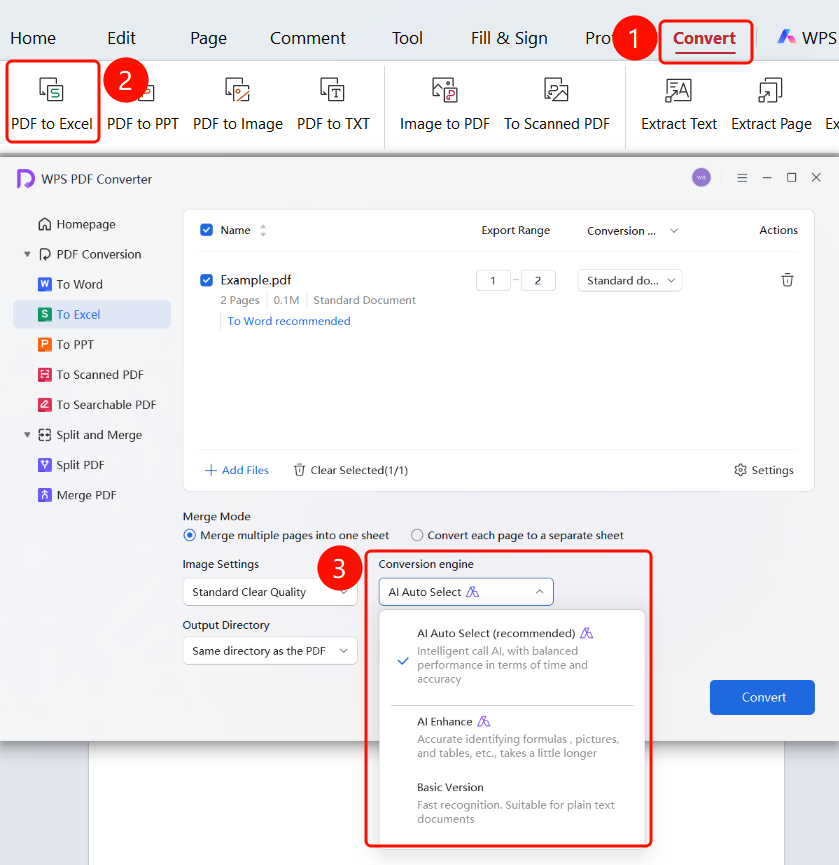
Set Conversion Engine
Feature Entry
"WPS PDF Converter" window → "Conversion Engine" dropdown menu
Click the Conversion Engine dropdown menu in the converter window.
Select a conversion engine:
- AI Auto-Select (Recommended): Intelligently calls AI, balancing time consumption and accuracy.
- AI Enhanced: Accurately recognizes formulas, images, tables, etc., taking slightly longer.
- Basic: Fast recognition, suitable for plain text documents.
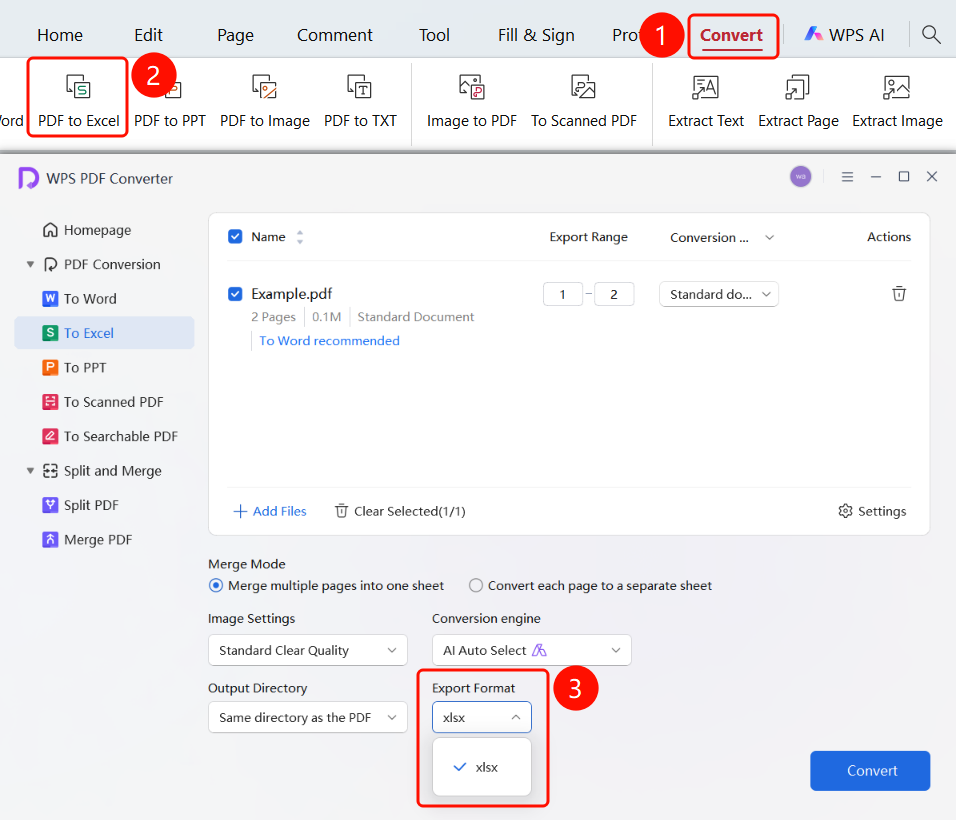
Set Output Format
Feature Entry
"WPS PDF Converter" window → "Output Format" dropdown menu
- Click the Output Format dropdown menu in the converter window.
- Currently, only the xlsx format is supported.
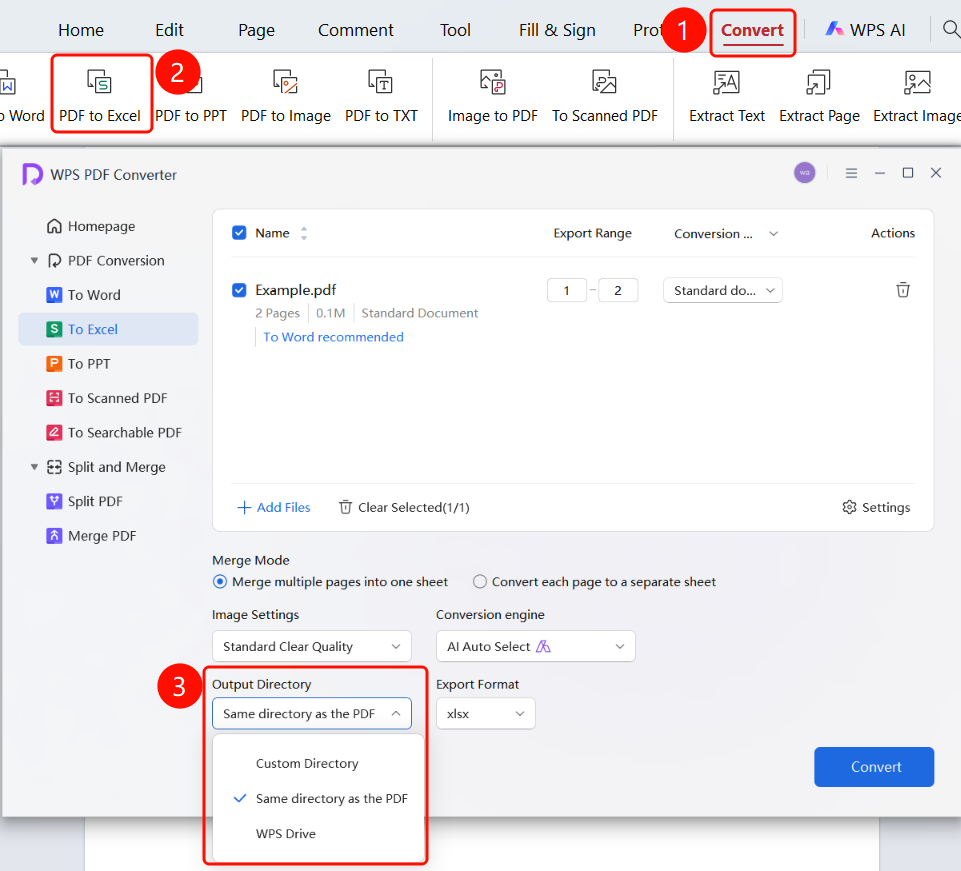
Set Output Directory
Feature Entry
"WPS PDF Converter" window → "Output Directory" dropdown menu → "Start" button
Click the Output Directory dropdown menu in the converter window and select a save location:
- Custom Directory: Select a local folder to save the file.
- Same Directory as PDF: Save to the directory where the source PDF file is located (default).
- WPS Cloud Documents: Save to WPS Cloud Documents.
FAQ
Q1: Why can't the text content of a scanned PDF be converted correctly?
- Solution: Switch the conversion mode from Standard Conversion to Scanned File Conversion. This mode uses OCR technology to recognize page content.