Feature Summary
Convert PDF files to PowerPoint presentations. With support for multiple conversion modes and image quality settings, you can easily convert PDF content into editable slides.
Feature Description
| Feature Dimension | Description |
|---|---|
| Membership Limit | Subscription required |
| Version Limit | No version limits |
Steps
Accessing PDF to Presentation
Feature Entry
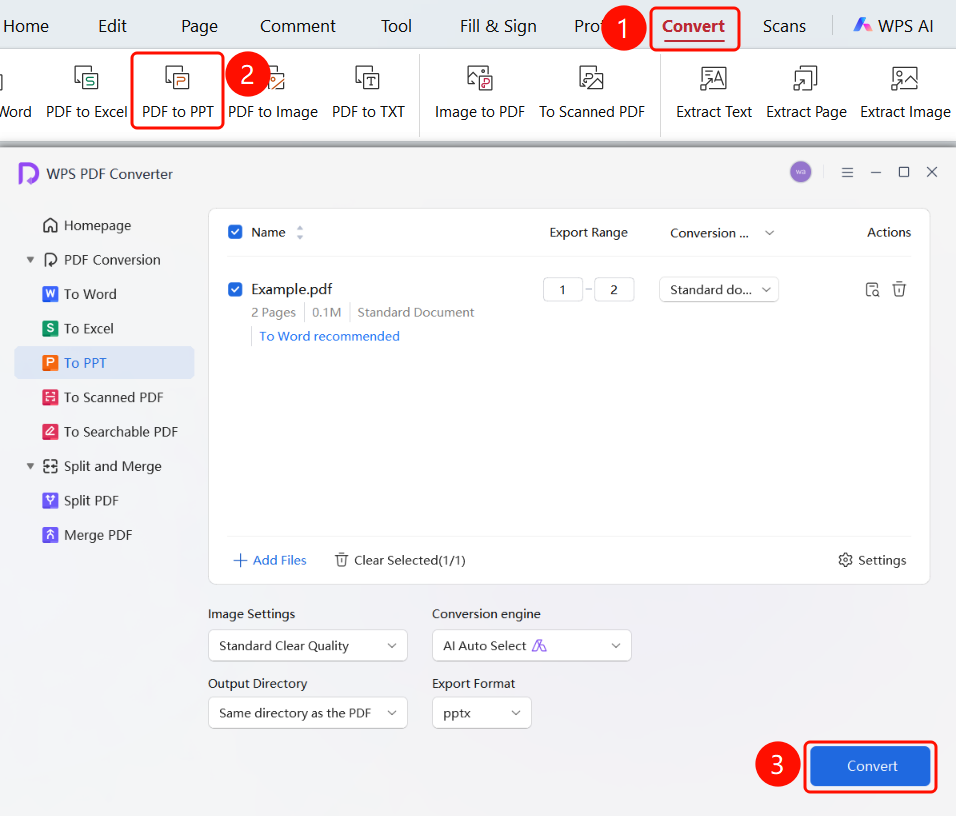
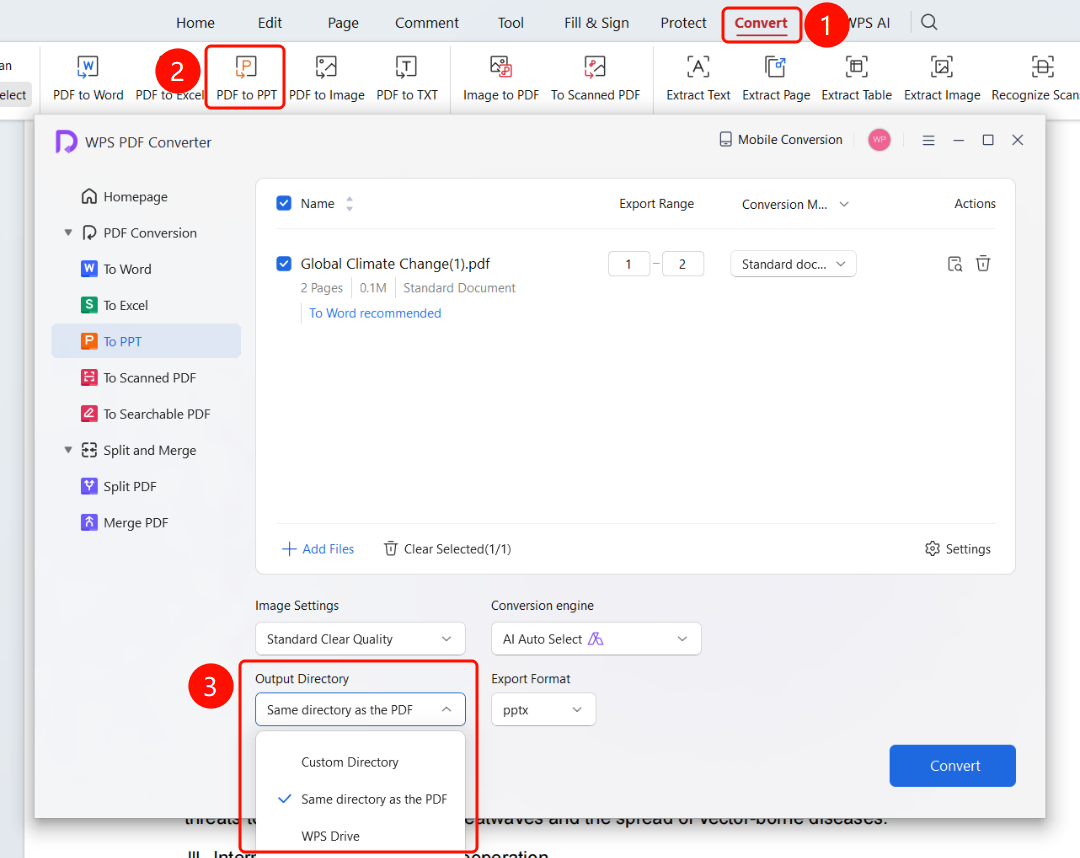
"Convert" tab → "To Presentation" button → "WPS PDF Converter" window
- Open the PDF file you want to convert.
- Click the Convert tab in the top menu bar.
- Click the To Presentation button.
- In the "WPS PDF Converter" window that appears, the "To Presentation" page is displayed by default.
- Click Add Files to add more PDF files for batch conversion.
- View file details (name, pages, size) in the file list.
- Set the page range for conversion under Page Range.
- Click Start Conversion to begin the conversion.
Set Conversion Mode
Feature Entry
"WPS PDF Converter" window → File list → "Conversion Mode" dropdown menu
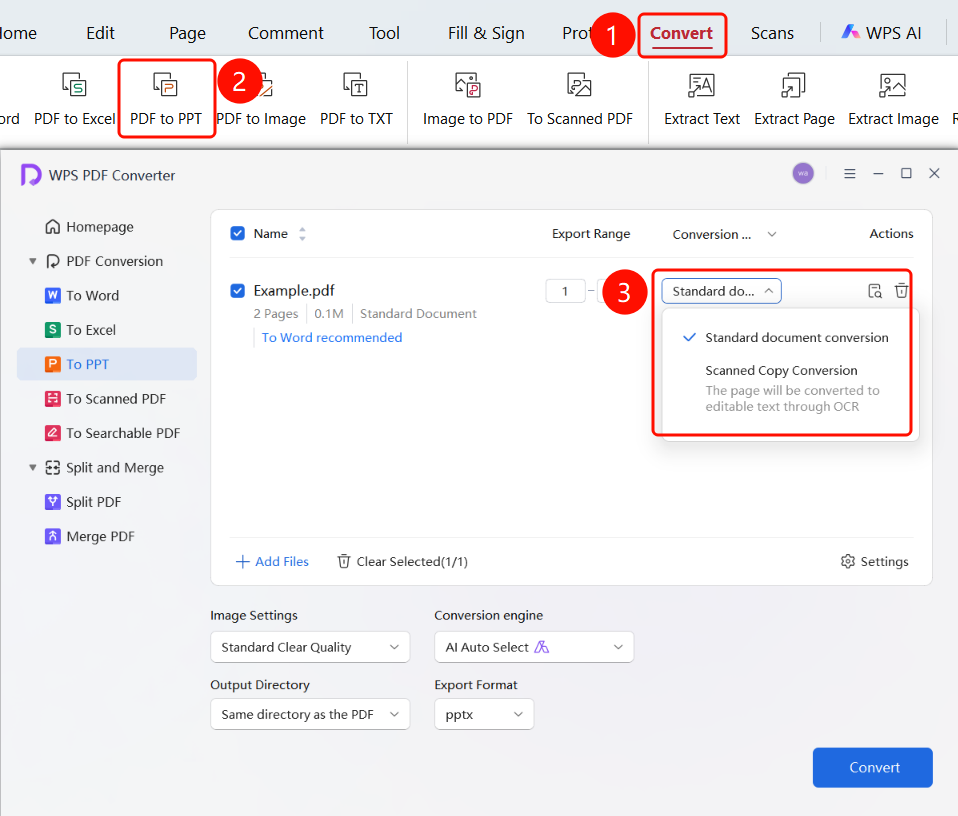
In the "WPS PDF Converter" window, click the Conversion Mode dropdown menu in the file list.
Select a conversion mode:
- Standard Conversion: Suitable for regular PDF files.
- OCR Conversion: Converts pages to editable text using OCR, suitable for scanned PDFs.
Set Image Quality
Feature Entry
"WPS PDF Converter" window → "Image Settings" dropdown menu
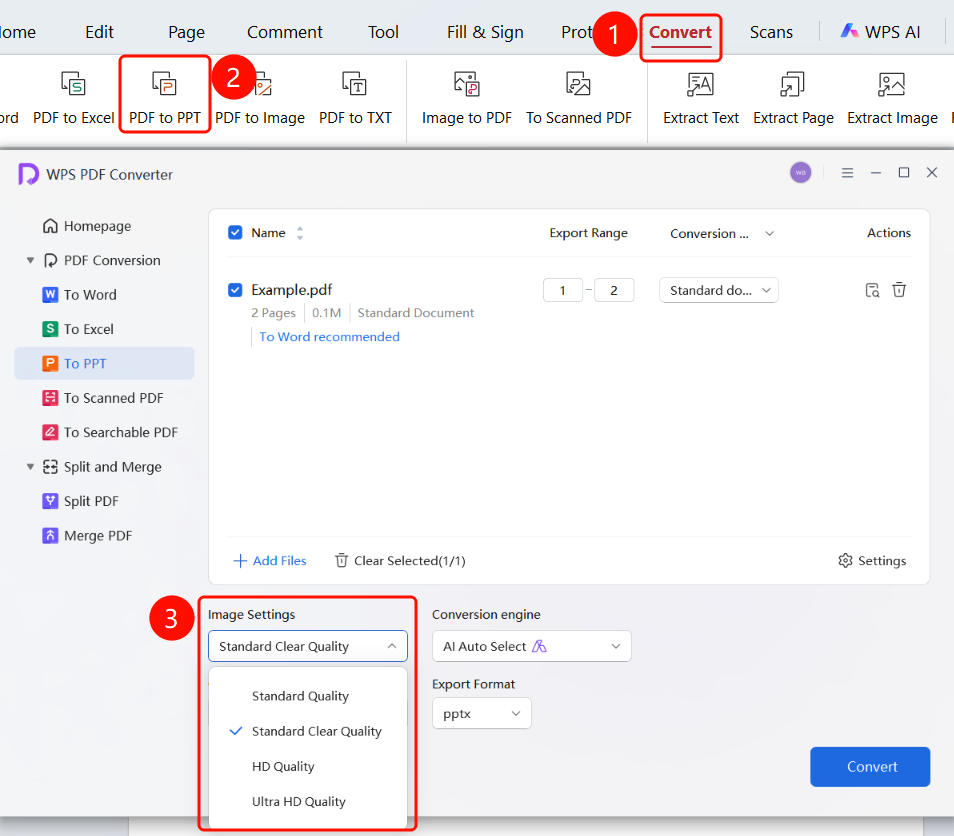
In the "WPS PDF Converter" window, click the Image Settings dropdown menu.
Select the output image quality:
- Normal: Smaller file size, standard image quality.
- Standard: Balanced file size and image quality (default).
- HD: Better image quality, larger file size.
- Ultra HD: Highest image quality, largest file size.
Set Output Format
Feature Entry
"WPS PDF Converter" window → "Output Format" dropdown menu
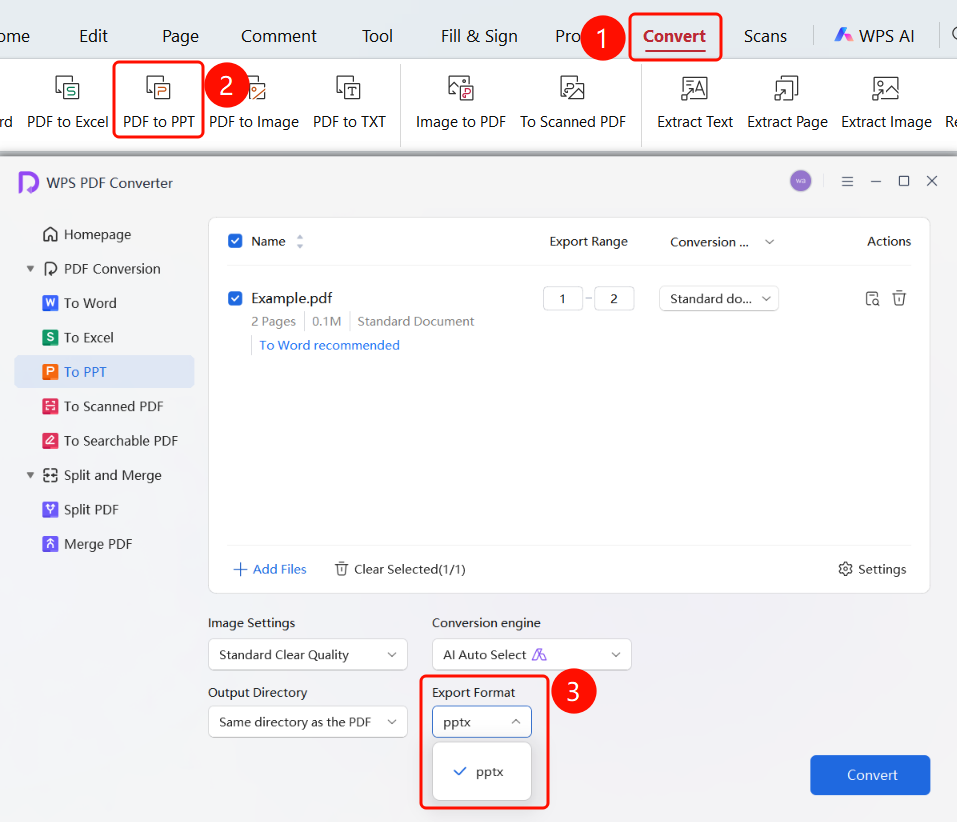
- In the "WPS PDF Converter" window, click the Output Format dropdown menu.
- Select the output format (supports .pptx).
Set Output Folder
Feature Entry
"WPS PDF Converter" window → "Save to" dropdown menu → "Start Conversion" button
In the "WPS PDF Converter" window, click the Save to dropdown menu to choose a save location:
- Custom Folder: Save to a local folder of your choice.
- Same Folder as PDF: Save to the directory of the source PDF file (default).
- WPS Cloud Documents: Save to WPS Cloud Documents.
FAQ
Q1: What should I do if the layout is messy after converting PDF to Presentation?
- Solution: Try switching the conversion engine to AI-Enhanced mode to recognize the page layout structure more accurately.
Q2: Why is the text in a scanned PDF not converted correctly?
- Solution: Switch the conversion mode from Standard Conversion to OCR Conversion, which uses OCR technology to recognize page content.