Feature Summary
Convert PDF files to Word documents. Supports multiple output formats and conversion engines while preserving the original document formatting and layout.
Feature Description
| Feature Dimension | Description |
|---|---|
| Subscription Limit | Subscription required |
| Version Limit | No version limit |
Operation Steps
Accessing the PDF to Word Feature
Feature Entry
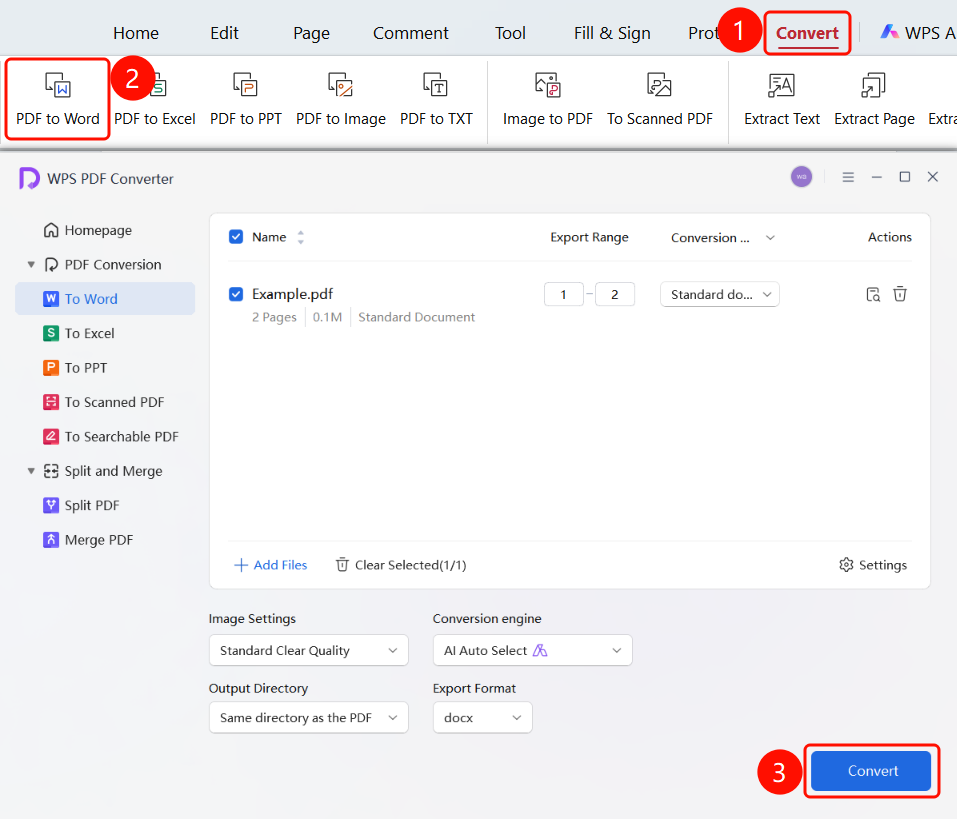
"Convert" tab → "To Word" button → "WPS PDF Converter" window → "Start" button
- Open the PDF file you want to convert.
- Click the Convert tab in the top ribbon.
- Click the To Word button in the ribbon.
- The "WPS PDF Converter" window will pop up, opening the "To Word" page by default.
- Click the + Add Files button to add more PDF files for batch conversion.
- View file details (name, pages, size) in the file list.
- Set the page range to convert using Page Range.
- Click the Start button.
Setting the Conversion Mode
Feature Entry
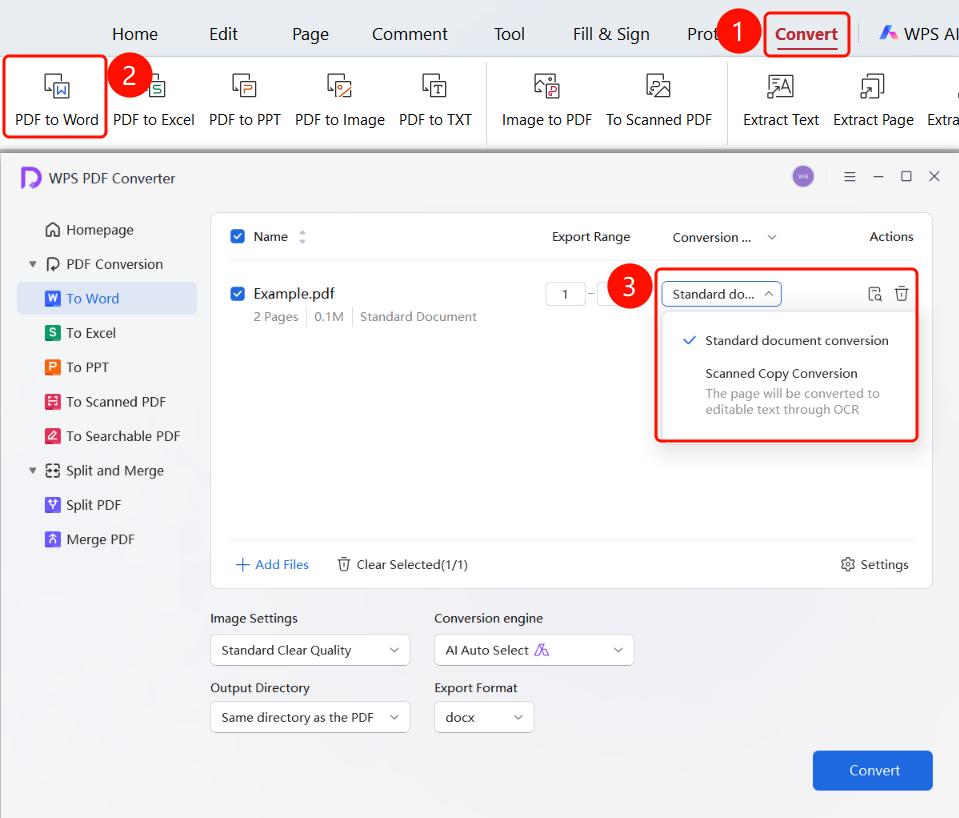
"WPS PDF Converter" window → File list → "Conversion Mode" dropdown menu
In the "WPS PDF Converter" window, click the Conversion Mode dropdown menu in the file list.
Choose a suitable conversion mode:
- Standard Conversion: Suitable for regular PDF files.
- Scanned Document Conversion: Pages will be converted to editable text using OCR. Suitable for scanned PDFs.
Setting the Image Quality
Feature Entry
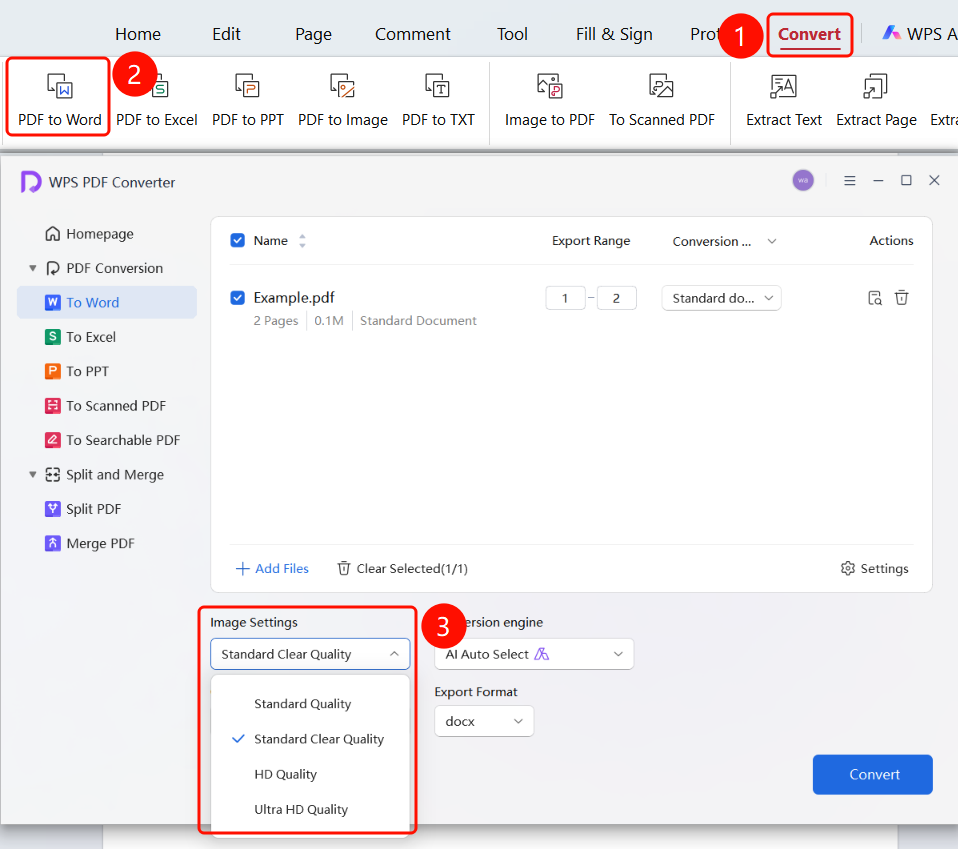
"WPS PDF Converter" window → "Image Settings" dropdown menu
In the "WPS PDF Converter" window, click the Image Settings dropdown menu.
Choose the image output quality:
- Normal Quality: Smaller file size, standard image quality.
- Standard Quality: Balances file size and image quality (default).
- High Quality: Better image quality, larger file size.
- Ultra Quality: Highest image quality, largest file size.
Setting the Conversion Engine
Feature Entry
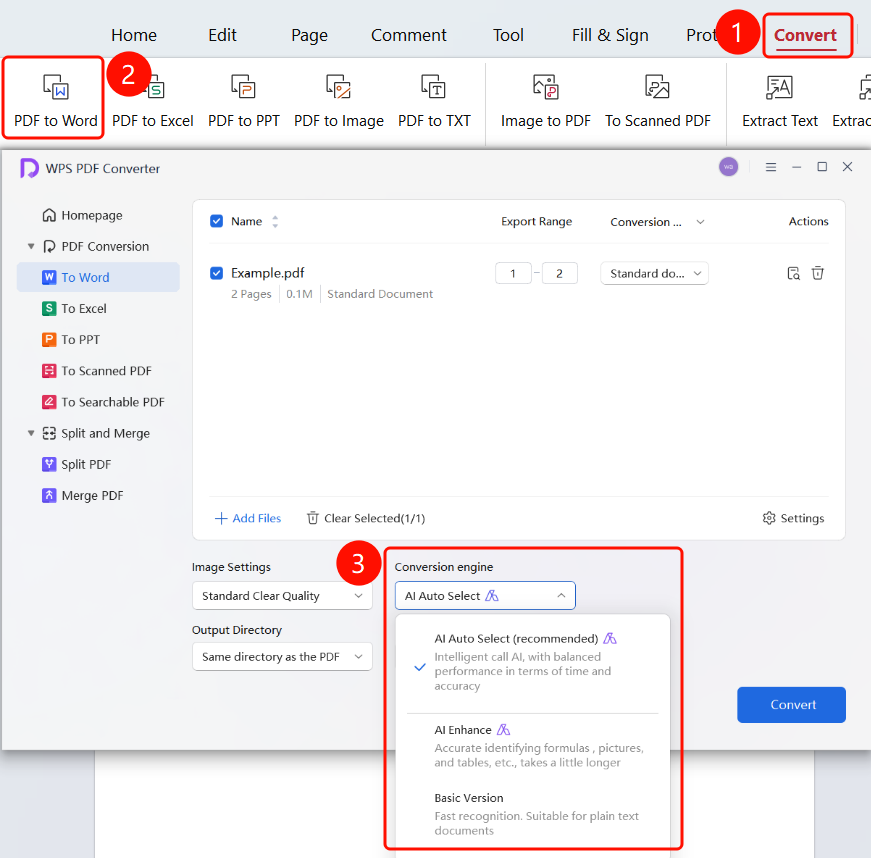
"WPS PDF Converter" window → "Conversion Engine" dropdown menu
In the "WPS PDF Converter" window, click the Conversion Engine dropdown menu.
Choose a conversion engine:
- AI Auto-Select (Recommended): Intelligently calls AI, balancing speed and accuracy.
- AI Enhanced: Accurately recognizes equations, images, and tables, taking slightly longer.
- Basic: Fast recognition, suitable for plain text documents.
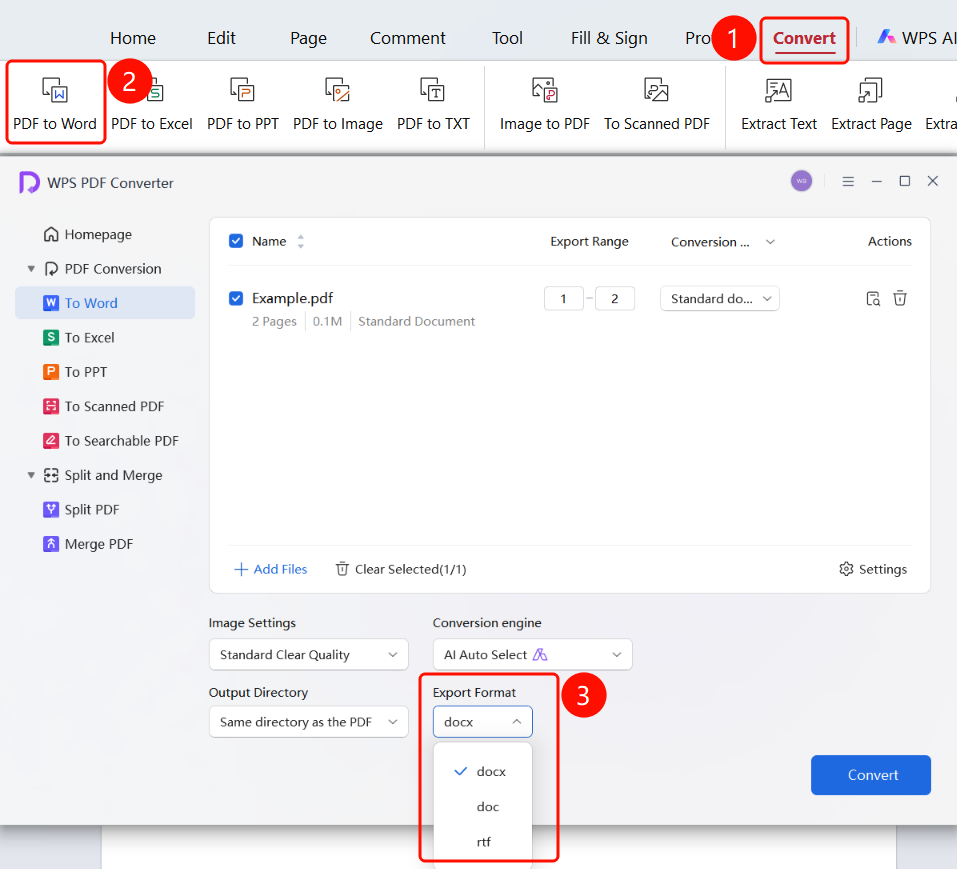
Setting the Output Format
Feature Entry
"WPS PDF Converter" window → "Output Format" dropdown menu
In the "WPS PDF Converter" window, click the Output Format dropdown menu.
Choose an output format:
- docx: Word 2007 and later format (default).
- doc: Word 97-2003 compatible format.
- rtf: Rich Text Format, highly compatible.
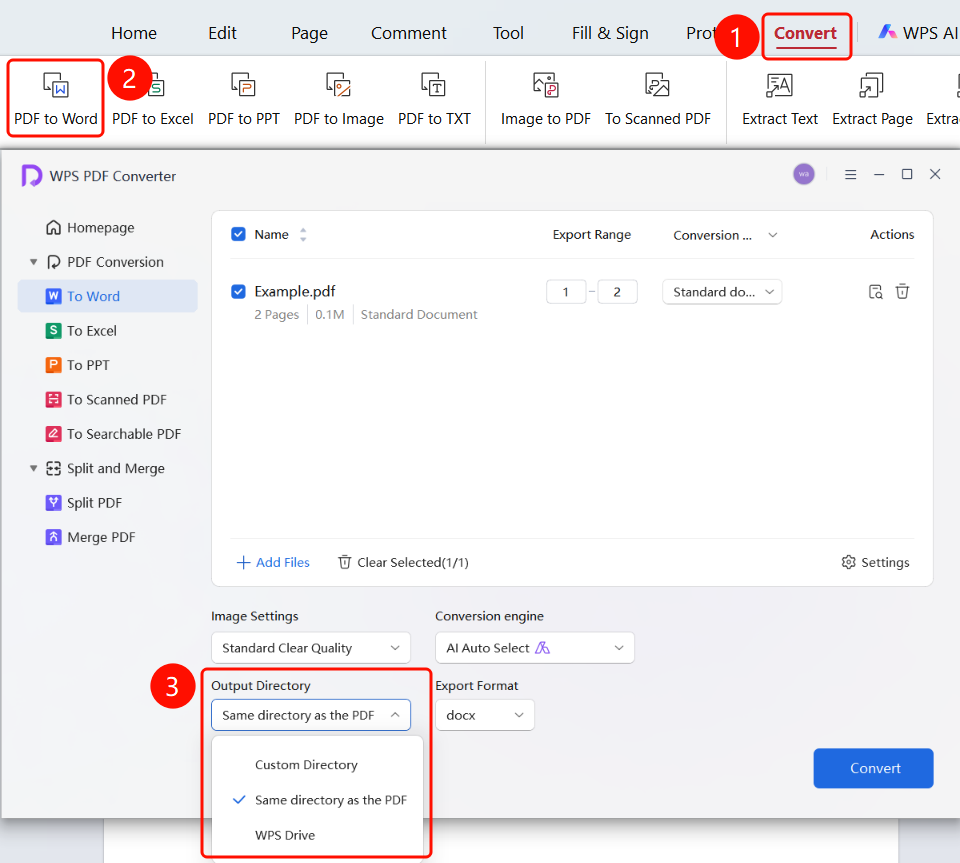
Setting the Output Folder
Feature Entry
"WPS PDF Converter" window → "Save to" dropdown menu → "Start" button
In the "WPS PDF Converter" window, click the Save to dropdown menu to choose a save location:
- Custom Folder: Choose a local folder to save the files.
- Same Folder as PDF: Save to the folder where the source PDF file is located (default).
- WPS Cloud Documents: Save to WPS Cloud Documents.
FAQ
Q1: What should I do if the conversion is too slow?
- Solution: If the document contains only plain text, you can switch the conversion engine to Basic to speed up the conversion, or reduce the page range to convert only the pages you need.