Feature Summary
Convert PDF files to images. This feature supports various output formats, output qualities, and watermark settings. You can export pages individually or merge them into a long image.
Feature Description
| Feature Dimension | Description |
|---|---|
| Subscription Limit | Subscription required |
| Version Limit | No version limit |
Steps
PDF to Image
Feature Entry
"Convert" tab -> "To Picture" button -> "Batch Export to Images" dialog box -> "Export" button
- Open the PDF file you want to convert.
- Click the Convert tab on the top menu bar.
- Click the To Picture button.
- In the "Batch Export to Images" dialog box that appears,
- Click + Add Files in the lower-left corner to add more PDF files.
- Select the files you want to convert. You can preview the output in the middle area.
- Click Export to start converting the files to images.
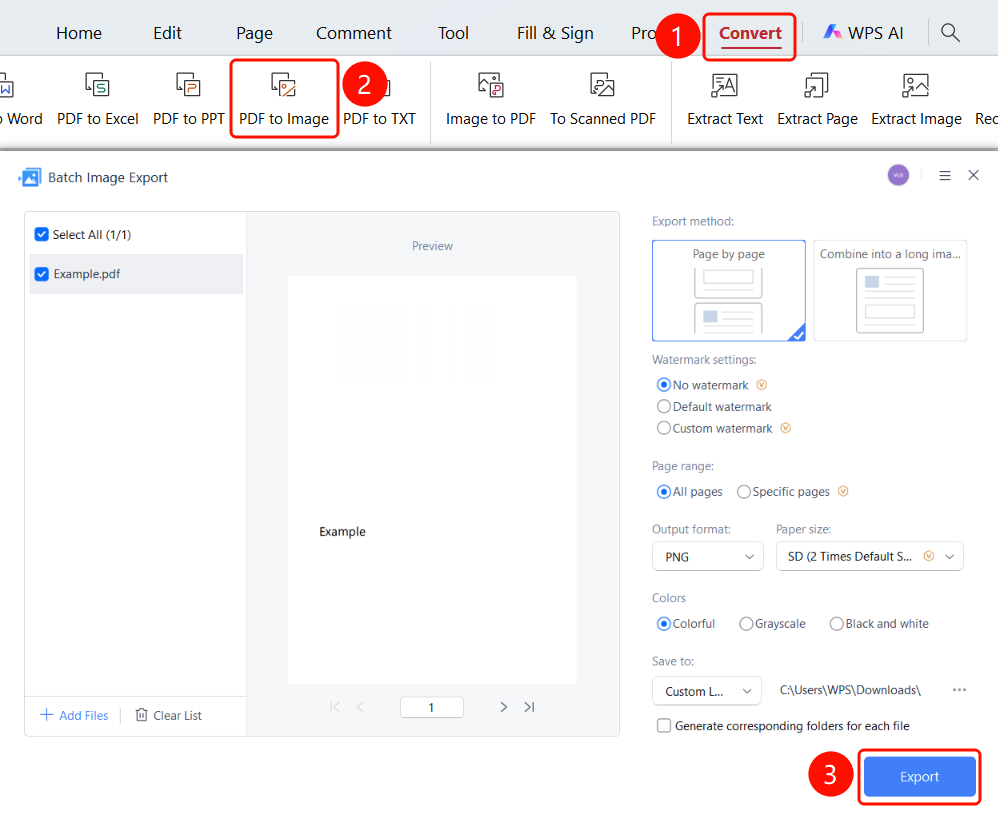
Set Output Mode
Feature Entry
"Batch Export to Images" dialog box -> "Output Mode" option
In the "Batch Export to Images" dialog box, click Output Mode.
Select an output mode:
- Export Individually: Export each PDF page as a separate image.
- Merge into Long Image: Merge multiple PDF pages into one long image.
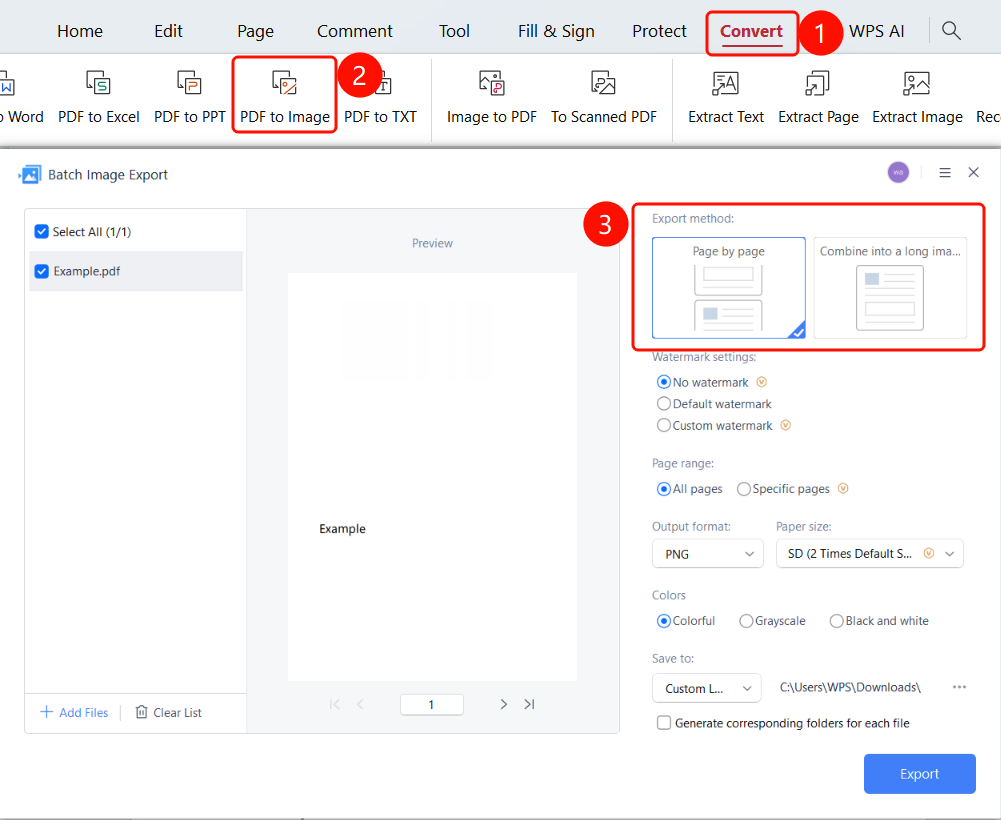
Set Watermark
Feature Entry
"Batch Export to Images" dialog box -> "Watermark Settings" option
In the "Batch Export to Images" dialog box, click Watermark Settings.
Select a watermark option:
- No Watermark: Do not add watermarks to the exported images.
- Default Watermark: Add the default watermark to the exported images.
- Custom Watermark: Customize the watermark content for the exported images.
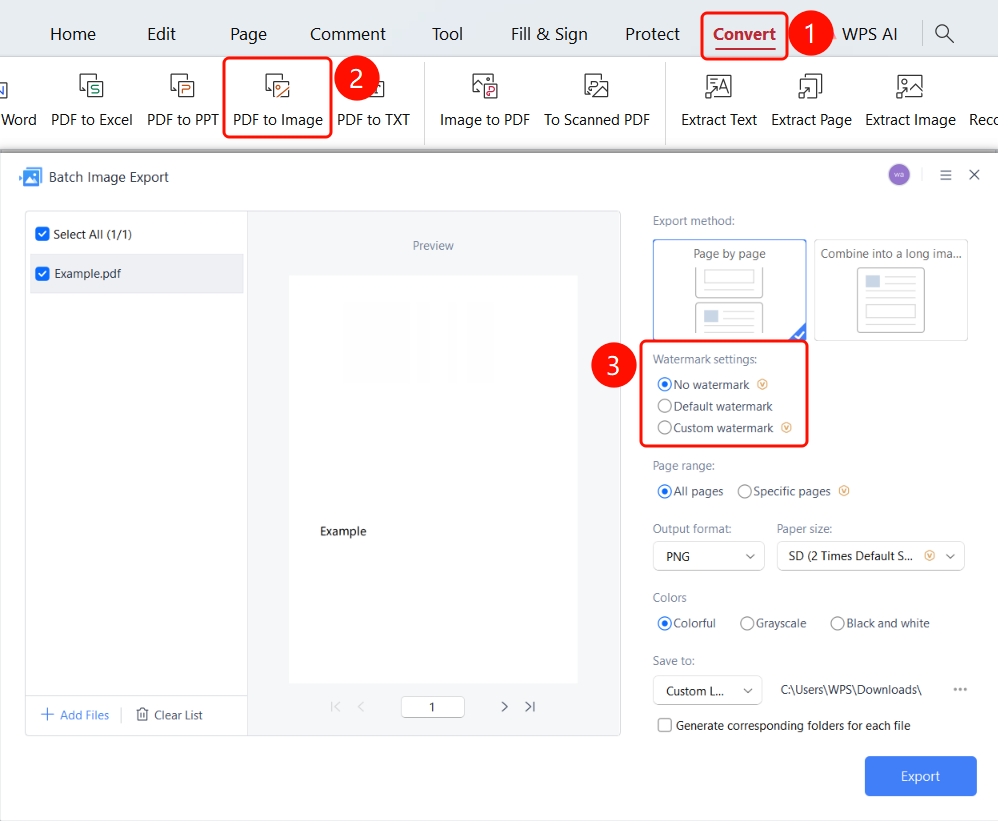
Set Page Range
Feature Entry
"Batch Export to Images" dialog box -> "Page Range" option
In the "Batch Export to Images" dialog box, click Page Range.
Select a page range:
- All Pages: Export all pages as images.
- Select Pages: Export only the specified pages as images.
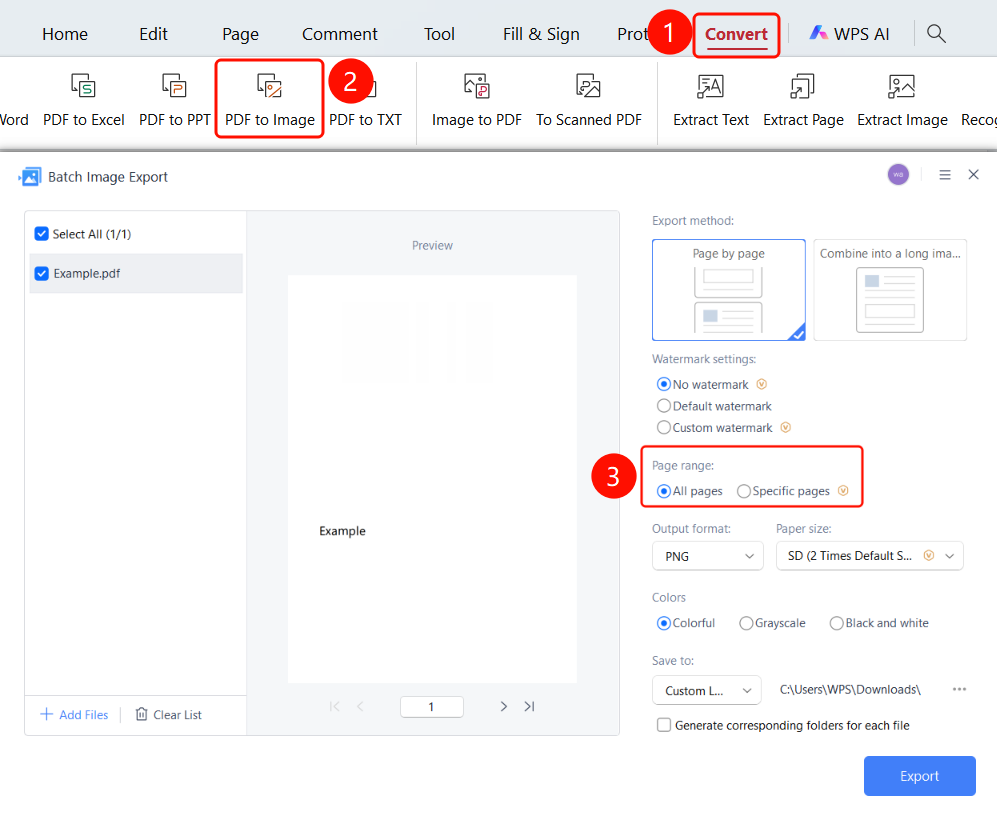
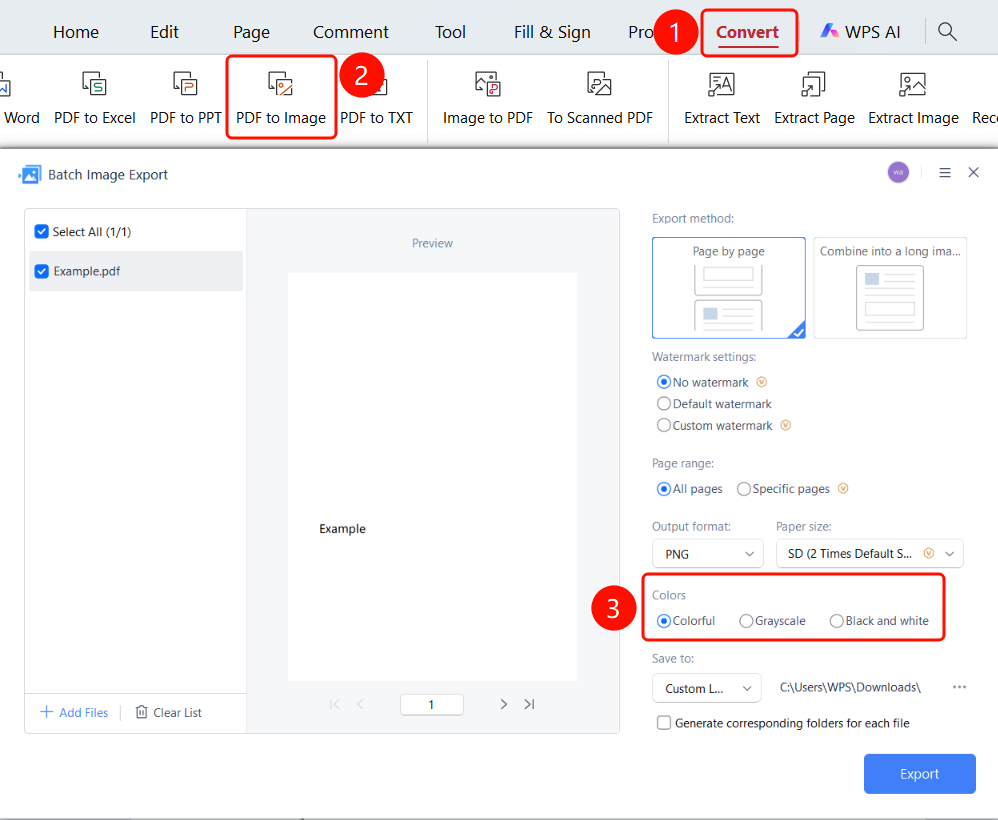
Set Output Color
Feature Entry
"Batch Export to Images" dialog box -> "Output Color" option
- In the "Batch Export to Images" dialog box, click Output Color.
- Select an output color: Color, Grayscale, Black & White.
Set Output Format
Feature Entry
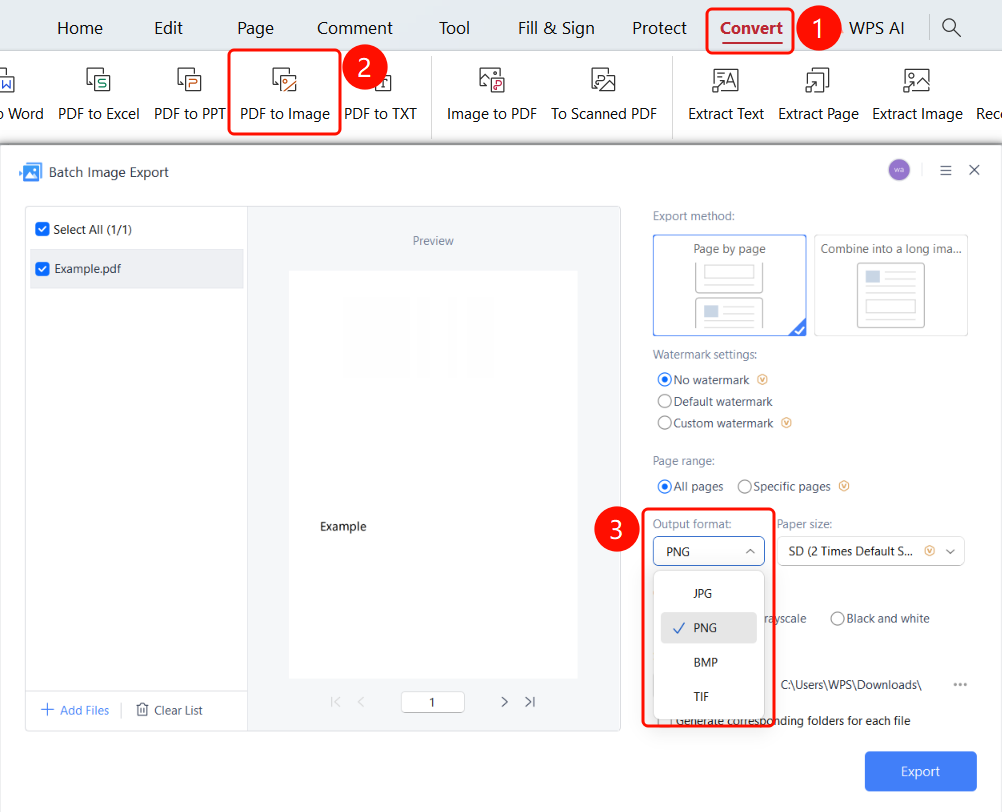
"Batch Export to Images" dialog box -> "Output Format" drop-down menu
Click the Output Format drop-down menu.
Select an image format:
- PNG: Lossless compression, supports transparent backgrounds (default).
- JPG: Lossy compression, smaller file size.
- BMP: Uncompressed, larger file size.
- TIF: Commonly used for printing.
Set Output Quality
Feature Entry
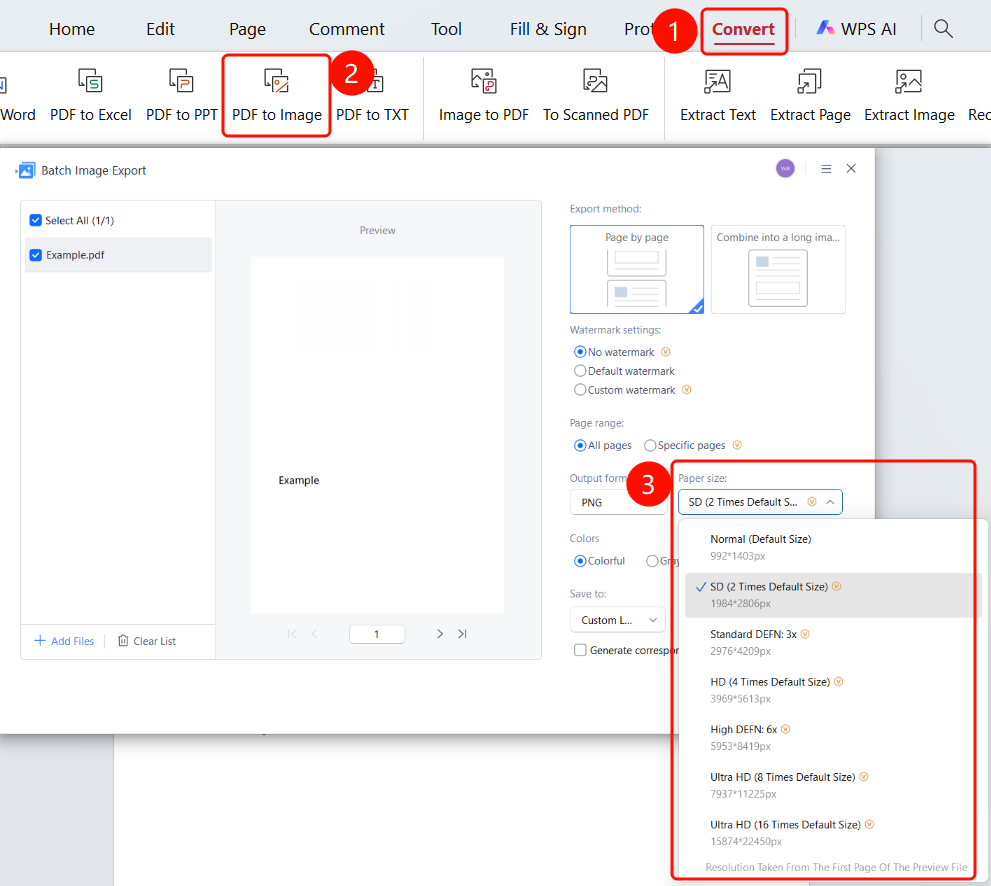
"Batch Export to Images" dialog box -> "Output Quality" drop-down menu
Click the Output Quality drop-down menu.
Select an output quality and size:
- Normal (Default Size): 992*1403px
- Standard (2x Default Size): 1984*2806px (default)
- Standard (3x Default Size): 2976*4209px
- HD (4x Default Size): 3969*5613px
- HD (6x Default Size): 5953*8419px
- Ultra HD (8x Default Size): 7937*11225px
- Ultra HD (16x Default Size): 15874*22450px
Set Output Folder
Feature Entry
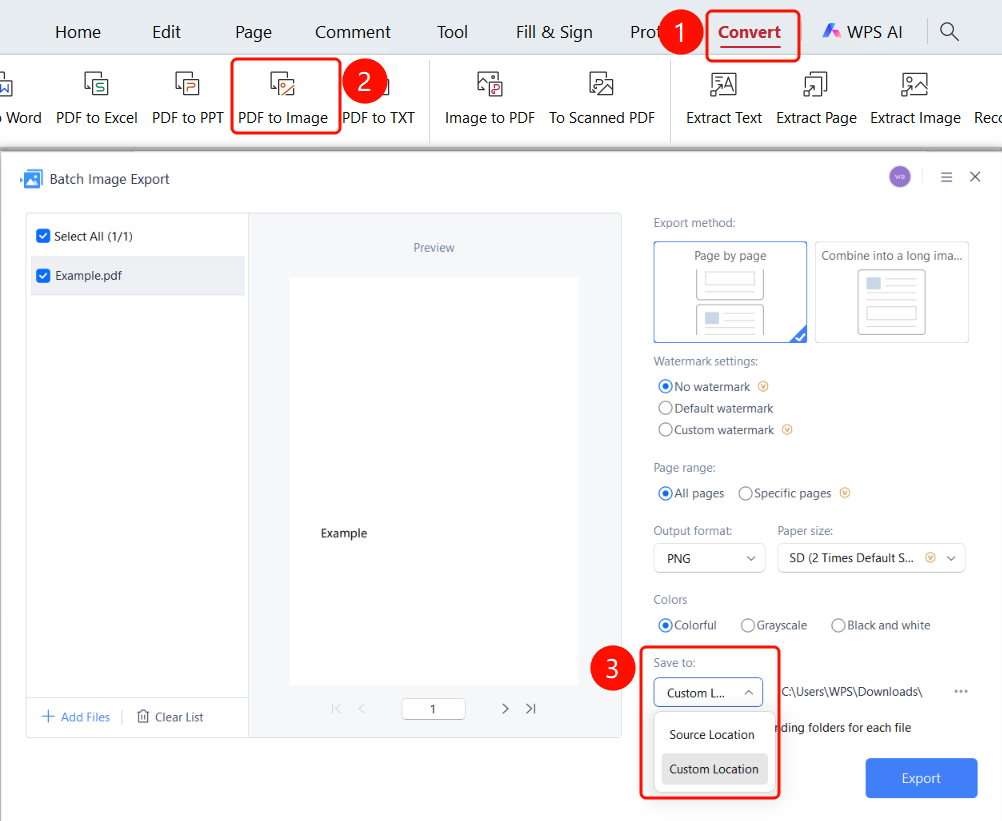
"Batch Export to Images" dialog box -> "Output Folder" drop-down menu -> "Export" button
Click the Output Folder drop-down menu to select a save location:
- Source Folder: Save to the folder where the source PDF file is located.
- Custom Location: Select a local folder to save the images.
You can select Create a folder for each file to create a separate folder for each PDF.
FAQs
Q1: What should I do if the exported images are blurry?
- Solution: In Output Quality, select a higher resolution option, such as HD (4x Default Size) or the Ultra HD series.
Q2: How do I merge all PDF pages into one long image?
- Solution: In Output Mode, select Merge into Long Image to stitch all pages vertically into a single image.
Q3: What should I do if the exported image files are too large?
- Solution: You can adjust the output quality to Normal (Default Size), or select the JPG format to reduce the file size. Alternatively, you can narrow the page range to convert only the pages you need.