Feature Summary
Rotate images in PDF documents. Supports rotating 90 degrees left and 90 degrees right.
Feature Description
| Feature Dimension | Description |
|---|---|
| Subscription Limit | Subscription required |
| Version Limit | No version limit |
Steps
Rotate Image Right via Ribbon
Feature Entry
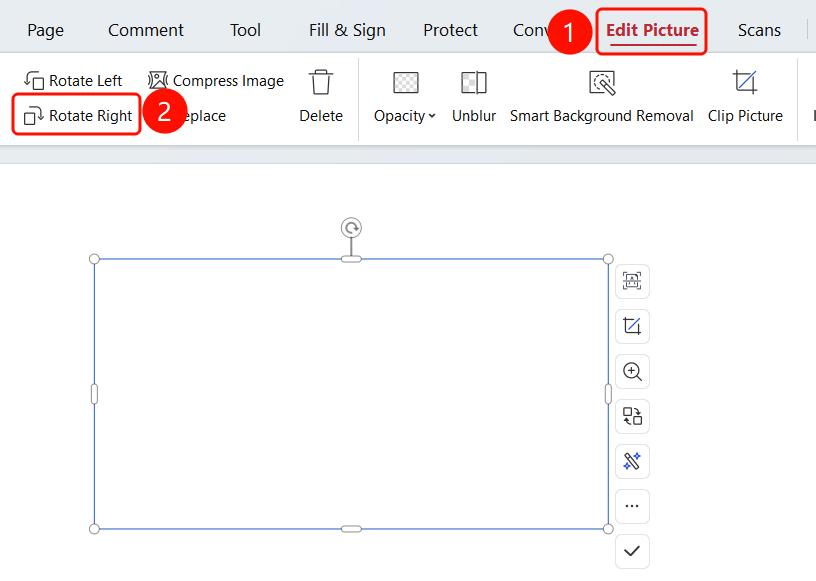
"Image Tools" tab > "Rotate Right" button
- Open the PDF file you want to edit.
- Click the image in the PDF to select it.
- The system automatically switches to the Image Tools tab.
- Click the Rotate Right button on the ribbon.
- The image rotates 90 degrees to the right.
Rotate Image Left via Ribbon
Feature Entry
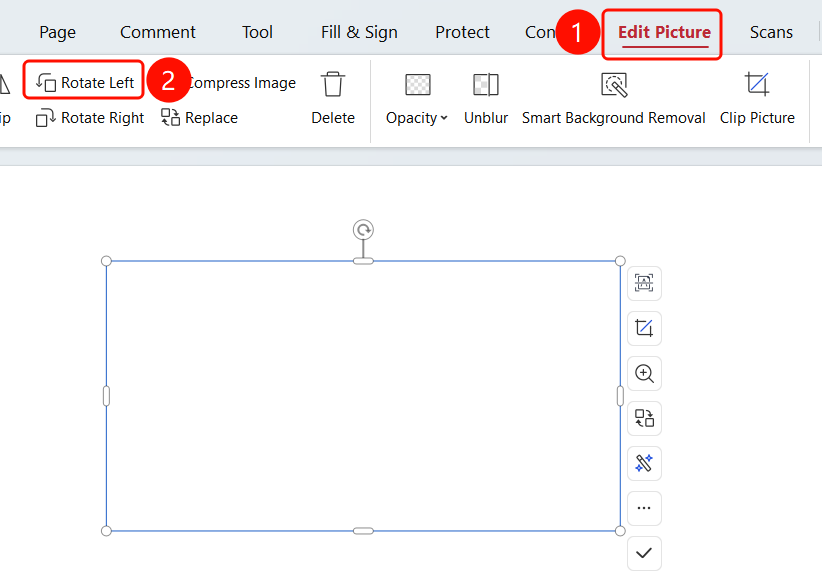
"Image Tools" tab > "Rotate Left" button
- Open the PDF file you want to edit.
- Click the image in the PDF to select it.
- The system automatically switches to the Image Tools tab.
- Click the Rotate Left button on the ribbon.
- The image rotates 90 degrees to the left.
FAQ
Q1: How to rotate to a specific angle precisely?
You can drag the rotation handle, or click the Rotate Left/Rotate Right button multiple times (90 degrees each time) to adjust the angle.
Q2: How to restore the original orientation after rotation?
Continue rotating until the original orientation is restored (every 4 rotations returns to the original position), or use Command+Z to undo the operation.
Notes
- The rotation operation only applies to the selected image
- Rotation will change the display orientation of the image
- Images in scanned PDFs may not be directly editable; OCR recognition is required first