Feature Summary
Flip images in a PDF document. Horizontal and vertical flips are supported.
Feature Description
| Feature Dimension | Description |
|---|---|
| Subscription Limit | Requires subscribing to membership |
| Version Limit | No version limit |
Steps
Flip an Image from the Ribbon
Feature Entry
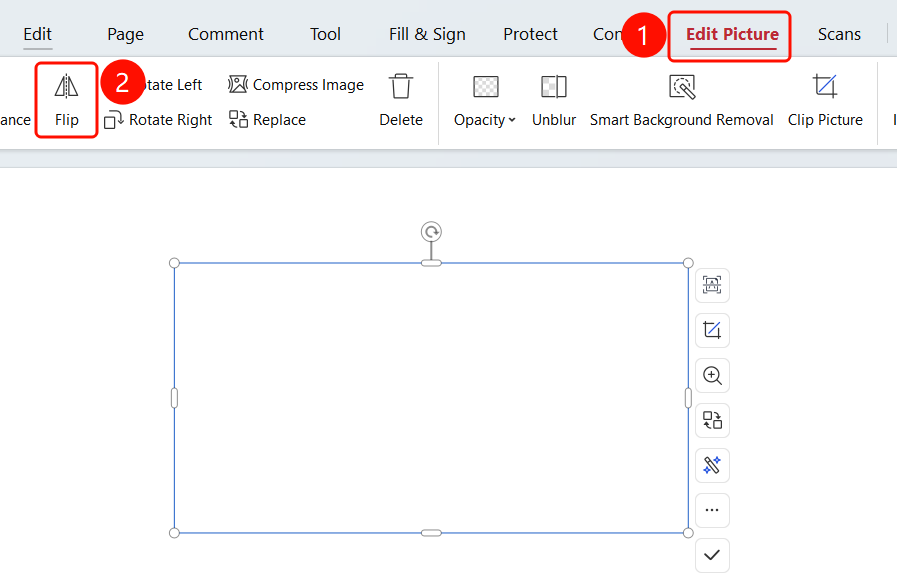
Select an image > "Image Editing" tab > "Flip" button
- Open the PDF file you want to edit.
- Click the image in the PDF to select it.
- The system automatically switches to the Image Editing tab.
- Click the Flip button on the ribbon to flip the image horizontally.
FAQ
Question 1: What should I do if the Flip button is grayed out and cannot be clicked?
- Solution: You must select an image first to use the flip feature.
Question 2: What is the difference between a horizontal flip and a vertical flip?
- Solution: A horizontal flip mirrors the image left to right, and a vertical flip mirrors it top to bottom.
Question 3: Does flipping an image affect its size?
- Solution: No. Flipping only changes the orientation of the image and does not affect its size.
Notes
- Flip operations can be undone.
- Flipping only changes the image orientation and does not affect the image size.