Feature Summary
Convert images to PDF documents with support for image quality enhancement, advanced layout, and various output settings.
Feature Description
| Feature Dimension | Description |
|---|---|
| Subscription Limit | Requires subscribing to a membership |
| Version Limit | No version limits |
| Platform Limit | PC only |
Operation Steps
Enabling Image to PDF from the Ribbon
Feature Entry
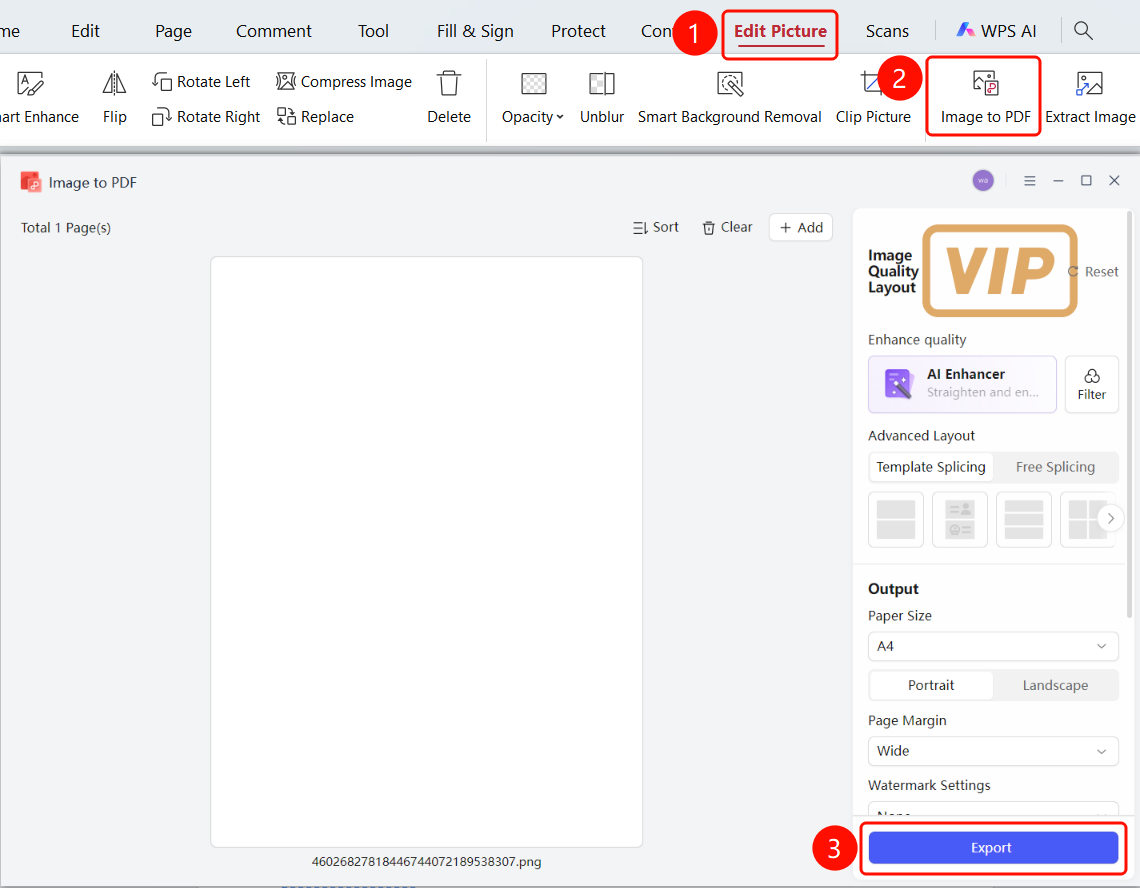
"Image Tools" tab → "Image to PDF" button → "Image to PDF" dialog box → "Export" button
Open a PDF file containing images.
Click an image in the PDF to select it.
The system automatically switches to the Image Tools tab.
Click the Image to PDF button on the ribbon.
The Image to PDF dialog box pops up.
Configure Image Quality & Formatting:
- AI Auto Enhance: Correct image quality and enhance clarity with one click (VIP feature).
- Filters: Add filter effects.
Configure Advanced Layout:
- Template Stitching: Arrange layouts using preset templates.
- Free Stitching: Freely adjust image positions.
Configure Output Settings:
- Paper Size: Select a paper size (such as A4).
- Orientation: Portrait or Landscape.
- Margins: Select a margin type.
- Watermark Settings: Choose whether to add a watermark.
- Export Method: Merge and export or export page by page.
- Export Type: Choose to export as PDF or Image-Based PDF.
Click the Export button to complete the conversion.
FAQ
Q1: Can I convert multiple images at once?
- Solution: Yes. Click the "+ Add" button to add multiple images. Batch conversion is supported.