Feature Summary
Convert ordinary PDFs into scanned PDFs, turning the document content into a pure image format.
Feature Description
| Feature Dimension | Description |
|---|---|
| Subscription Limit | Need to subscribe to membership |
| Version Limit | No version limit |
Steps
Convert to Scanned PDF
Feature Entry
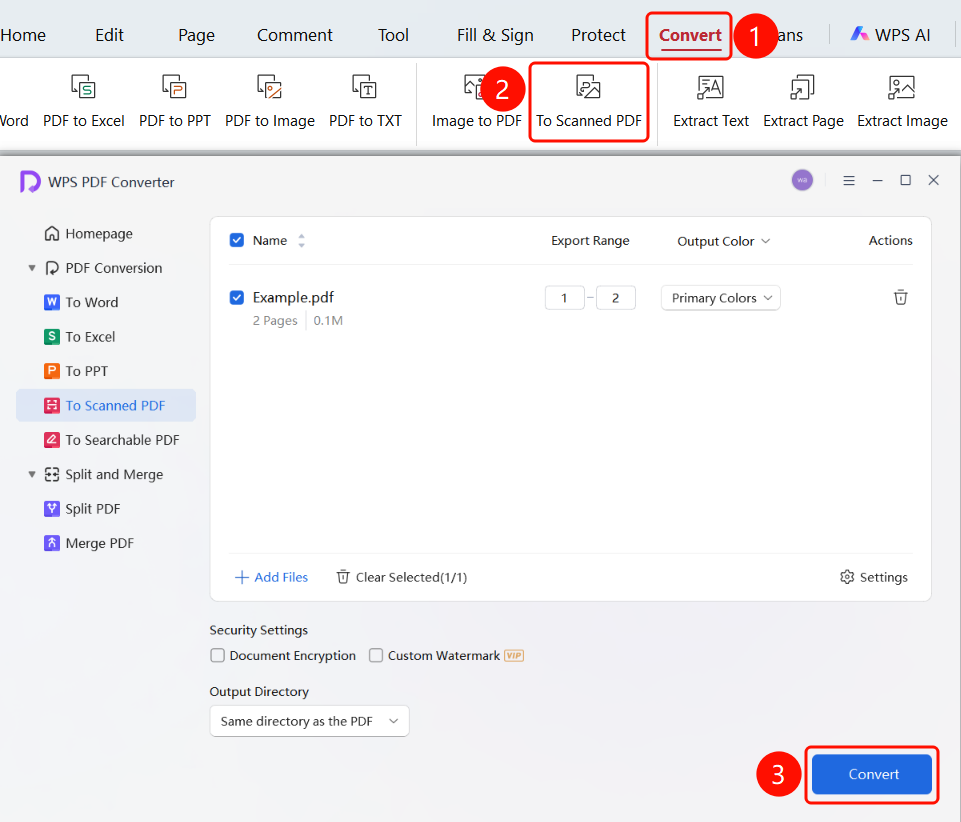
"Convert" tab → "To Scanned PDF" button → "WPS PDF Converter" window → "Start" button
- Open the PDF file you want to convert.
- Click the Convert tab in the top ribbon.
- Click the To Scanned PDF button in the ribbon.
- The "WPS PDF Converter" window will pop up.
- Configure the Output Range, Output Color, Output Folder, and other settings.
- Click the Start button to begin the conversion.
FAQs
Q1: Why can't I select and copy text in the converted PDF?
- Solution: This is normal. A scanned PDF converts text into images. If you need to copy text, use the "Scan Recognition" feature.
Q2: How do I convert a scanned PDF back to an editable PDF?
- Solution: Use the "Scan Recognition" feature to perform OCR on the scanned PDF, which can convert it into a searchable and copyable PDF.
Q3: What should I do if the conversion speed is too slow?
- Solution: You can narrow down the output range to convert only the pages you need, or process large files in batches.