Feature Summary
Convert image text in scanned PDFs into editable text content.
Feature Description
| Feature Dimension | Description |
|---|---|
| Membership Restriction | Requires a subscribed membership to edit PDF files |
| Version Restriction | No version restrictions |
Operation Steps
Accessing the OCR PDF Feature
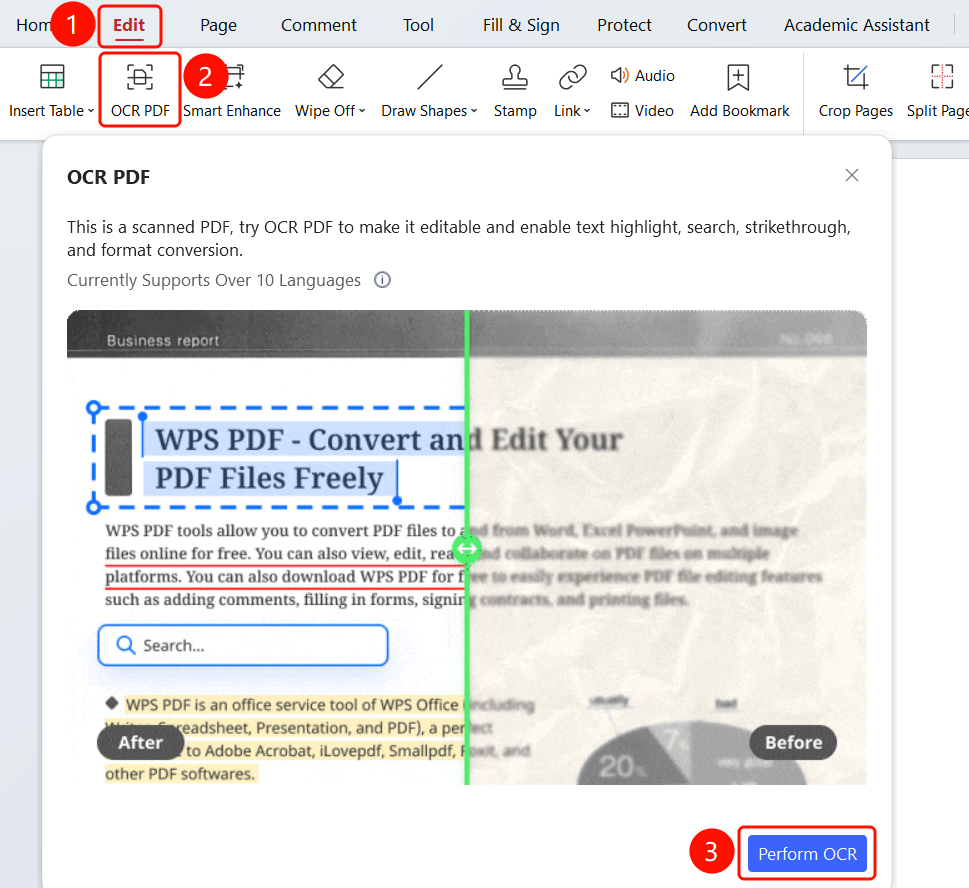
Feature Path"Edit" tab → "OCR PDF" button → "OCR PDF" dialog box → "Perform OCR" button
- Open the scanned PDF file you want to recognize
- Click the "Edit" tab in the top ribbon
- Click the "OCR PDF" button in the ribbon
- The "OCR PDF" dialog box will appear
- Click the "Perform OCR" button to start recognition
Frequently Asked Questions
Question 1: Can't edit text after OCR recognition?
- Solution: After recognition, switch to the "Edit" mode to modify the text. Click the "Edit Content" button to enter editing mode.
Question 2: What should I do if OCR accuracy is low?
- Solution: Ensure the scanned document is clear and has high text contrast. Consider using the "Image Enhancement" feature to improve image quality before recognition.
Question 3: Which languages does OCR support?
- Solution: Currently supports over 10 languages, including Chinese, English, Japanese, Korean, and other commonly used languages.