Feature Summary
Add underline effects to text in PDF documents to emphasize or highlight important content.
Feature Description
| Feature Dimension | Description |
|---|---|
| Membership Restriction | You need to subscribe to a membership to edit PDF files |
| Version Restriction | No version restriction |
Steps
Add Underline via the Ribbon
Feature Entry
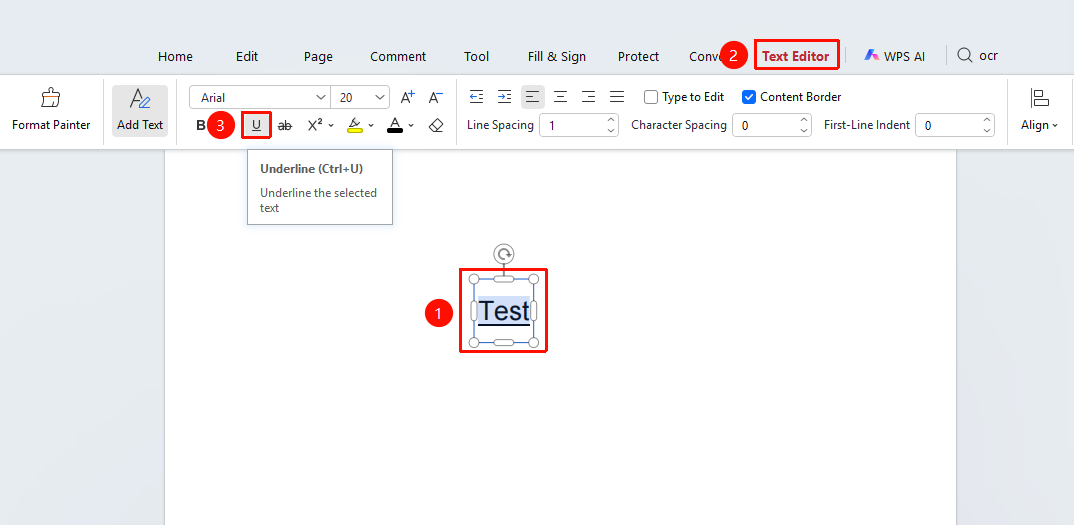
"Docs Editing" tab → Underline button
- Click the "Edit" tab in the top menu bar
- Click the "Edit Content" button to enter content editing mode
- Select the text you want to underline
- Click the "Underline" "button" (U icon) in the Ribbon
Add Underline via the Floating Toolbar
Feature Entry
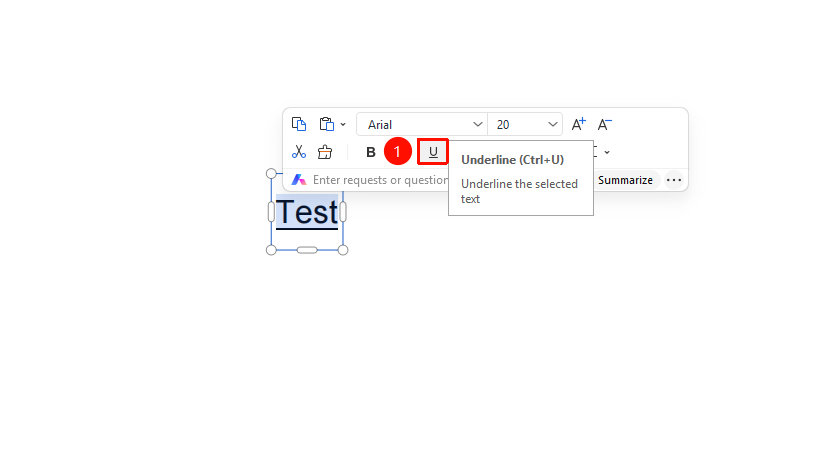
Floating toolbar that appears after selecting text → Underline button
- In text editing mode, select the text you want to underline
- After selecting the text, a floating toolbar will appear above
- Click the "Underline button in the floating toolbar" "button" (U icon)
Add Underline Using a Shortcut
Feature Entry
Keyboard shortcut
- Select the text you want to underline
- Press the Ctrl+U shortcut to add an underline
- Press Ctrl+U again to remove the underline
FAQ
Q1: What should I do if the Underline button is grayed out?
You need to select text first to use the underline feature. Please make sure you have entered "Docs Editing" mode and selected the target text.
Q2: How do I remove an underline that has been added?
Select the underlined text, then click the Underline button again or press Ctrl+U to remove it.
Q3: Can I set the underline color?
The current version of the PDF editor does not support custom underline colors. The underline is black by default.
Notes
- The underline effect only applies to the currently selected text
- Text in scanned PDFs may not be directly editable; OCR recognition is required first
- Underline can be used in combination with other text formatting (bold, italic, etc.)