Feature Summary
Add borders to text or images in PDF documents by checking the "Content Border" option to quickly enable the feature.
Feature Description
| Feature Dimension | Description |
|---|---|
| Membership Restriction | Requires a subscribe to membership |
| Version Restriction | No version restriction |
Operation Steps
Enable Content Border from the Ribbon
Feature Entry
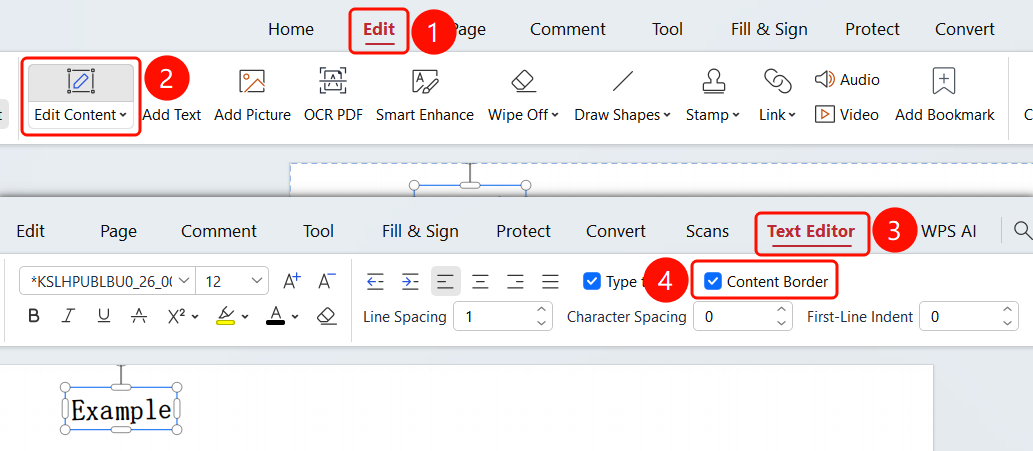
"Edit" tab → "Edit Content" button → "Docs Editing" tab → "Content Border" checkbox
- Open the PDF file you want to edit
- Click the "Edit" tab in the top ribbon
- Click the "Edit Content" button in the ribbon
- Click on the text in the PDF to enter Docs Editing mode
- Find the "Content Border" checkbox in the "Docs Editing" tab
- Check this checkbox to enable the Content Border feature
FAQ
Q1: Will the content border appear when printing?
- Solution: No, the content border is only displayed in Read Mode and will not appear after printing or saving.
Q2: How to turn off the content border display?
- Solution: Uncheck the "Content Border" checkbox in the "Docs Editing" tab to turn it off.
Q3: What is the purpose of the content border?
- Solution: The content border helps users clearly identify the position and boundaries of each content area in Read Mode.
Notes
- The content border is only displayed in Read Mode and does not affect the final document output
- After checking, you can quickly identify the editing areas for text and images
- You can switch the display status at any time via the checkbox