Summary
Delete image content from PDF documents.
Feature Description
| Feature Dimension | Description |
|---|---|
| Membership Restriction | A membership is required to edit PDF files |
| Version Restriction | No version restriction |
Steps
Delete Images via the Ribbon
Feature Entry
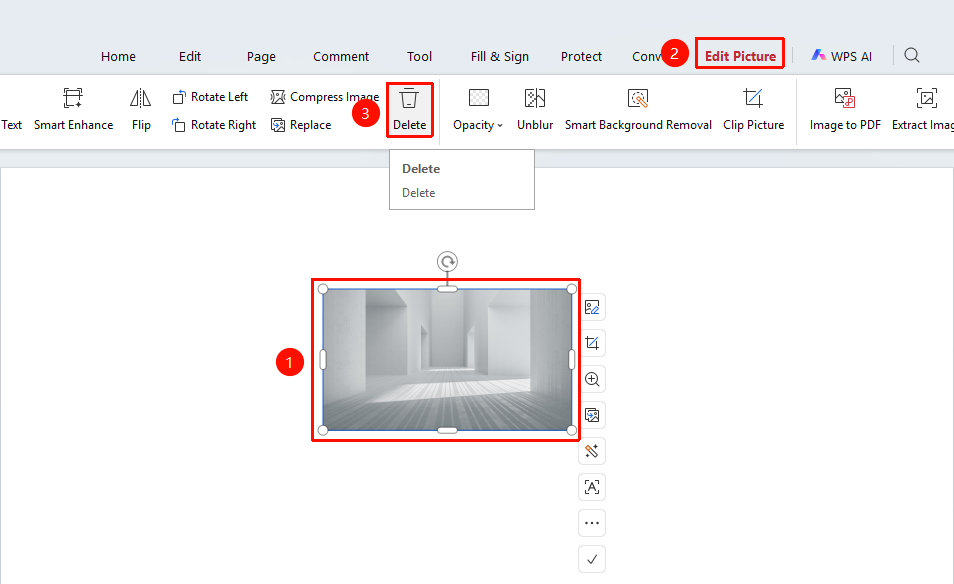
「Image Editing」 tab → 「Delete」 button
- Click the image you want to delete to select it
- Click the 「Image Editing」 tab in the top menu bar
- Click the 「Delete」 「button」 in the toolbar (trash can icon)
- The selected image will be deleted
Delete Images via the Right-Click Menu
Feature Entry
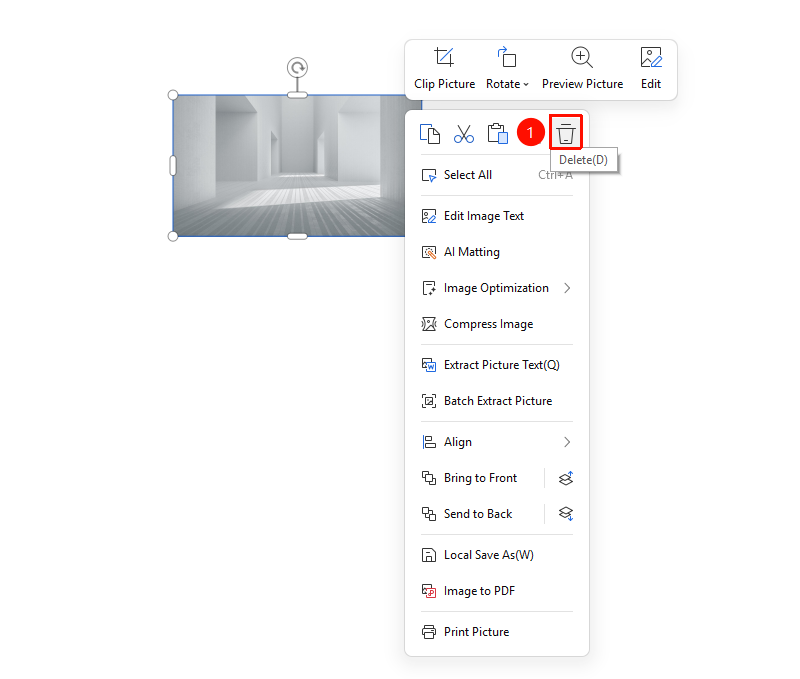
Right-click menu → 「Delete」 option
- Click the image you want to delete to select it
- Right-click the image
- Select the 「Delete」 option from the pop-up menu
- The image will be deleted
Delete Images Using Shortcuts
Feature Entry
Keyboard shortcuts
- Click the image you want to delete to select it
- Press the Delete key or Backspace key
- The image will be deleted
FAQ
Q1: Can I recover an image after deleting it?
Yes. You can use the Ctrl+Z shortcut or click the Undo button to restore the deleted image.
Q2: How do I batch delete multiple images?
Hold down the Ctrl key and click multiple images to select them, then click the Delete button to batch delete them.
Q3: Will deleting an image affect other content?
No. Deleting an image only removes the selected image and will not affect other text and objects in the document.
Notes
- The delete operation is irreversible (unless you use the Undo feature), so please proceed with caution
- It is recommended to back up the original file before proceeding
- After deleting an image, the area where the image was located will become a blank space