Feature Summary
WPS PDF supports the bold feature, allowing you to apply bold formatting to text in PDF documents.
Feature Description
| Feature Dimension | Description |
|---|---|
| Membership Restriction | No membership restriction |
| Version Restriction | No version restriction |
Operation Steps
Setting Bold via the Ribbon
Feature Entry
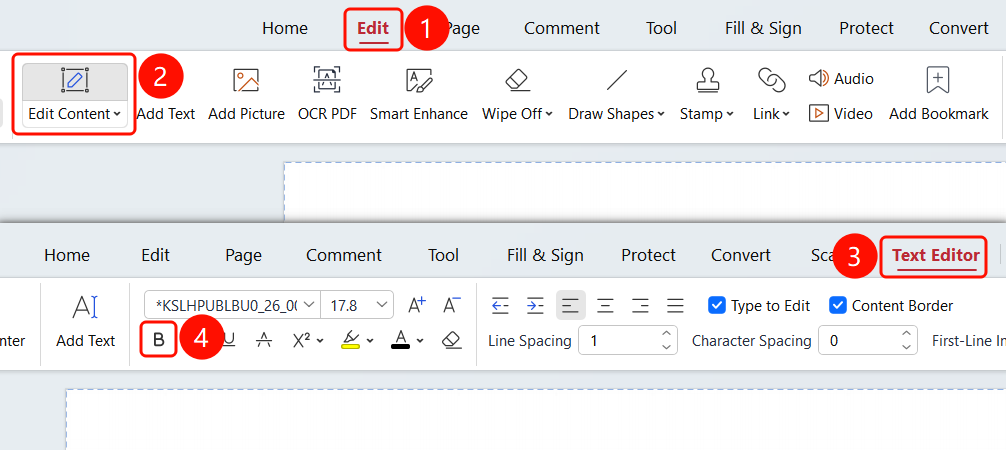
「Edit」 tab → Toolbar → 「Edit Content」 button → 「Text Editing」 tab → Toolbar → 「B」 button
- Click the 「Edit」 tab in the ribbon
- Click the 「Edit Content」 button to enter Read Mode
- Click the 「Text Editing」 tab
- Select the text content you want to bold
- Click the 「B」 button in the toolbar to apply bold formatting to the selected text
Setting Bold via the Floating Toolbar
Feature Entry
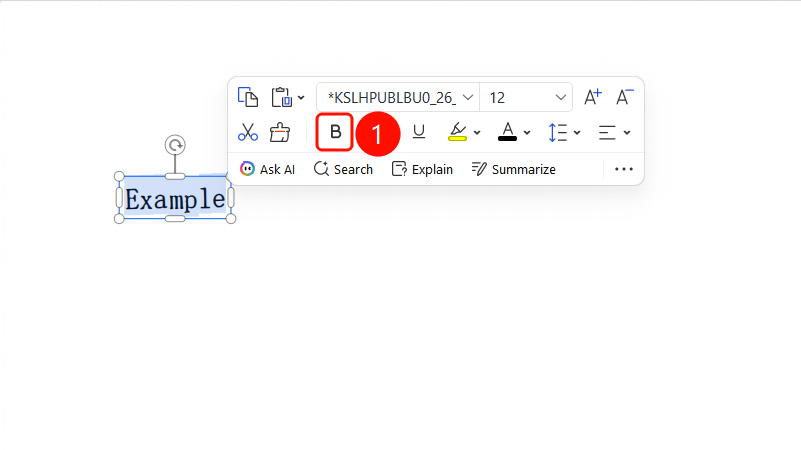
Text Editing mode → Select text → Floating toolbar → 「B」 button
- In Text Editing mode, select the text content you want to format
- After selecting the text, a floating toolbar will appear above
- Click the 「B」 button in the floating toolbar to apply bold formatting to the selected text
Frequently Asked Questions
Q1: What should I do if the Bold button is grayed out and cannot be clicked?
- Solution: You need to enter 「Edit Content」 mode and select text first before you can use the bold feature.
Q2: How do I remove the applied bold formatting?
- Solution: Select the bolded text and click the Bold button again to remove it.
Q3: Can I apply multiple text formats at the same time?
- Solution: Yes, bold can be used simultaneously with formats such as italic, underline, and strikethrough.
Notes
- You must enter 「Edit Content」 mode first to use text formatting features
- Both the ribbon and the floating toolbar operation methods are supported