Feature Summary
Automatically identify and erase handwritten content in scanned PDFs while preserving printed Docs.
Feature Description
| Feature Dimension | Description |
|---|---|
| Membership Restriction | Requires a subscribe to membership |
| Version Restriction | No version restriction |
Steps
Enable Handwriting Removal from the Ribbon
Feature Entry
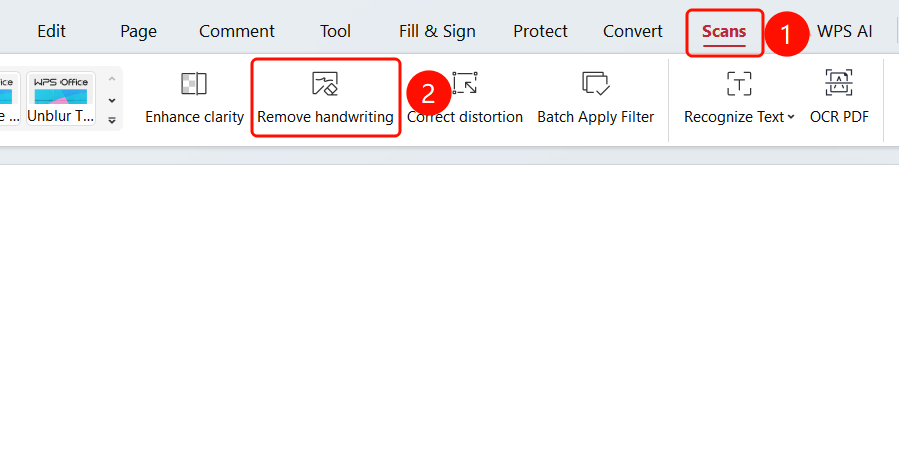
「Scan」 tab → 「Handwriting Removal」 button
- Open the scanned PDF file you want to process
- Click the 「Scan」 tab in the top ribbon
- Click the 「Handwriting Removal」 button in the ribbon
Apply to All Pages
Feature Entry
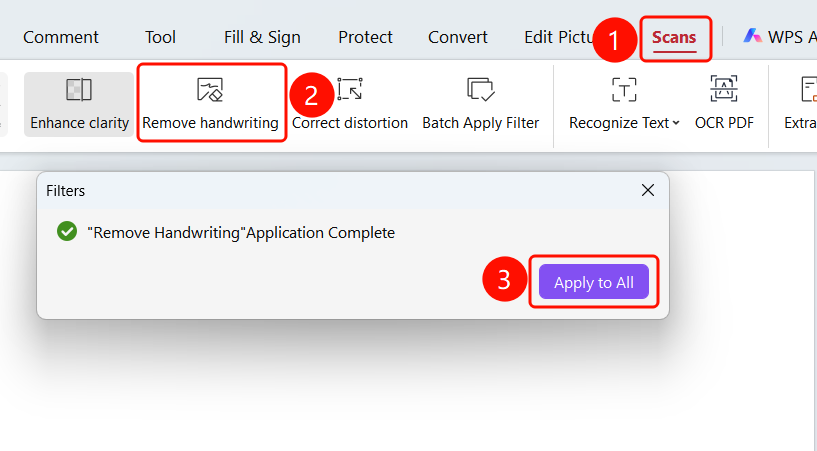
「Scan」 tab → 「Handwriting Removal」 button → 「Apply Filter」 dialog → 「Apply to All」 button
- Open the scanned PDF file you want to process
- Click the 「Scan」 tab in the top ribbon
- Click the 「Handwriting Removal」 button in the ribbon
- After the current page is processed, 「Handwriting Removal applied successfully」 will be displayed
- Click the 「Apply to All」 button to apply the handwriting removal effect to all pages of the Document
FAQ
Q1: How do I batch process all pages?
- Solution: After single-page processing is complete, click the 「Apply to All」 button in the pop-up dialog to batch process.
Notes
- The Handwriting Removal feature is suitable for cleaning up handwritten content in scanned documents
- The processing may take some time, please be patient
- Supports both single-page processing and batch processing of all pages
- It is recommended to save the original file before processing