Feature Summary
Set the alignment position of images within the page in a PDF document.
Feature Description
| Feature Dimension | Description |
|---|---|
| Membership Restriction | You need to subscribe to a membership to edit PDF files |
| Version Restriction | No version restriction |
Steps
Set Image Alignment
Feature Entry
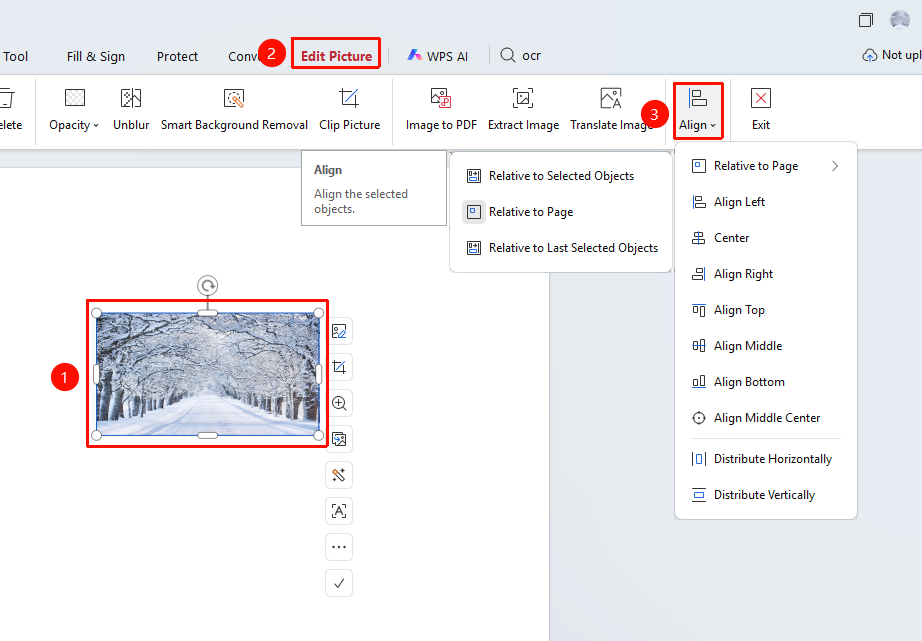
「Image Editing」 tab → 「Alignment」 button
- Click the image you want to align to select it
- Click the 「Image Editing」 tab in the top menu bar
- Click the 「Alignment」 「button」 in the toolbar
- Select the desired alignment method from the pop-up alignment options:
- Align Left, Center, Align Right
- Align Top, Middle Align, Align Bottom
- The image will be aligned according to the selected method
Batch Align Multiple Images
Feature Entry
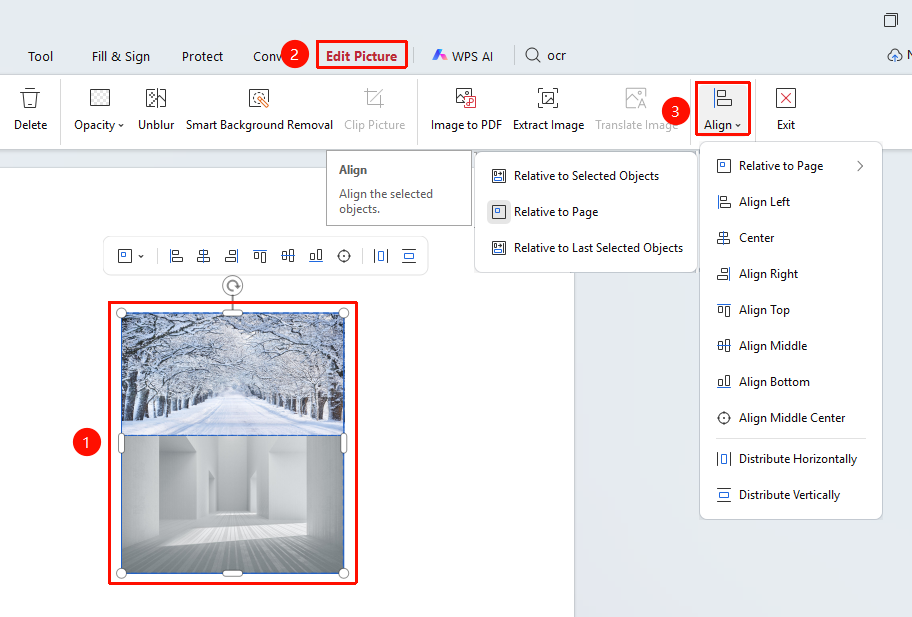
「Image Editing」 tab → 「Alignment」 button
- Hold down the Ctrl key and click multiple images to select them
- Click the 「Alignment」 button and select an alignment method
- All selected images will be aligned in the same way
FAQ
Q1: What should I do if the alignment button is grayed out?
You need to select an image first to use the alignment feature. Please make sure you have entered image editing mode and selected an image.
Q2: What is the alignment relative to?
Image alignment is relative to the page boundaries. For example, left alignment means the left side of the image aligns with the left page boundary.
Q3: How to arrange multiple images with equal horizontal spacing?
After selecting multiple images, use the horizontal center alignment and distribution feature to achieve equal spacing arrangement.
Notes
- Alignment operations only apply to selected images
- Batch alignment can quickly unify the position of multiple images
- Images in scanned PDFs may not be directly editable; OCR recognition is required first