Feature Summary
Recognize text in scanned PDFs as searchable and copyable text, supporting both single-document and multi-document batch recognition.
Feature Description
| Feature Dimension | Description |
|---|---|
| Membership Restriction | Requires a subscription to membership |
| Version Restriction | No version restriction |
Operation Steps
Single Document Recognition via Ribbon
Feature Entry
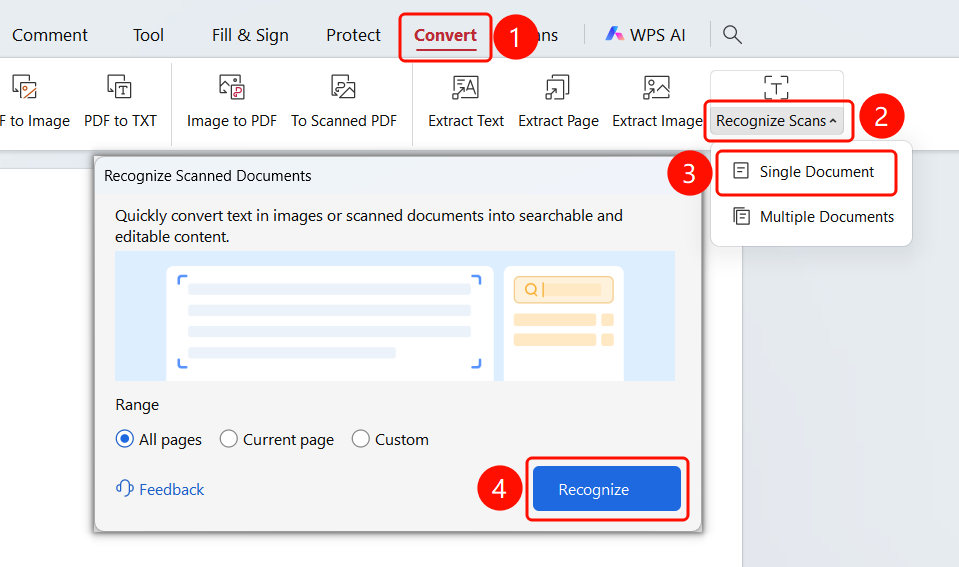
"Convert" tab → "Recognize Scanned Document" dropdown menu → "Recognize" → "Scanned Document Recognition" dialog → "Start Recognition" button
- Open the scanned PDF file you need to recognize
- Click the "Convert" tab in the top ribbon
- Click the "Recognize Scanned Document" dropdown button in the ribbon
- Select the "Single Document" option to recognize the currently opened PDF file
- The "Scanned Document Recognition" dialog will pop up
- Set the Recognition Range:
- All Pages: Recognize all pages of the document (default)
- Current Page: Recognize only the currently displayed page
- Custom Pages: Manually enter the page range to recognize
- Click the "Recognize" button and wait for the OCR recognition to complete
Multi-Document Recognition via Ribbon
Feature Entry
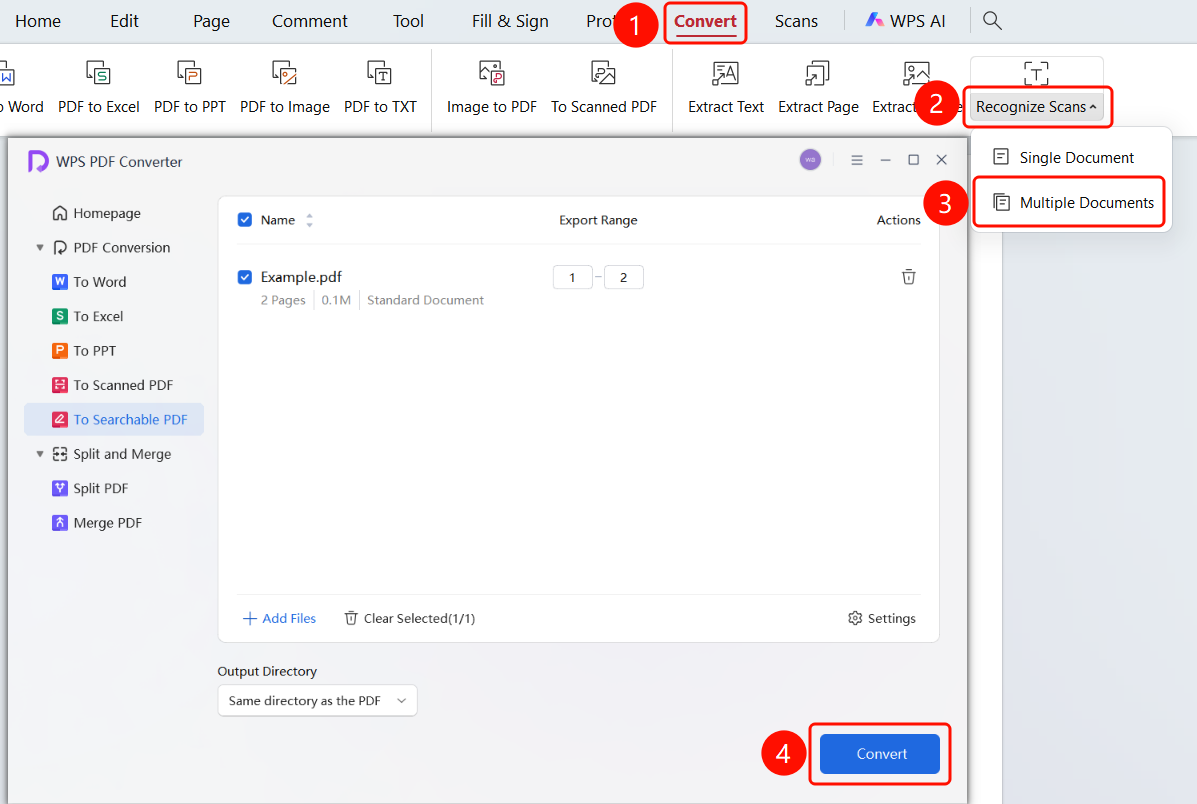
"Convert" tab → "Scanned Document Recognition" dropdown menu → "Multi-Document" → "WPS PDF Converter" window → "Start Conversion" button
- Click the "Convert" tab in the top ribbon
- Click the "Scanned Document Recognition" dropdown button in the ribbon
- Select the "Multi-Document" option to enter batch recognition mode
- The "WPS PDF Converter" window will pop up, automatically entering the "Convert to Searchable PDF" page
- Click the "Add Files" button to add more scanned PDFs
- Set the Output Range (page numbers) for each file
- Set the save location in the "Output Directory"
- Click the "Start Conversion" button to begin batch recognition
FAQ
Q1: What should I do if the recognized text contains typos?
- Solution: OCR recognition may produce errors due to the quality of the scanned document. It is recommended to manually proofread after recognition. You can first use the "Scanned Document Enhancement" feature to improve image quality before recognition.
Q2: How do I check the progress during multi-document recognition?
- Solution: In the "WPS PDF Converter" window, the file list will display the recognition status and progress for each file.
Q3: What should I do if the recognition speed is too slow?
- Solution: You can narrow the recognition range to only recognize the pages you need; or first use the "Enhance Text" filter in "Scanned Document Enhancement" to improve text clarity.
Notes
- The higher the clarity of the scanned document, the higher the OCR recognition accuracy
- After recognition is complete, the text in the PDF will become searchable and copyable