Feature Summary
Insert a local image into a PDF Document, supporting multiple image formats.
Feature Description
| Feature Dimension | Description |
|---|---|
| Membership Restriction | Requires subscribe to WPS Membership |
| Version Restriction | No version restriction |
Operation Steps
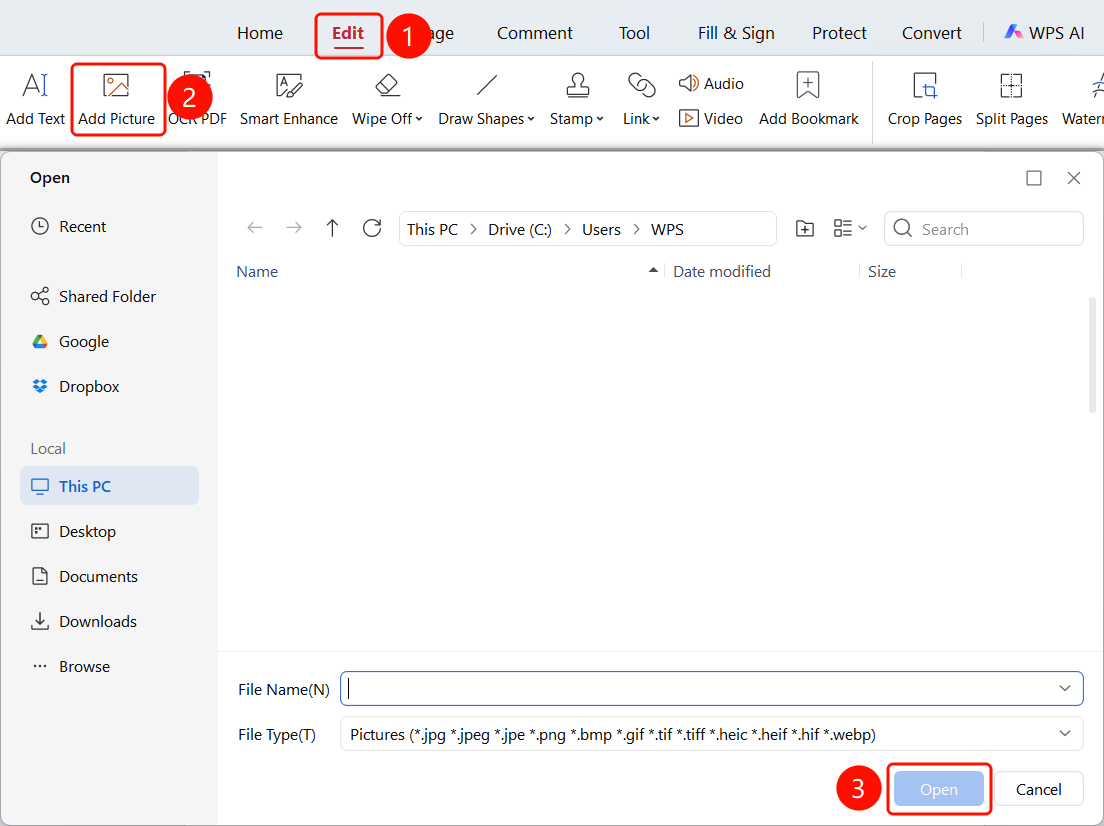
Insert Image - Entry 1
Feature Entry
"Edit" tab → "Insert Image" drop-down menu → Select image file
- Open the PDF file where you want to insert an image
- Click the "Edit" tab in the top menu bar
- Click the "Insert Image" drop-down button in the toolbar
- Select the "Local Image" option
- Browse local folders in the "Open" dialog box that appears
- Select the image file you want to insert. Supported formats: jpg, jpeg, png, bmp, gif, tiff, heic, heif, webp
- Click the "Open" button to complete the insertion
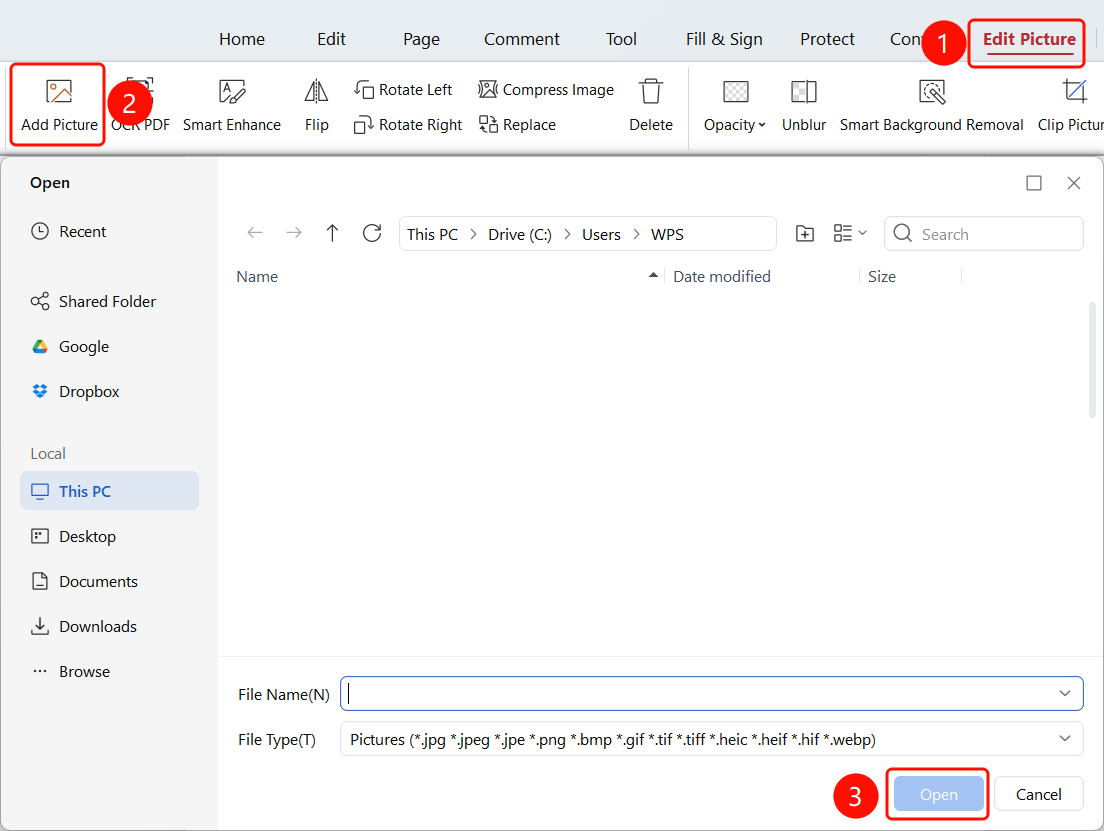
Insert Image - Entry 2
Feature Entry
"Image Editing" tab → "Insert Image" button → Select image file
- Select any image content in the PDF file
- Click the "Image Editing" tab at the top
- Click the "Insert Image" button
- Select the image file you want to insert
- Supported formats: jpg, jpeg, png, bmp, gif, tiff, heic, heif, webp
- Click the "Open" button to complete the insertion
FAQ
Q1: What formats are supported for inserting images?
- Solution: Supports common image formats such as jpg, jpeg, png, bmp, gif, tiff, heic, heif, webp.
Q2: Can the inserted image be resized?
- Solution: Yes, select the image and drag the control points to resize it.
Q3: How do I delete an inserted image?
- Solution: Select the image and press the
Deletekey or use the right-click menu to delete it.
Notes
- Supports multiple common image formats
- After insertion, you can freely adjust the image position and size