Feature Summary
Insert shapes such as lines, rectangles, rounded rectangles, and ellipses into a PDF Document for annotation, framing, or decoration.
Feature Description
| Feature Dimension | Description |
|---|---|
| Membership Restriction | Requires subscribe to WPS Membership |
| Version Restriction | No version restriction |
Steps
Insert Shape Feature
Feature Entry
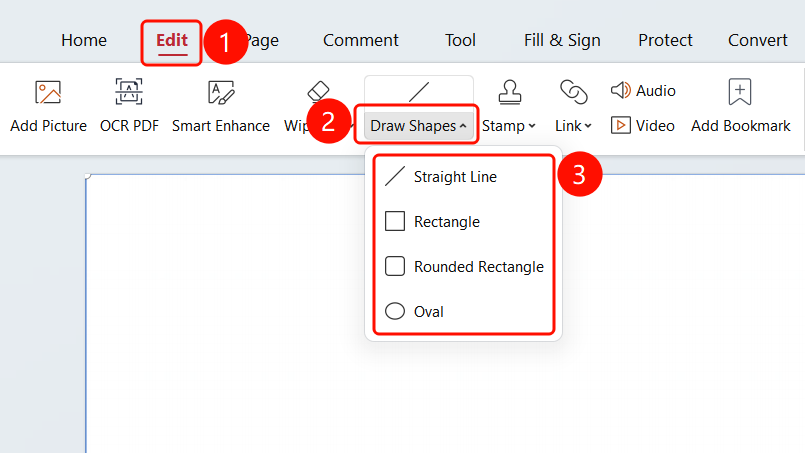
「Edit」 tab → 「Shape」 drop-down menu
- Open the PDF file where you want to insert a shape
- Click the 「Edit」 tab in the top menu bar
- Click the 「Shape」 drop-down menu in the toolbar
- Select the desired shape type from the drop-down menu:
- Line: Draw a straight line segment
- Rectangle: Draw a rectangular frame
- Rounded Rectangle: Draw a rounded rectangular frame
- Ellipse: Draw an ellipse or circle
- After selecting a shape, drag the mouse on the PDF page to draw it
- After drawing, you can adjust its position, size, and style
FAQ
Q1: How to adjust the size and position of an inserted shape?
- Solution: After clicking to select the shape, drag the control points to adjust its size, and drag the shape to adjust its position.
Q2: How to modify the color and line thickness of a shape?
- Solution: After selecting the shape, you can modify the fill color, line color, and thickness in the properties panel on the right.
Q3: How to delete an inserted shape?
- Solution: After clicking to select the shape, press the Delete key or select delete from the right-click menu.
Notes
- After insertion, shapes support free adjustment of position, size, and style
- You can set the shape's fill color, border color, and transparency in the properties panel
- Shapes can be used as annotation or decorative elements