Feature Summary
Insert video files into PDF documents, supporting playback, editing, adding covers, and setting playback conditions.
Feature Description
| Feature Dimension | Description |
|---|---|
| Membership Restriction | Requires a subscribe to WPS membership |
| Version Restriction | No version restriction |
Steps
Access the Insert Video Feature
Feature Entry
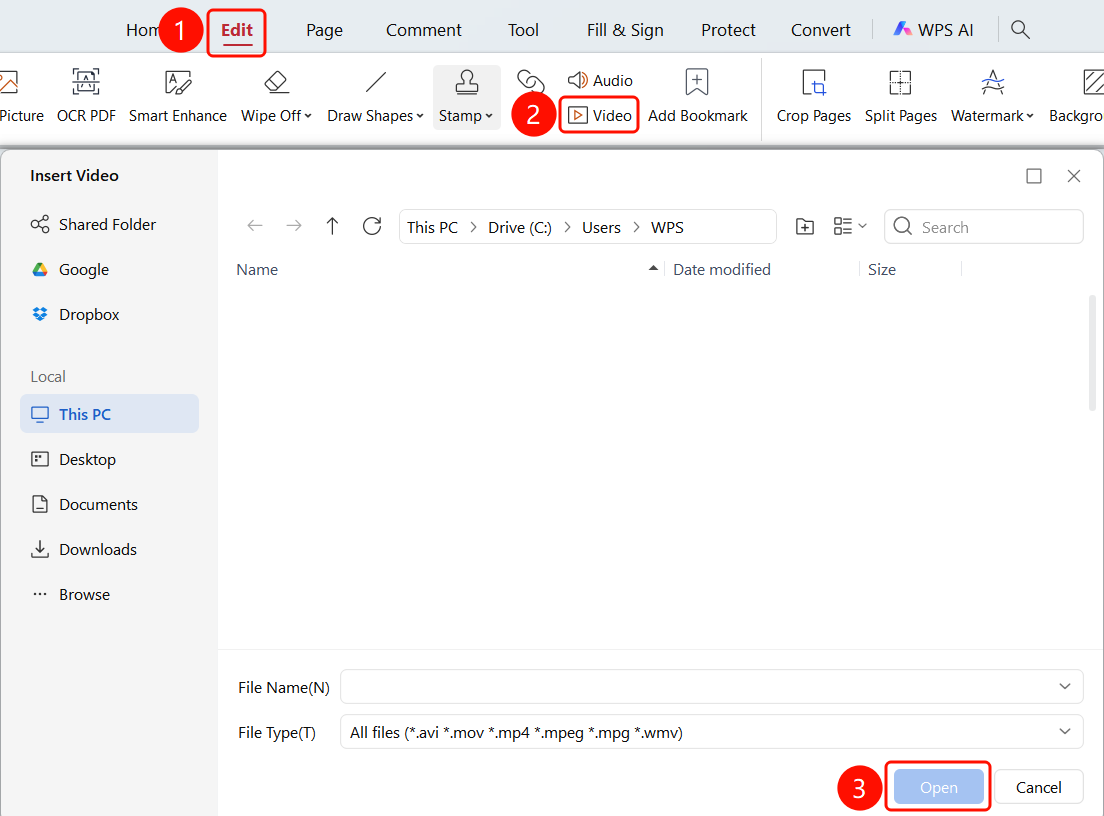
「Edit」 tab → 「Video」 button → 「Insert Video」 file selection dialog
- Open the PDF file where you want to insert a video
- Click the 「Edit」 tab in the top menu bar
- Click the 「Video」 button in the toolbar
- The 「Insert Video」 file selection dialog pops up
- Browse local folders to select a video file
- Supported formats: avi, mov, mp4, mpeg, mpg, wmv, etc.
- After selecting the file, click the 「Open」 button
- The video will be inserted into the PDF page
Play Video
Feature Entry
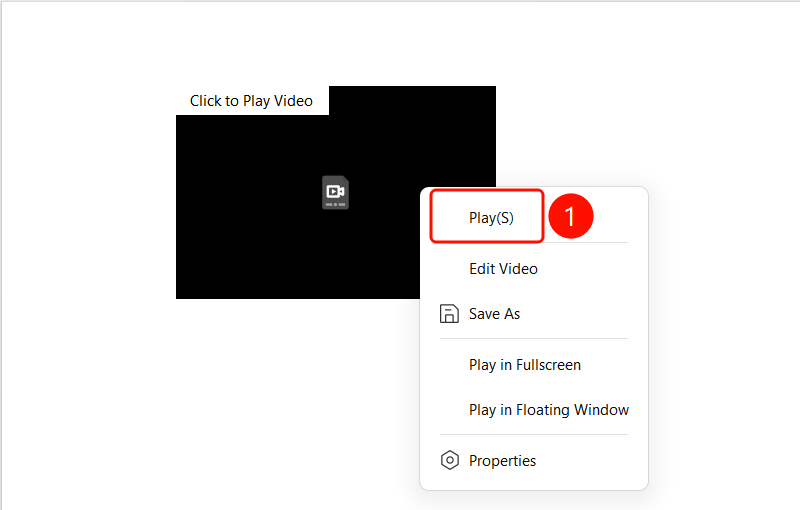
Right-click the video → 「Start Playback」 button
- Click to select the video area
- Right-click to bring up the context menu
- Select the 「Start Playback (S)」 option
- The video starts playing, and the duration information is displayed
Edit Video
Feature Entry
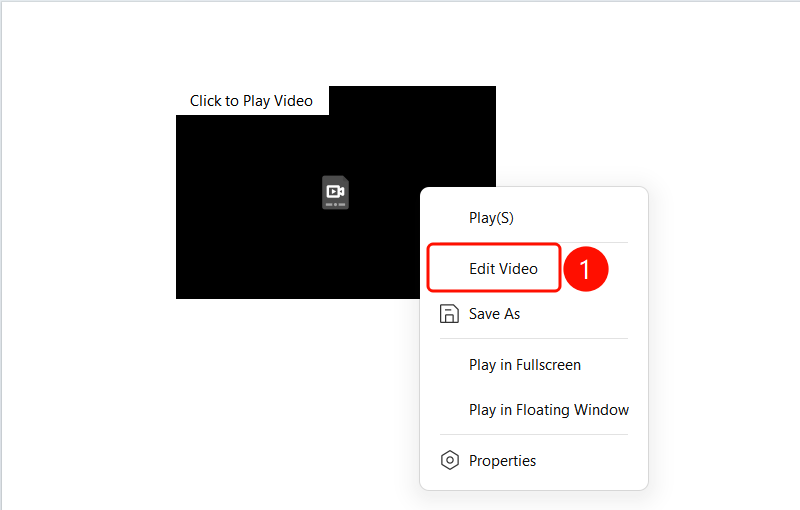
Right-click the video → 「Edit Video」 button
- Click to select the video area
- Right-click to bring up the context menu
- Select the 「Edit Video (E)」 option
- Enter video Read Mode, where you can adjust the video position and size
Save Video File to Local
Feature Entry
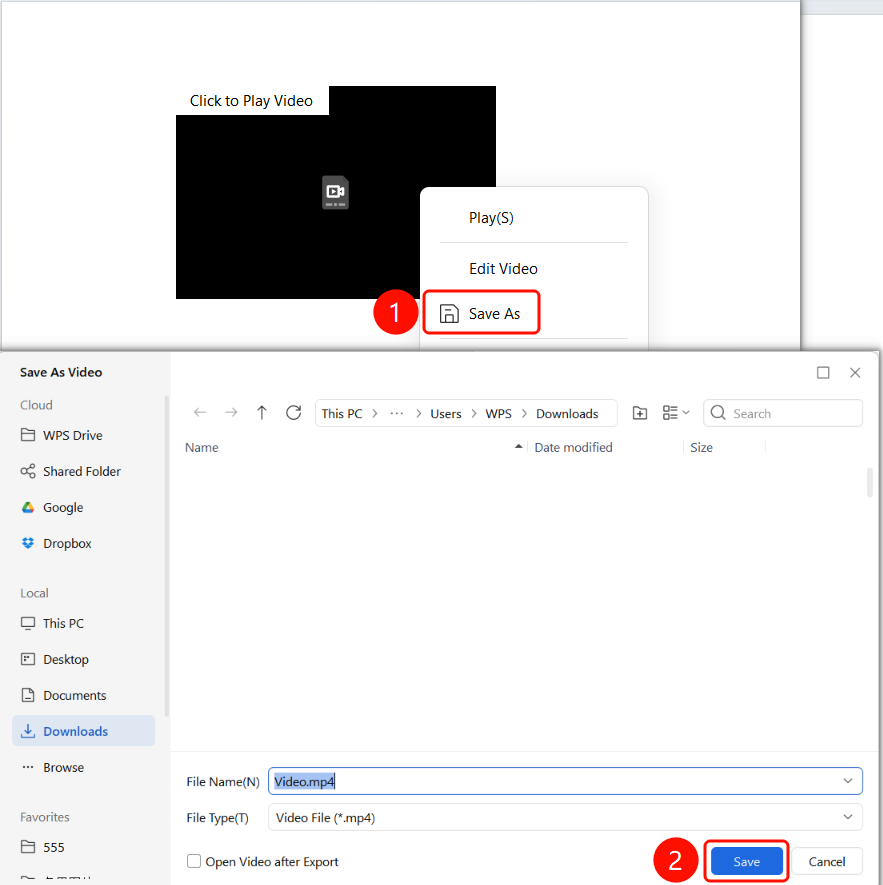
Right-click the video → 「Save File」 button
- Click to select the video area
- Right-click to bring up the context menu
- Select the 「Save As」 option
- Choose a save location to save the video file locally
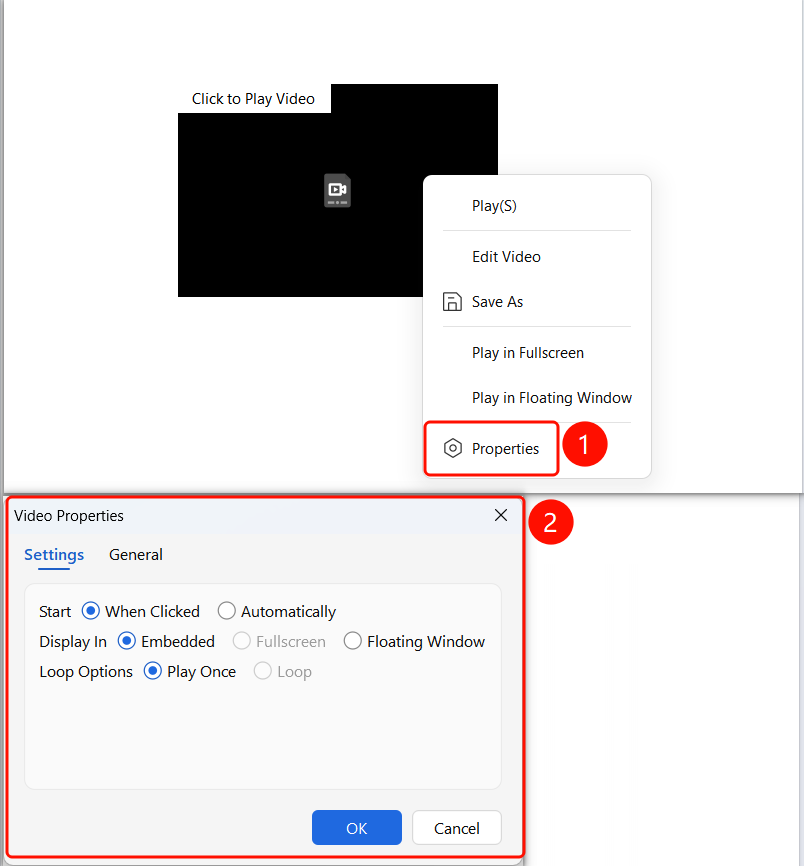
Set Video Properties
Feature Entry
Right-click the video → 「Set Properties」 button
- Click to select the video area
- Right-click to bring up the context menu
- Select the 「Set Properties (P)」 option
- In the 「Video Properties」 dialog, set:
- Playback Condition: Click to play or Auto-play
- Playback Style: Embedded, Full screen, or Floating window
- Playback Mode: Auto-pause after finishing or Loop
- Click the 「OK」 button to save the settings
Delete Video
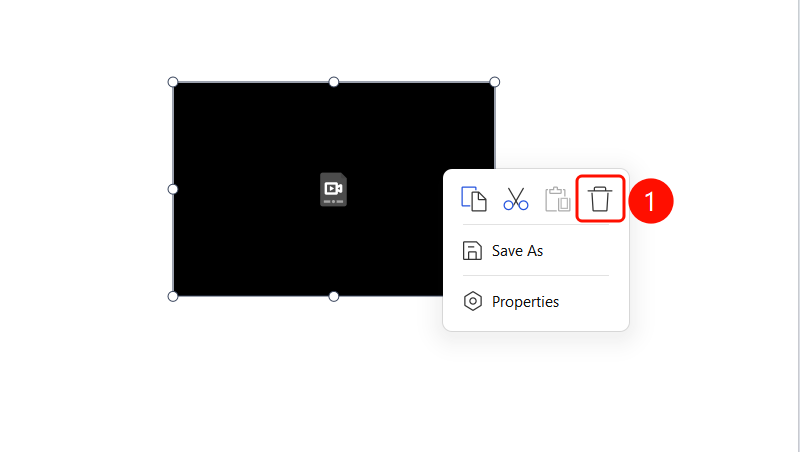
Feature Entry
Right-click the video → 「Delete」 button
- Click to select the video area
- Right-click to bring up the context menu
- Click the 「Delete」 button (trash can icon)
- The video will be deleted from the PDF
Add Video Cover
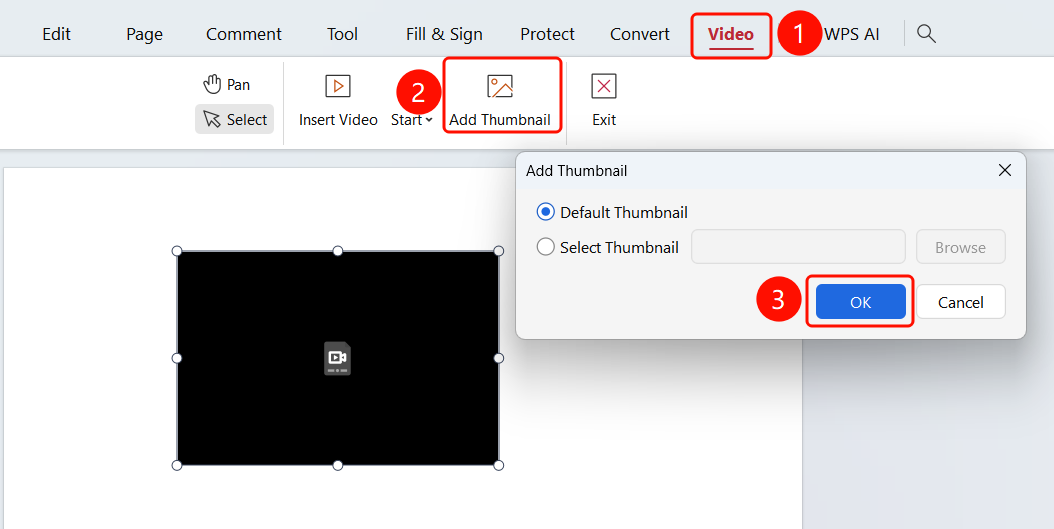
Feature Entry
「Video」 tab → 「Add Cover」 button
- After selecting the video, click the 「Video」 tab at the top
- Click the 「Add Cover」 button
- In the 「Add Cover」 dialog, select:
- Default Cover: Use the system default cover
- Select Cover: Click 「Browse」 to choose a local image
- Supported formats: jpg, jpeg, png, bmp, gif, tif
- Click the 「OK」 button
Set Playback Condition
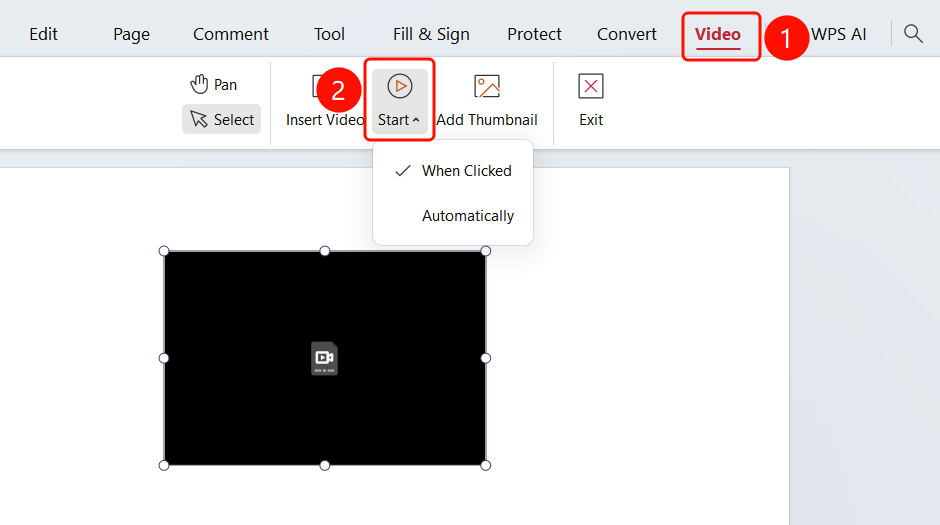
Feature Entry
「Video」 tab → 「Playback Condition」 dropdown menu
- After selecting the video, click the 「Video」 tab at the top
- Click the 「Playback Condition」 dropdown menu
- Select the playback condition:
- Click to Play: Requires clicking the video to play (default)
- Auto-play: Automatically plays when the PDF is opened
FAQ
Q1: What should I do if the inserted video cannot be played?
- Solution: Check if the video format is supported; mp4 format is recommended. Ensure the PDF reader supports video playback.
Q2: How to adjust the video size and position?
- Solution: After selecting the video, drag the control points to adjust the size, and drag the video to adjust the position. You can also enter Read Mode via the right-click menu to make adjustments.
Q3: Can the video cover be customized?
- Solution: Yes. In the 「Add Cover」 dialog, select 「Select Cover」 and browse to choose a local image as the video cover.
Notes
- Inserting a video will increase the PDF file size; it is recommended to choose an appropriate video size
- Videos support common formats such as avi, mov, mp4, mpeg, mpg, wmv
- Cover images support jpg, jpeg, png, bmp, gif, tif formats