Feature Summary
Insert hyperlinks in PDF documents, supporting jumps to page views, specified pages, web pages, or opening files.
Feature Description
| Feature Dimension | Description |
|---|---|
| Membership Restriction | Requires a subscribe to WPS membership |
| Version Restriction | No version restriction |
Steps
Insert Hyperlink
Feature Entry
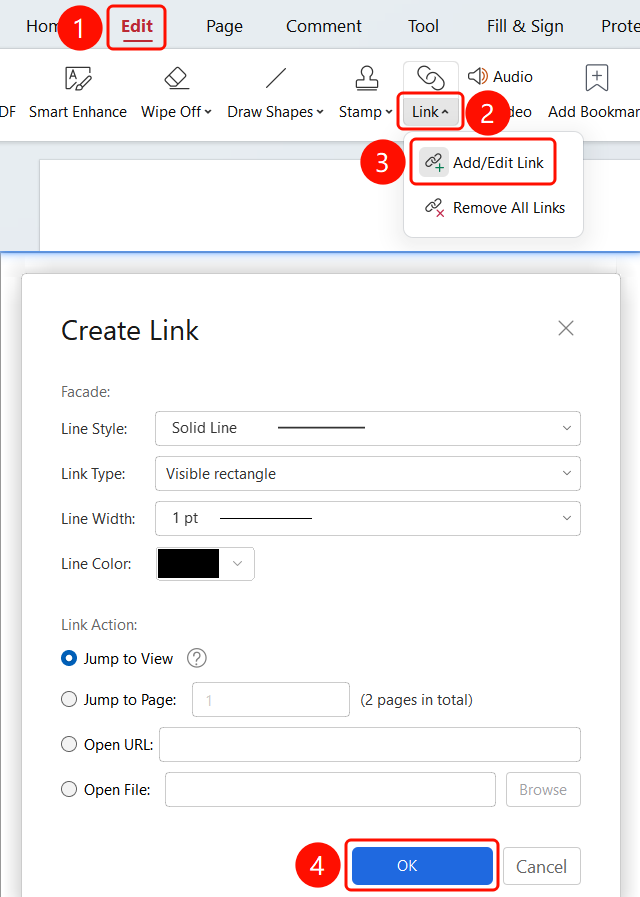
「Edit」 tab → 「Link」 drop-down menu → 「Add/Edit Link」 option → 「Create Link」 dialog → 「Set Link」 button
- Open the PDF file where you want to insert a hyperlink
- Click the 「Edit」 tab in the top menu bar
- Click the 「L****ink」 drop-down menu in the toolbar
- Select the 「Add/Edit Link」 option
- The 「Create Link」 dialog box will appear
- Set the link appearance:
- Line Style: Choose solid or dashed line
- Link Type: Choose a type such as visible rectangle
- Line Thickness: Set the line width
- Line Color: Choose the link box color
- Select the link action type:
- Go to Page View: Jump to a specified view position in the current document
- Go to Specified Page: Enter the target page number
- Open Web Page: Enter a web page URL
- Open File: Click 「Browse」 to select a local file
- Click the 「Confirm Settings」 button
Remove All Links
Feature Entry
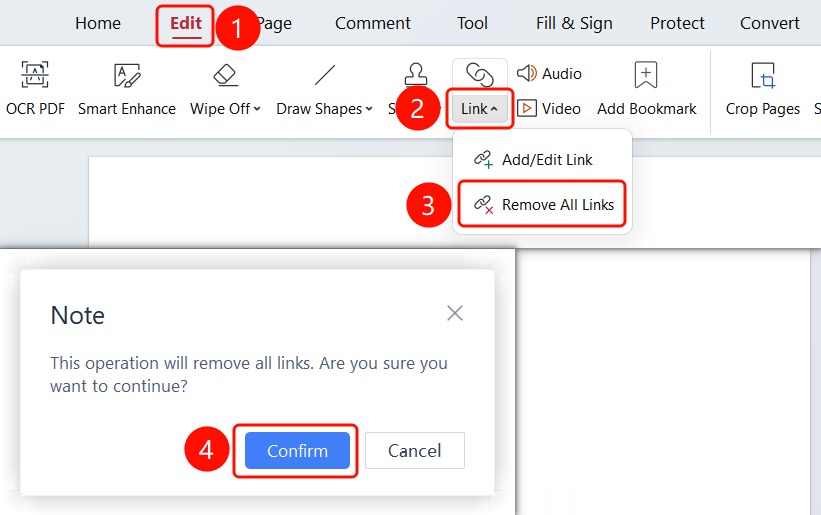
「Edit」 tab → 「Link」 drop-down menu → 「Remove All Links」
- Click the 「Edit」 tab in the top menu bar
- Click the 「Link」 drop-down menu in the toolbar
- Select the 「Remove All Links」 option
- In the pop-up prompt box, click the 「OK (F)」 button to confirm deletion
FAQ
Q1: How to edit a created hyperlink?
- Solution: After entering 「Add/Edit Link」 mode, click the created link to edit its properties.
Q2: Can a hyperlink jump to another PDF file?
- Solution: You can select the 「Open File」 action and use 「Browse」 to select another PDF file as the link target.
Q3: How to delete only a specific link?
- Solution: After entering Read Mode, select the specific link and press the Delete key to remove it. If you need to delete all links, use the 「Remove All Links」 feature.
Notes
- Hyperlinks support four action types: Page View, Specified Page, Web Page, and File
- You can customize the link appearance, including line style, color, and thickness
- When creating a Go to View link, you need to locate the target position first before confirming