Feature Summary
Set the text alignment in a PDF document. Supported alignment options include left, center, right, and justified.
Feature Details
| Feature Dimension | Description |
|---|---|
| Subscription Limit | Requires subscribing to a membership |
| Version Limit | No version limit |
Steps
Set Text Alignment from the Ribbon
Feature Entry
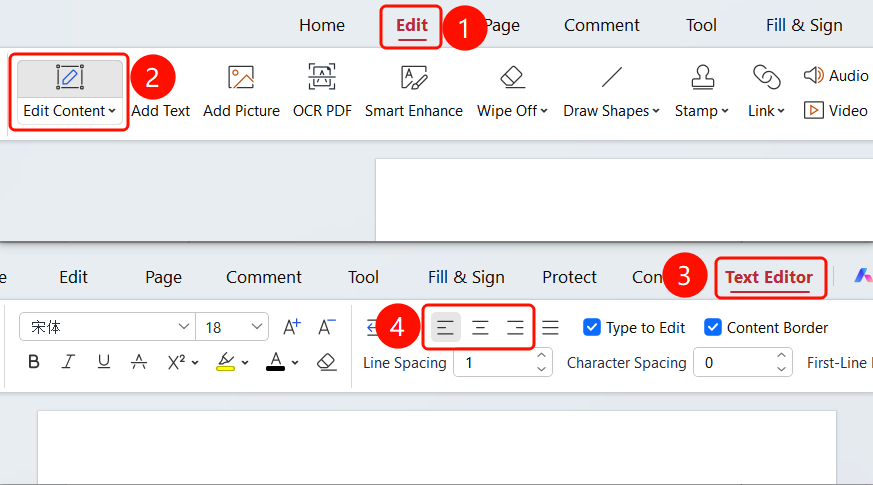
Edit tab → Edit Content button → Text Edit tab → Align drop-down menu
Open the PDF file you want to edit.
Click the Edit tab on the top ribbon.
Click the Edit Content button on the ribbon.
Click the text in the PDF to enter Text Edit mode.
Select the text content you want to align.
Choose an alignment option on the Text Edit tab:
- Align Left
- Align Center
- Align Right
- Justify
Set Text Alignment from the Floating Toolbar
Feature Entry
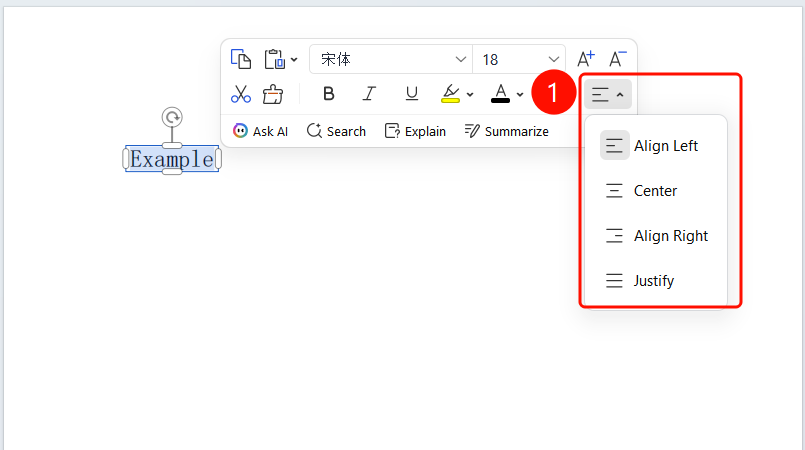
Select text → Floating toolbar → Align drop-down menu
Select the text content you want to align.
Once the text is selected, a floating toolbar will appear above it.
Click the Align drop-down menu on the floating toolbar.
Choose an alignment option:
- Align Left
- Align Center
- Align Right
- Justify
FAQ
Q1: How do I restore the default alignment?
- Solution: Select the text and choose Align Left to restore the default alignment.
Q2: Can I set alignment and other formatting at the same time?
- Solution: Yes. Alignment can be applied along with other formatting options such as font, font size, and color.
Notes
- Both the ribbon and the floating toolbar are supported.
- Alignment options only apply to the currently selected paragraph.