Feature Summary
Replace images in a PDF document while maintaining the position and size of the original image.
Feature Description
| Feature Dimension | Description |
|---|---|
| Subscription Limit | Subscription required |
| Version Limit | No version limit |
Steps
Replace Images from the Ribbon
Feature Entry
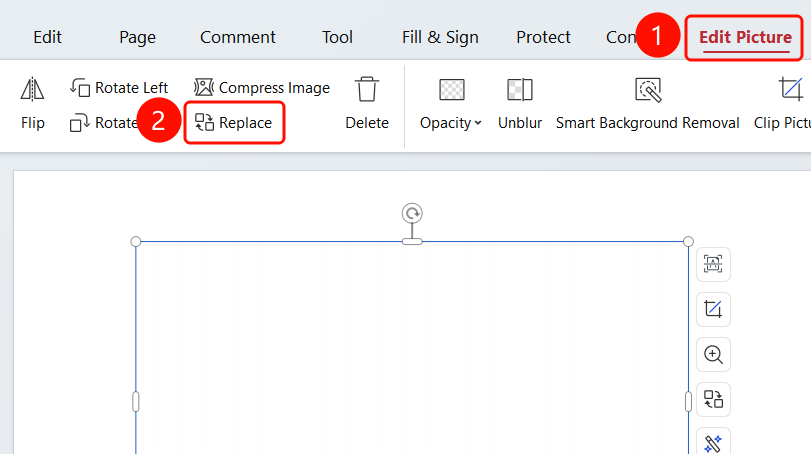
"Picture Tools" tab → "Replace Picture" button → "Open" dialog box → "Open (O)" button
- Open the PDF file you want to edit.
- Click the image in the PDF to select it.
- The system automatically switches to the Picture Tools tab.
- Click the Replace Picture button on the ribbon.
- The Open dialog box appears.
- Select the new image file to replace the original one.
- Supported formats: .jpg, .jpeg, .png, .bmp, .gif, .tif, and .webp.
- Click the Open (O) button to complete the replacement.
FAQs
Question 1: What formats are supported for replacing images?
- Solution: Common image formats such as .jpg, .jpeg, .png, .bmp, .gif, .tif, and .webp are supported.
Question 2: Will the image size change after replacement?
- Solution: The replaced image will maintain the position and size of the original image. If you need to adjust it, you must do so manually.
Question 3: How do I undo a replacement?
- Solution: Press
Ctrl+Zto undo the replacement and restore the original image.