Feature Summary
Find specified text in a PDF document and replace it with other content, supporting batch replacement.
Feature Description
| Feature Dimension | Description |
|---|---|
| Membership Restriction | Requires a subscribe to WPS membership |
| Version Restriction | No version restriction |
Operation Steps
Find Content
Feature Entry
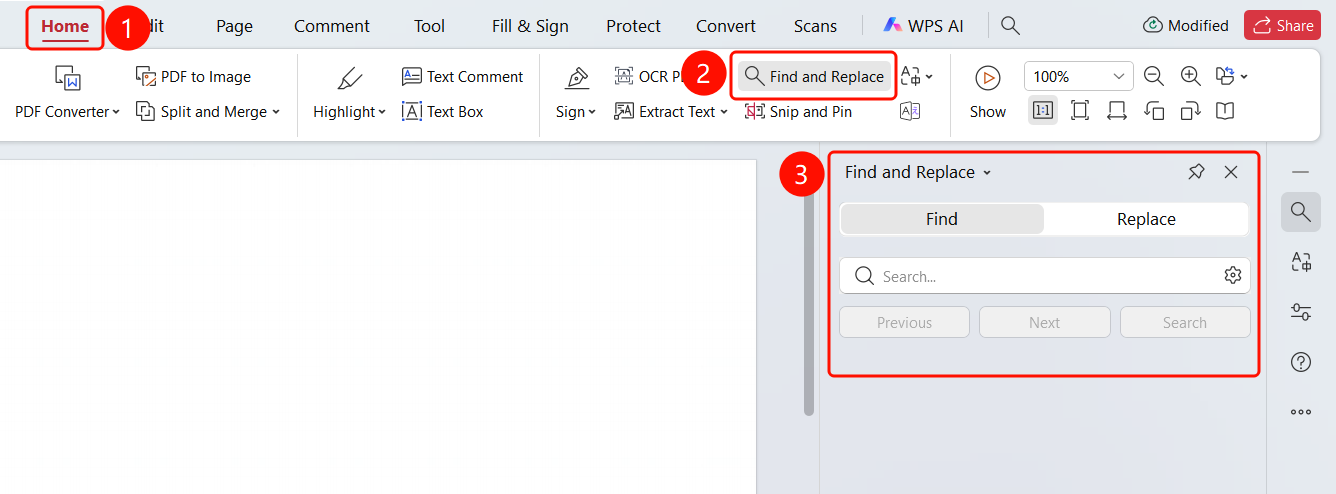
「Home」 tab → 「Find and Replace」 button → Find input box
- Open the PDF file you need to find and replace in
- Click the 「Home」 tab in the top menu bar
- Click the 「Find and Replace」 button in the ribbon
- Enter the text you want to find in the 「Find」 input box
Replace Content
Feature Entry
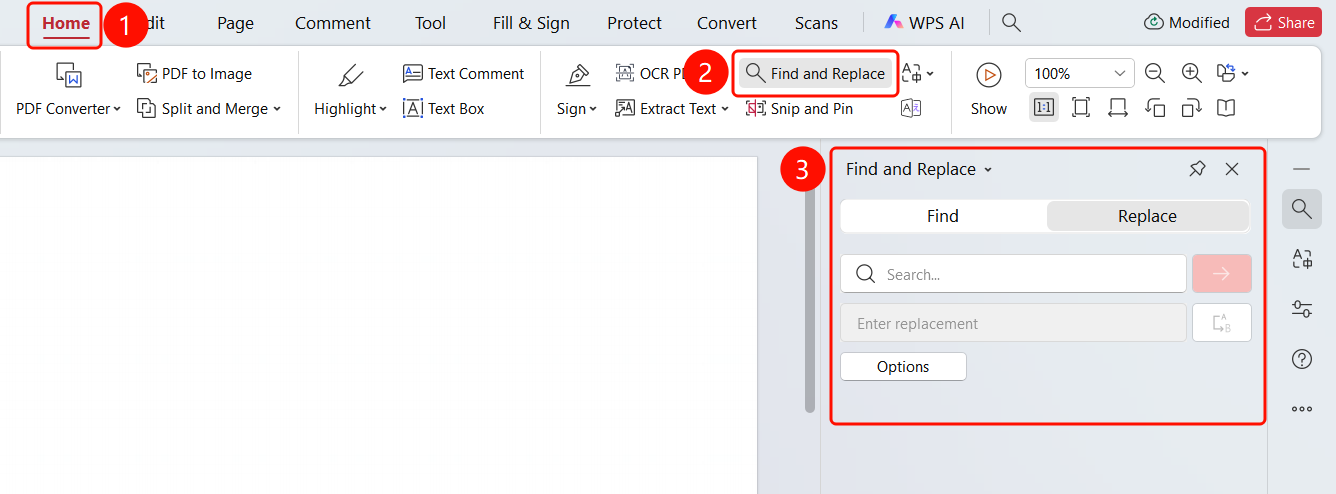
「Home」 tab → 「Find and Replace」 button → Replace input box
- Open the PDF file you need to find and replace in
- Click the 「Home」 tab in the top menu bar
- Click the 「Find and Replace」 button in the ribbon
- Enter the content to be replaced in the 「Find」 input box
- Enter the replacement text in the 「Replace with」 input box
- Click the 「Replace」 button to replace the current match
FAQ
Q1: Does Find and Replace support regular expressions?
- Solution: The current version may not support regular expressions. It is recommended to use plain text search.
Q2: How to match case?
- Solution: Check the 「Match case」 option in the find settings.
Q3: Can Find and Replace be undone?
- Solution: Yes, you can use
Ctrl+Zto undo the replace operation.
Notes
- Find and Replace requires the text in the PDF document to be can edit
- Scanned PDFs need to undergo OCR recognition first before Find and Replace can be used
- Replace operations can be undone