Summary
Copy Docs formatting and apply it to other Docs to quickly unify document formatting.
Feature Description
| Feature Dimension | Description |
|---|---|
| Membership Requirement | Requires subscribe to membership |
| Version Restriction | No version restriction |
Steps
Using Format Painter from the Ribbon
Feature Entry
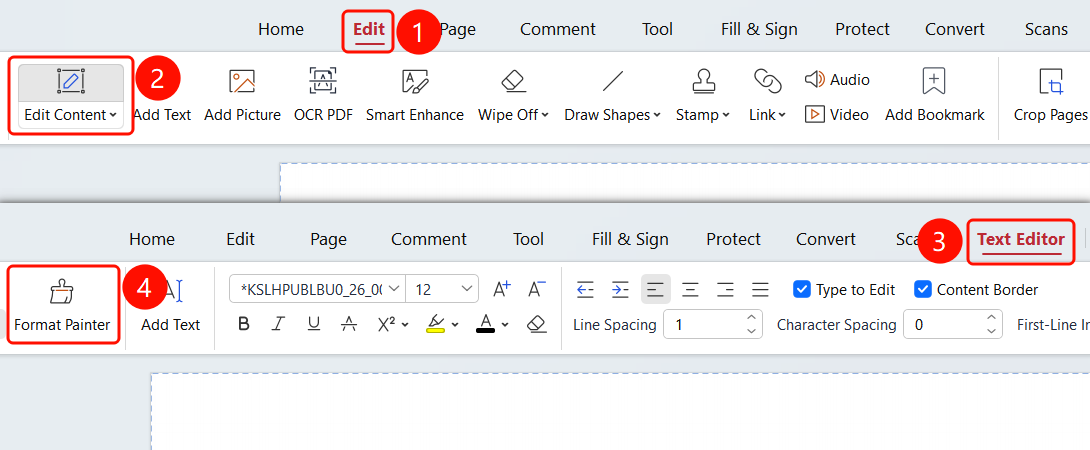
「Edit」tab → 「Edit Content」button → 「Docs Editing」tab → 「Format Painter」button
- Open the PDF file you want to edit
- Click the 「Edit」 tab in the top menu bar
- Click the 「Edit Content」 button in the ribbon
- Enter Docs editing mode, where you can select and edit Docs
- Click the 「Docs Editing」 tab
- Select the Docs that have the target formatting
- Click the 「Format Painter」 button in the ribbon
- Click or drag to select the Docs you want to apply the formatting to
Using Format Painter from the Floating Toolbar
Feature Entry
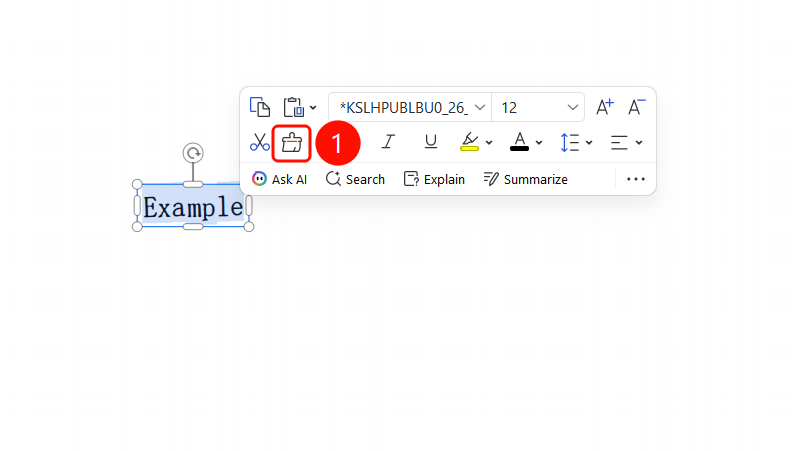
Select Docs → Floating Toolbar → 「Format Painter」button
- Select the Docs that have the target formatting
- After selecting the Docs, a floating toolbar will pop up above
- Click the 「Format Painter」 button in the floating toolbar
- Click or drag to select the Docs you want to apply the formatting to
FAQ
Q1: What should I do if the Format Painter button is grayed out and cannot be clicked?
- Solution: You need to first enter 「Edit Content」 mode and select Docs that have formatting to use it.
Q2: What formatting can Format Painter copy?
- Solution: It can copy all Docs formatting such as font, font size, color, bold, italic, underline, etc.
Q3: How do I use Format Painter continuously?
- Solution: Double-click the Format Painter button to use it continuously, and press the
Esckey to exit.
Notes
- Supports both toolbar and floating toolbar operation methods
- Format Painter can copy all Docs formatting attributes