Feature Summary
Automatically detect and correct page skew in scanned PDFs, restoring page content to a horizontal, upright orientation.
Feature Description
| Feature Dimension | Description |
|---|---|
| Membership Restriction | Requires a subscribe to membership |
| Version Restriction | No version restriction |
Operation Steps
Enable Deskew from the Ribbon
Feature Entry
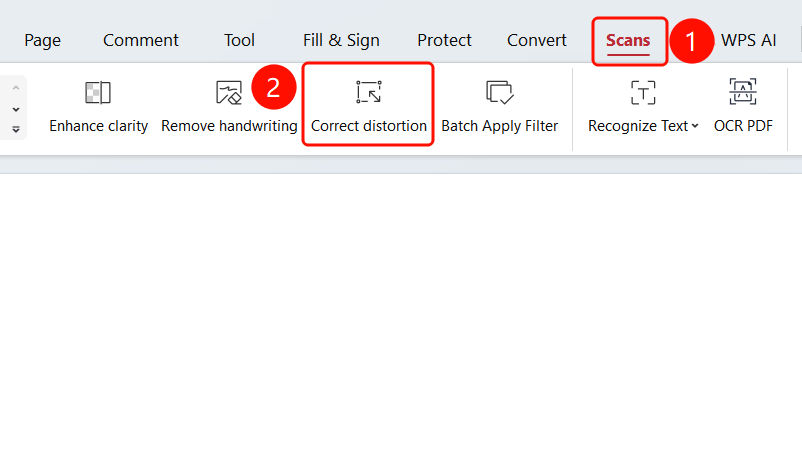
「Scan」tab → 「Deskew」button
- Open the scanned PDF file that needs deskewing
- Click the 「Scan」 tab in the top ribbon
- Click the 「Deskew」 button in the ribbon
Wait for Automatic Deskew to Complete
Feature Entry
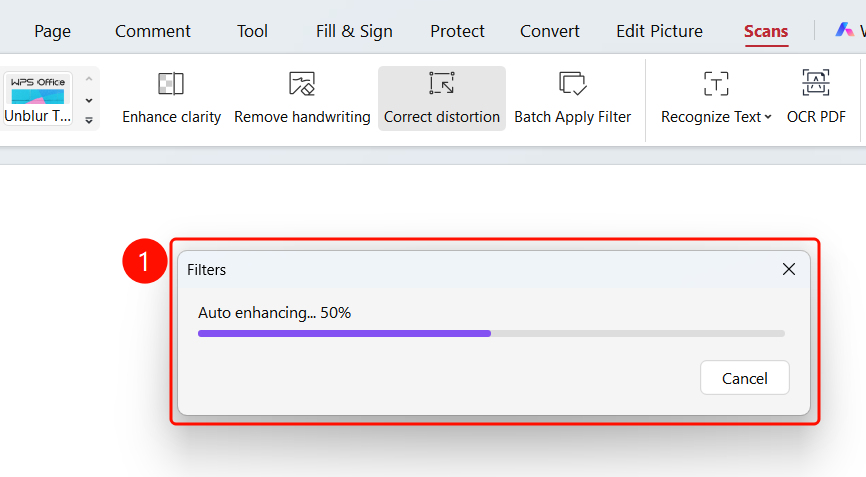
「Apply Filter」dialog box
- The system automatically starts 「Auto-enhancing...」
- Wait for the progress bar to complete
Apply to All Pages
Feature Entry
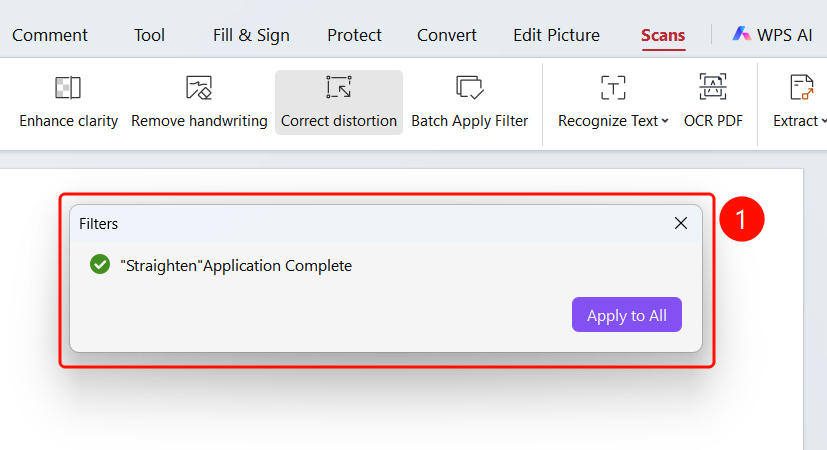
「Apply Filter」dialog box → 「Apply to All」button
- After the current page deskew is complete, 「Deskew applied successfully」 is displayed
- Click the 「Apply to All」 button to apply the deskew effect to all pages of the document
FAQ
Q1: How do I batch deskew all pages?
- Solution: After single-page deskew is complete, click the 「Apply to All」 button in the pop-up dialog box to batch process.
Notes
- Supports single-page deskew and batch deskew for all pages
- It is recommended to save the original file before deskewing so that it can be restored if needed