Feature Summary
Edit text content within images. Editing is supported after OCR recognition.
Feature Description
| Feature Dimension | Description |
|---|---|
| Subscription Limit | Requires subscription to WPS membership |
| Version Limit | No version limits |
Steps
Edit Image Text
Feature Entry
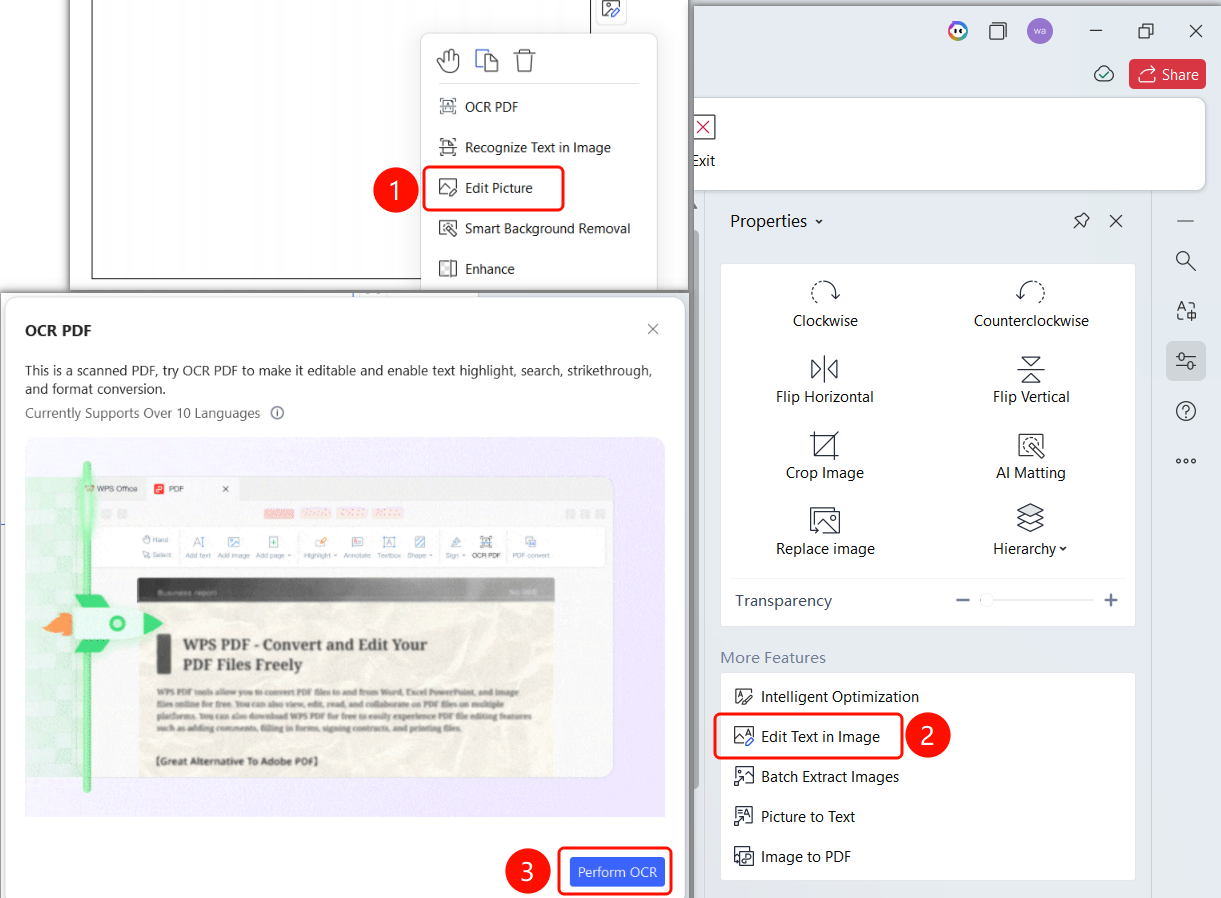
Right-click menu -> Edit Image -> Properties panel on the right -> Edit Text in Image button -> Perform OCR button
- Right-click the image in the PDF.
- Select Edit Image (E) from the shortcut menu.
- Locate the More Features area in the Properties panel on the right.
- Click Edit Text in Image.
- The OCR PDF dialog box appears.
- Click Perform OCR to start recognition.
FAQ
Question 1: What are the requirements for editing image text?
- Solution: The text in the image must be clear and legible for OCR to recognize it correctly.
Question 2: Can I edit all text in an image?
- Solution: You can only edit text that is successfully recognized by OCR. Handwritten text may not be recognized.
Notes
- OCR recognition requires an internet connection.
- Clearer images yield better recognition results.
- Text becomes editable after recognition is complete.
- Supports recognition of more than 10 languages.